 Aureole
Help center›Converse
Work in Aureole’s window
Aureole’s window brings together your conversations, your library and your agents. It’s where you hold a long conversation, find an old one, or pick up in detail what the bar started. This guide shows how to open it, lay it out, and what each of its parts shows.
- ⌥⇧Space opens the window, and closes it.
- ⌘1, ⌘2 and ⌘3 choose its layout: the conversation alone, the list and the conversation, or all panels.
- At first, Aureole is in Companion mode: the window floats above the others, out of the Dock.
Open it
Three ways lead to the window:
- ⌥⇧Space, from any app: the window opens, with the cursor in its field. The same shortcut closes it when it’s visible;
- Aureole’s icon in the menu bar, then “Open Aureole”;
- the Dock, when Aureole is in it: outside Companion mode, and while one of its windows is open.
The welcome screen
The first time the window opens after Aureole launches, it shows its welcome screen:
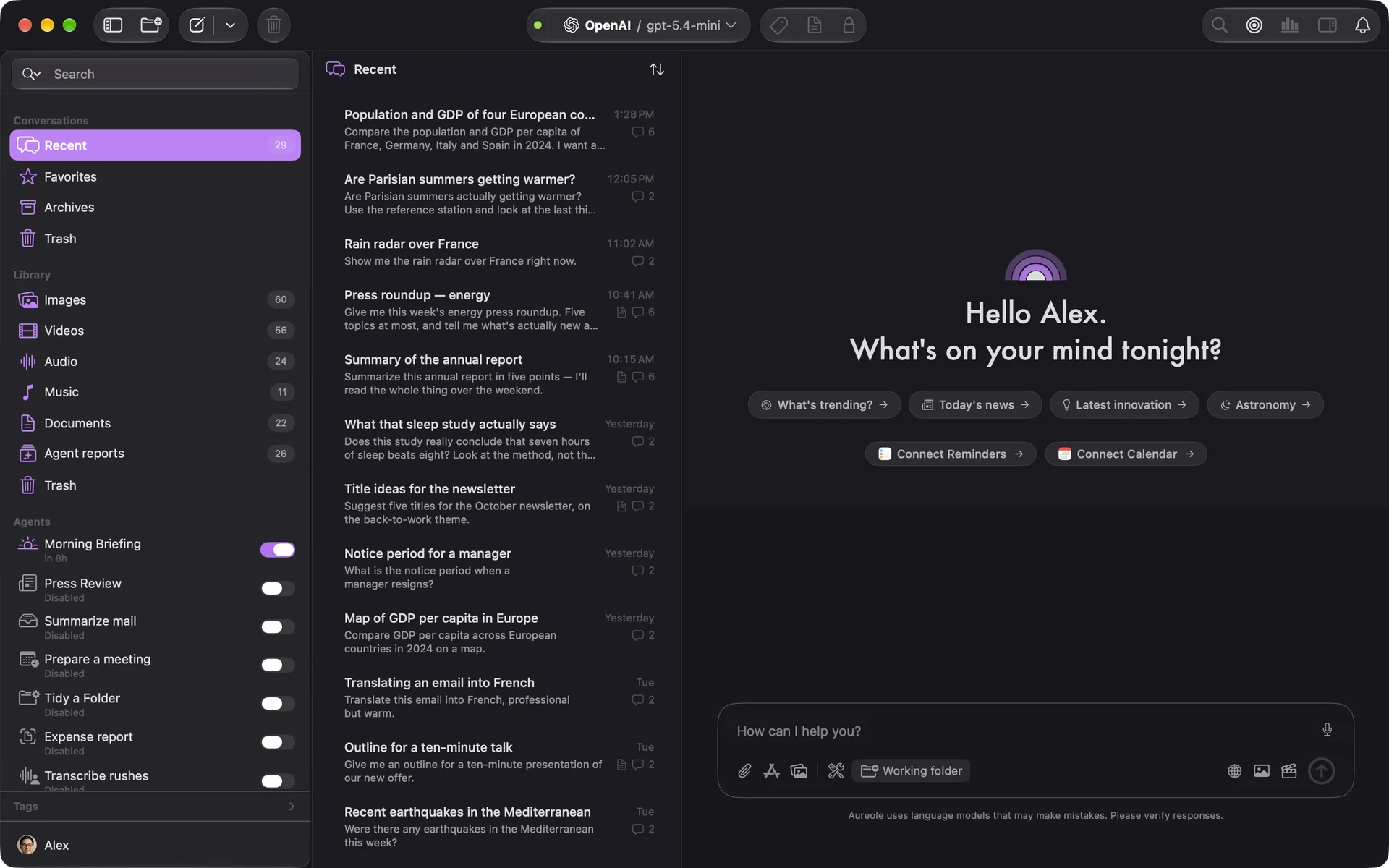
Below the greeting come suggested questions, then the contextual cockpit: your next event in the coming 24 hours, your reminders due today or overdue, your latest newsletter or latest email. A click on one of them opens a conversation already framed on it; displaying them costs no call to the model.
The cockpit reads Calendar, Reminders and Mail. It asks for their access on the first click on “Connect Calendar” or “Connect Reminders”, and only reads Mail if it’s already open. It’s turned off in Settings›General, “Welcome screen” section.
Afterwards, a window with no conversation chosen shows “No selection”: start a conversation, or choose one in the list.
Its parts
Here is the window with all its panels (⌘3) and a conversation open:
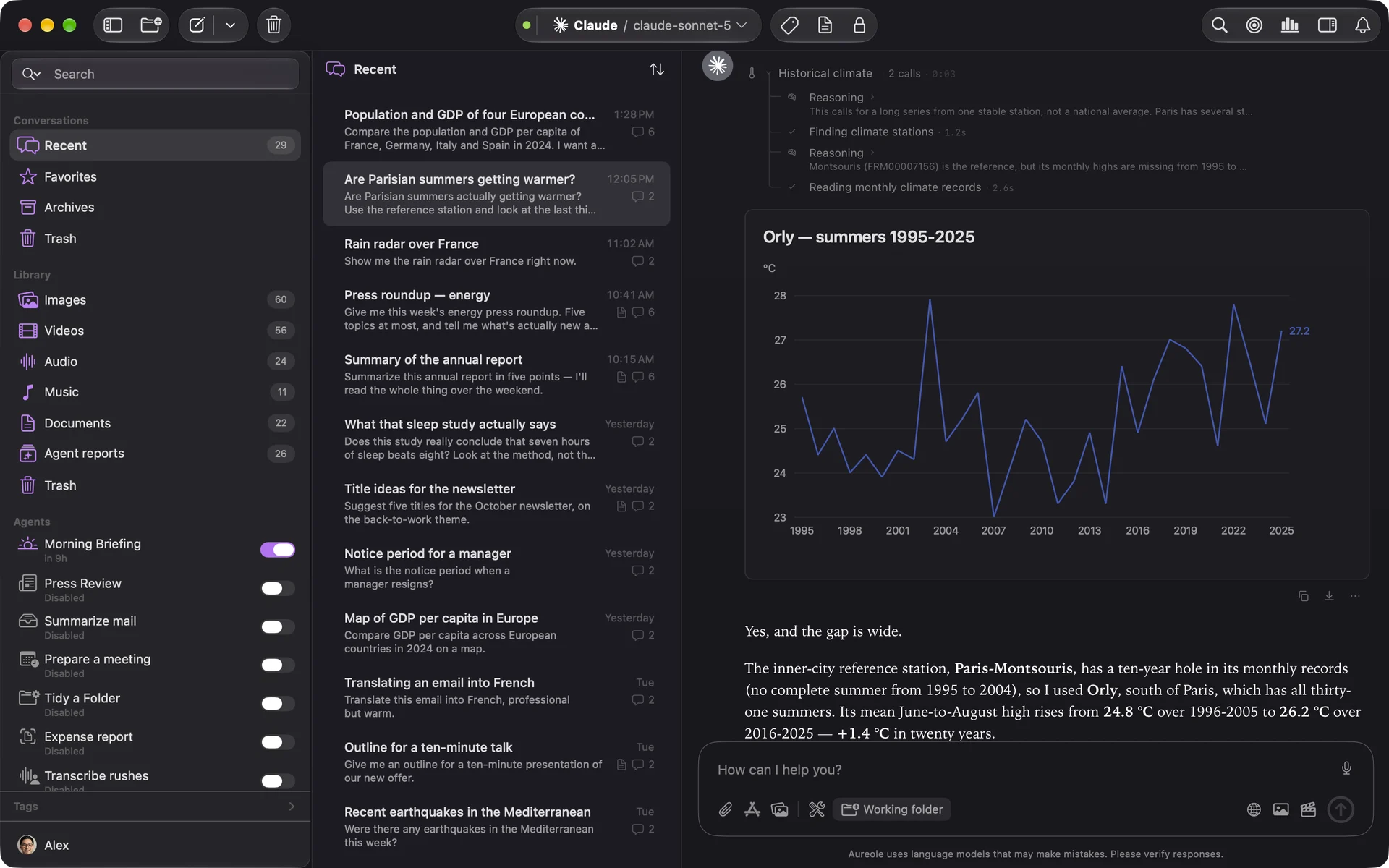
The sidebar, on the left, gathers your conversations (“Recent”, “Favorites”, “Archives”, “Trash”, then your folders), the “Library” of your images, videos, recordings, music and documents, and your “Agents”. The tags, below, filter conversations.
The list, in the middle, shows the conversations in the chosen folder.
The conversation, on the right, ends with the message field: attach files or a window, choose a working folder, search the web, dictate.
The toolbar, at the top, holds the conversation’s model and its provider’s status, “Activity” (long tasks and failures), the conversation’s usage, search in the conversation (⌘F), focus mode (⌘K) and the details panel (⌘4).
The input field, piece by piece
Every conversation ends with this field. The buttons on the left add context to your message; those on the right let the model search the web or create, then send:

- 1
The field. Type your message here. You can also drop files on it, or paste them with ⌘V.
- 2
The microphone . It dictates your message instead of typing it: click to start and stop, or hold it while you speak. See Dictate your request.
- 3
The paperclip . It attaches one or more files (⇧⌘O).
- 4
Windows . This button lists your open apps: choose one of their windows, and Aureole adds its content to your message.
- 5
The library . It opens the images already created in Aureole: click one to attach it to your message.
- 6
Tools . This button opens this conversation’s tools: turn off an app, a source or a server for this conversation alone. See Decide what Aureole may do on its own.
- 7
The working folder. “Working folder” gives the conversation a folder where Aureole searches and reads your files. Once a folder is chosen, the button shows its name.
- 8
The globe . It lets the model search the web before answering, and stays on from one message to the next. Grayed out, the model can’t search. See Search the web and let the model think.
- 9
The image . It lets the model create the images it finds useful. See Generate and retouch an image.
- 10
The video . It lets the model create videos. See Generate and transform a video.
- 11
Send . It sends your message. While the answer is being written, it turns into a stop button ; ⌘. stops it too.
Attached files and windows are covered in Give files, a window or a folder.
The toolbar, piece by piece
The toolbar runs along the top of the window. Here it is in two pieces, its start on the left and its end on the right:

- 1
The sidebar . This button shows or hides the sidebar, or the list, depending on the layout.
- 2
New folder . It creates a folder in the sidebar, to file conversations in.
- 3
New conversation . A click starts one, with the cursor in the field (⌘N).
- 4
Its menu . The arrow also offers a “New Private Conversation” (⇧⌘N), in which nothing is remembered.
- 5
The trash . It deletes the selected conversations: they wait in the sidebar’s “Trash”, where you can restore them. In the library, it deletes the selected item.
- 6
The status dot. Its color sums up the state of the services the conversation uses, starting with its provider; a click details them one by one.
- 7
The model. The conversation’s provider and model: a click opens the picker. See Choose a model.
- 8
The tag . It puts a tag on the conversation (⌘T), to find it with others.
- 9
The document . It asks the model to turn the conversation into a real document, to rework. See Write and revise a document.
- 10
The padlock . It locks the conversation. See Keep a conversation private or locked.
- 11
The magnifying glass . It searches the open conversation (⌘F).
- 12
Focus mode . It keeps only the conversation (⌘K).
- 13
Usage . The conversation’s tokens and its estimated cost. See Keep your spending in check.
- 14
Details . This button opens the details panel, on the right (⌘4).
- 15
Activity . Long tasks in progress, and recent failures.
Its layout
- ⌘1, “Detail Only”: the conversation alone;
- ⌘2, “List and Detail”: the list and the conversation;
- ⌘3, “All Panels”: the sidebar as well.
These three layouts are in the View menu, along with the list’s sorting and showing the summary and date. The leftmost toolbar button shows or hides the sidebar, or the list. A narrow window only offers the first two layouts.
Focus mode (⌘K) keeps only the conversation, with a conversation picker at the top. “Exit focus mode” leaves it.
A conversation in its own window
Right-click a conversation in the list, then “Open in New Window”, or double-click it while holding ⌘. Each conversation has at most one window: reopening it brings it to the front. This window has its own model picker, and a pin to keep it above the others. It closes on its own if the conversation goes to the trash, and any unsent text is then lost.
If you’re stuck
⌥⇧Space closed my window
That’s by design: the shortcut opens the window, or closes it if it’s already visible.
Aureole isn’t in the Dock
In Companion mode, or when no Aureole window is open, that’s normal. Reopen the window with ⌥⇧Space, or from the menu bar icon .
The welcome screen has gone
It only shows the first time the window opens after launch. Start a new conversation.
The layouts are greyed out
You’re in focus mode: leave it first. A window that’s too narrow also offers only two layouts.
The cockpit is empty
It only shows what it finds: an event in the coming 24 hours, reminders due today or overdue, an email if Mail is open. Also check access to Calendar and Reminders, in Settings›Permissions.
Something missing from this guide? Tell us.