 Aureole
Help center›Act in your apps
Run an action
An action is a ready-made instruction that the AI applies to the source: proofread and correct a text, summarize an email, translate it. Aureole offers fifty-six of them, sorted into eight folders. This guide shows how to find the right one, run it, and keep the ones you use often close at hand.
- Type a few letters of an action’s name to find it; Return runs it on the source.
- An action always uses the source, even when the pill is dotted.
- The star , on the selected row, adds the action to your favorites.
Where to find actions
Open the bar over the message to Claire, then press ↓: the list appears, in sections.
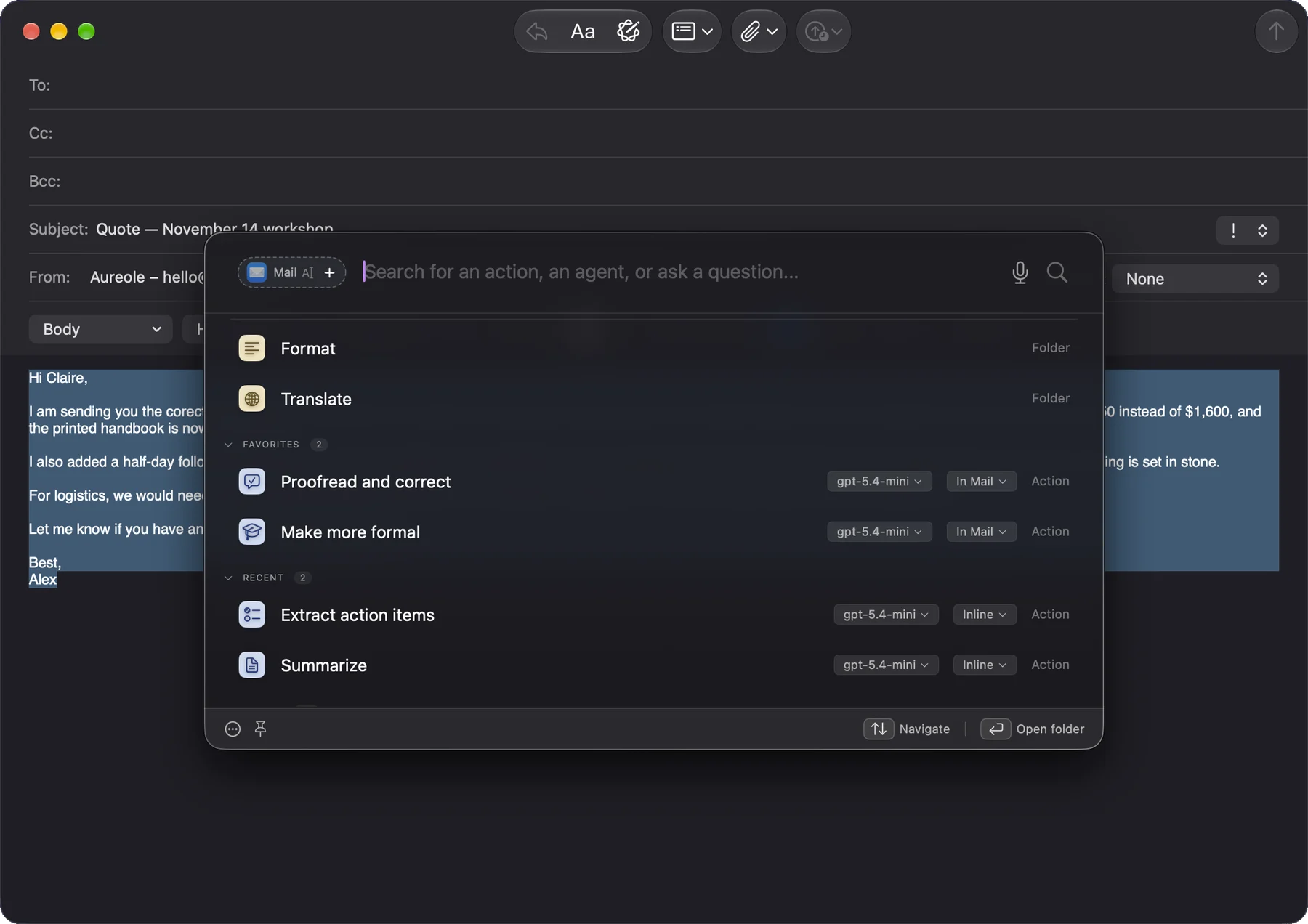
“Suggestions” offers up to four actions suited to the app and the selected text, for example “Summarize” or “Extract action items” in Mail. This choice is made on your Mac, without AI. A text containing dates, an address or a phone number adds one. Some apps, such as browsers, have no suggestions.
“Actions” sorts every action into eight folders, from “Write” to “Translate”.
“Favorites” and “Recent” come next: the actions you’ve marked with a star, and the last ones you ran. “Recent” is folded at first: click its title to unfold it. A folded section stays folded from one opening of the bar to the next.
Open a folder
Select a folder, then press → or Return: the list shows its actions, and the folder’s name appears at the top, with a button to go back . Here, the “Write” folder:
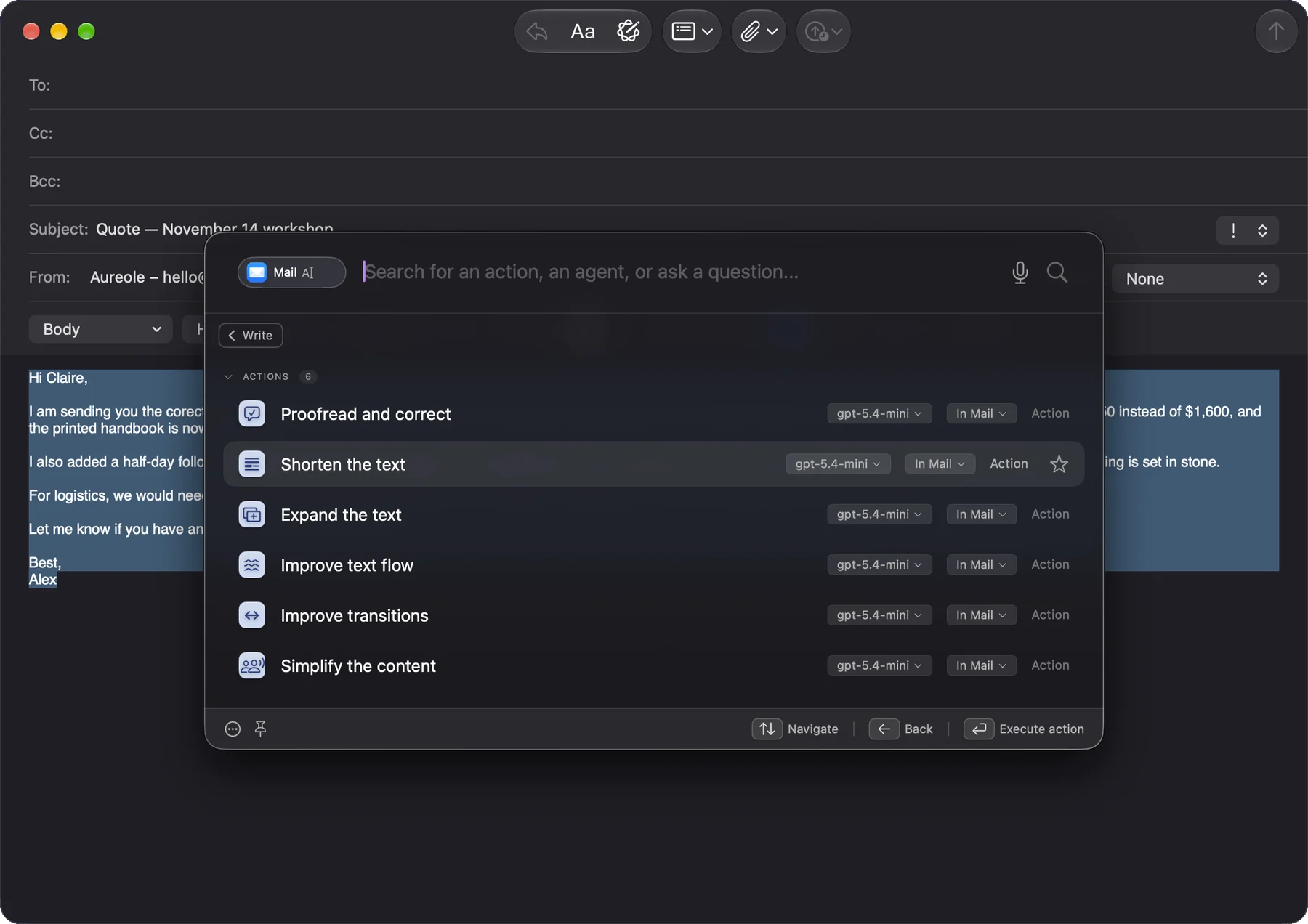
← or Esc take you back out of the folder.
Find an action by its name
The quickest way is to type part of its name: the list keeps only the actions, folders and agents that match, ignoring accents and capitals. Here, “summarize”:
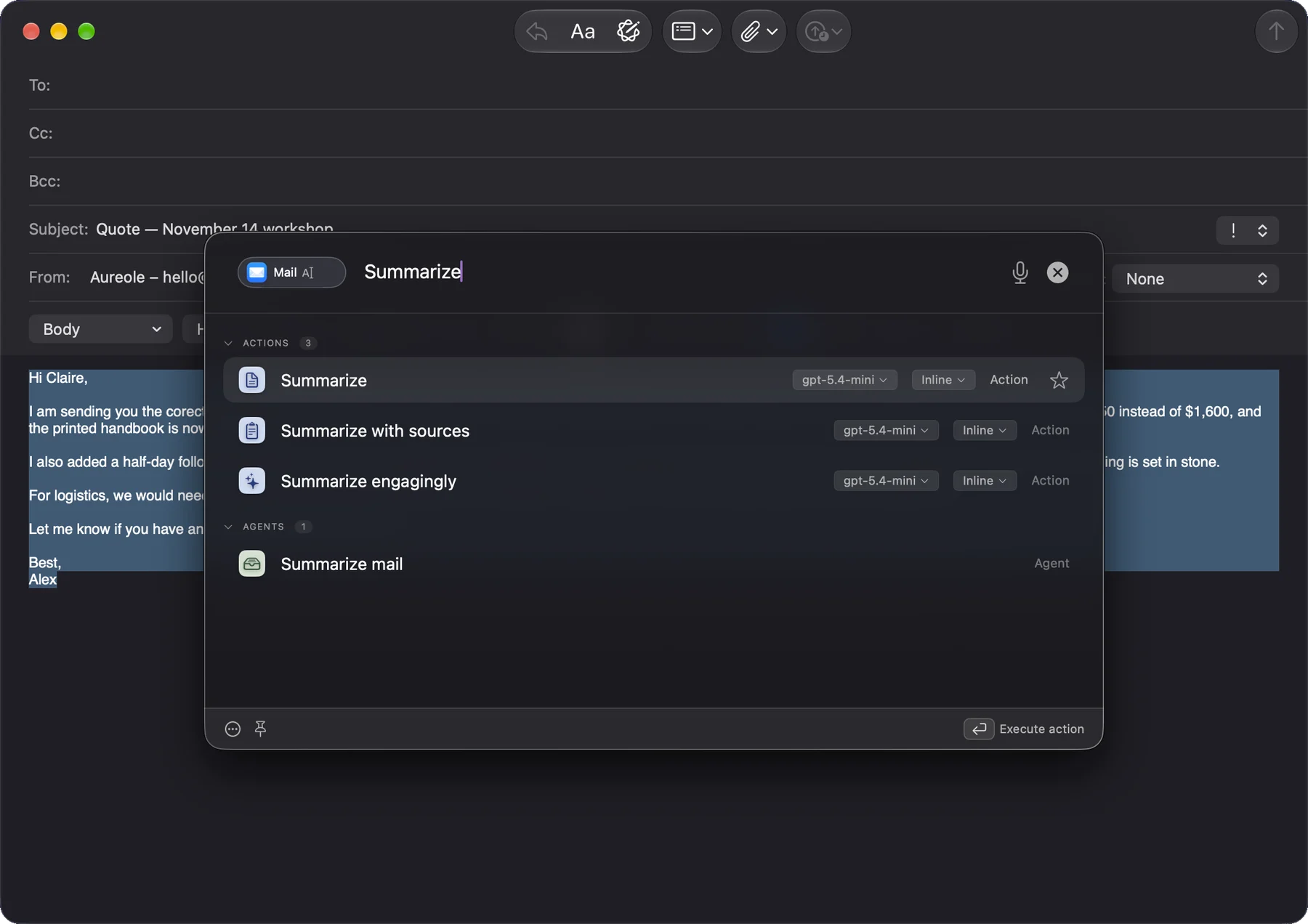
The search looks at the actions’ names, not their descriptions. Inside a folder, it stays within that folder. If what you type matches no action and no app, the bar understands that you’re asking a question.
Run the action
Once the action is selected, Return or a click runs it on the source: the selected text, otherwise the email, the web page or your app’s window. Each action row shows two menus:
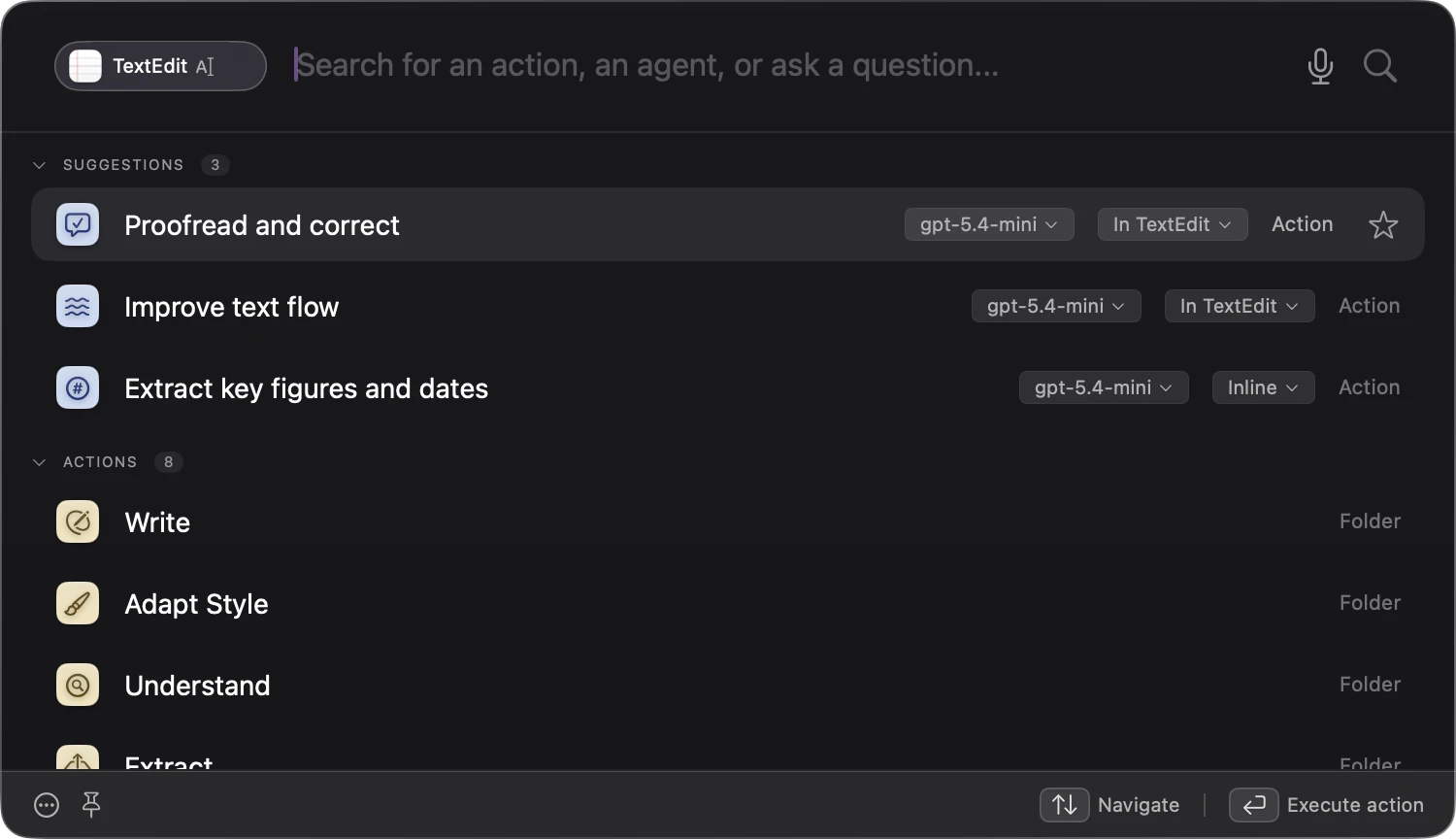
The first chooses the AI model that runs the action. This choice is saved: the action will keep this model next time. The second chooses where the answer goes: in place of your text, in the bar, or in Aureole’s window. That one only applies until the bar closes.
When the answer replaces your text, the bar closes: the answer is written in a preview under your selection, then replaces it all at once. When it appears in the bar, the bar stays open: type another question to carry on, or Esc to go back to the list.
Keep your actions close at hand
On the selected row, or under the mouse, the star adds the action to the “Favorites” section; click again to remove it. Favorites are added at the end, in the order you mark them.
“Recent” keeps the last actions run, the most recent first, including those that didn’t succeed. You can show three, five or seven of them, in Settings›Aureole Bar.
An action removed from the menu, in Settings›Menu, no longer appears anywhere in the bar: not in the list, not in favorites, not in the search.
The keys
- ↓ expands the list, then ↑ and ↓ move from row to row, from one section to the next.
- → opens the selected folder, and ← leaves it.
- Return runs the selected action.
- ⌘Return runs it with the answer in the bar, and ⌥Return in Aureole’s window, just this once.
- Esc leaves a folder, then closes the bar.
If you’re stuck
The action doesn’t run, and a message mentions Accessibility
To read the source, an action needs the Accessibility permission. Grant it on the “Accessibility” row of Settings›Permissions.
I don’t see any suggestions
They only appear with an empty field, outside a folder, and for some apps: not for a browser, for example. An action already in your favorites isn’t repeated there. Also check “Show contextual suggestions” in Settings›Aureole Bar.
The “Recent” section is empty, or missing
It’s folded at first: click its title. If it doesn’t appear at all, check “Show recent actions” in Settings›Aureole Bar.
The action row has no model menu
No AI provider has an API key yet. The API key guide explains how to add one.
The search doesn’t find an action
It only searches names. If the action still doesn’t appear, it may have been removed from the menu: it then waits in “Not in the menu”, in Settings›Menu.
After an answer in the bar, Return does nothing
That’s by design: the list no longer has a selected row. Press Esc to go back to it, or type another question.
Something missing from this guide? Tell us.