 Aureole
Help center›Create
Write and revise a document
The Library has a document editor: you write in it, and the AI revises a passage or the whole text, proposing each change before applying it. Versions are kept, and the document exports as PDF or Word. This guide shows how.
- “New Document”, in the “File” menu, or a document created from a conversation.
- Select a passage, then the ✦ pill; or describe the change at the bottom. Each proposal is accepted or ignored.
- Versions can be found in “Version history”, and restoring is reversible.
Create or open a document
Three paths: “New Document”, in the “File” menu; a document created from a conversation, see Export a conversation; or an imported file, from the “File” menu, “Import”. Open it in the Library, under “Documents”, then “Edit…”:
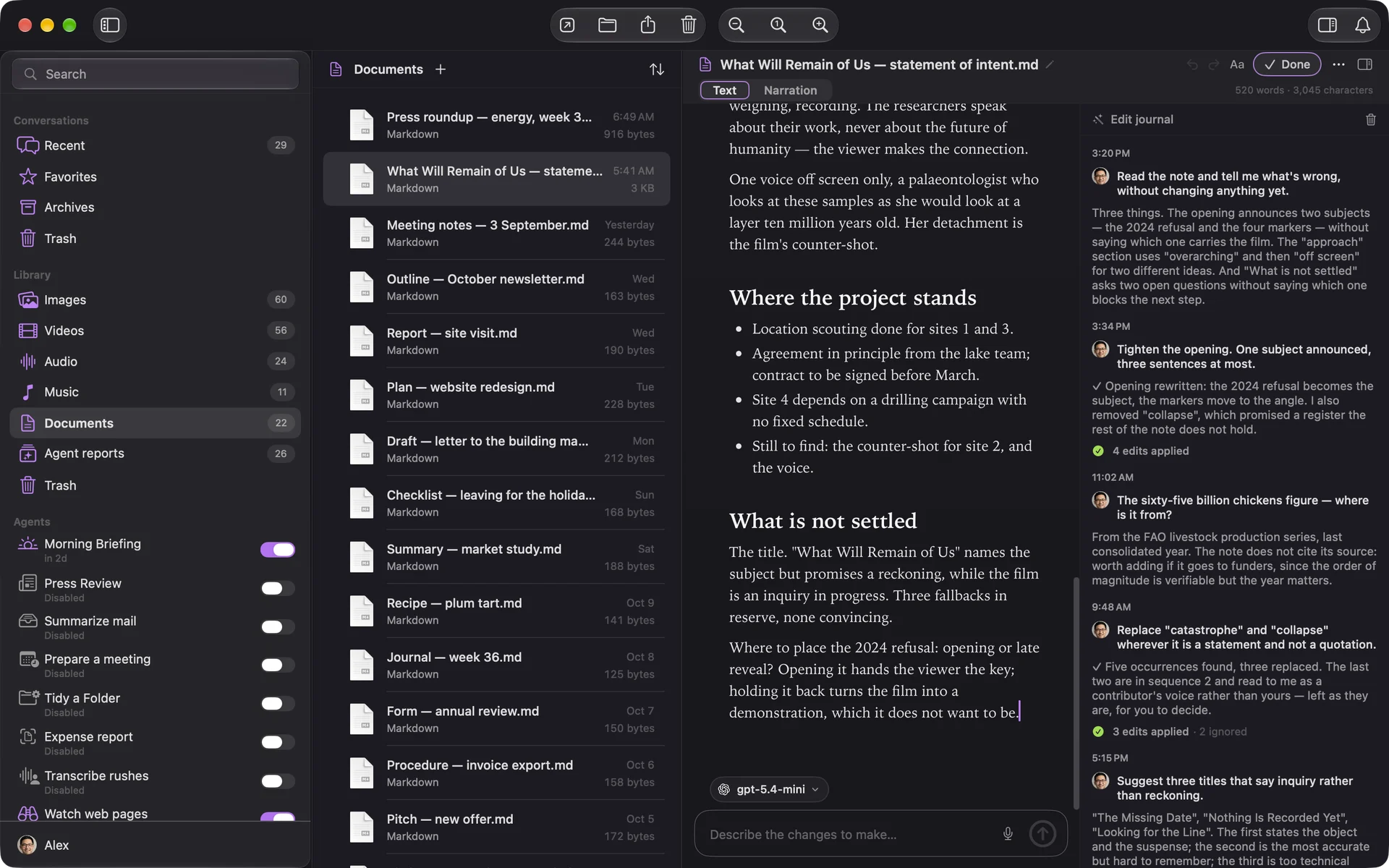
A click on the title shows the outline; the formatting bar shows when needed, with its shortcuts, ⌘B, ⌘I. The document saves as you type.
Have the AI revise it
Select a passage: a ✦ pill appears in the margin. It opens your writing actions, proofread, shorten, expand, translate, or a free field. For the whole document, describe the change in the field at the bottom.
The AI changes nothing by itself: each change arrives as a “Proposed edit”, to “Accept” or “Ignore”; when there are several, one button accepts them all. The “Edit journal” keeps track of each pass.
The model is chosen at the bottom, for this document; it’s kept with it.
Versions
Aureole keeps a version on opening, and before each AI pass; “Save a version”, in the menu , sets one by hand. “Version history” lists them:
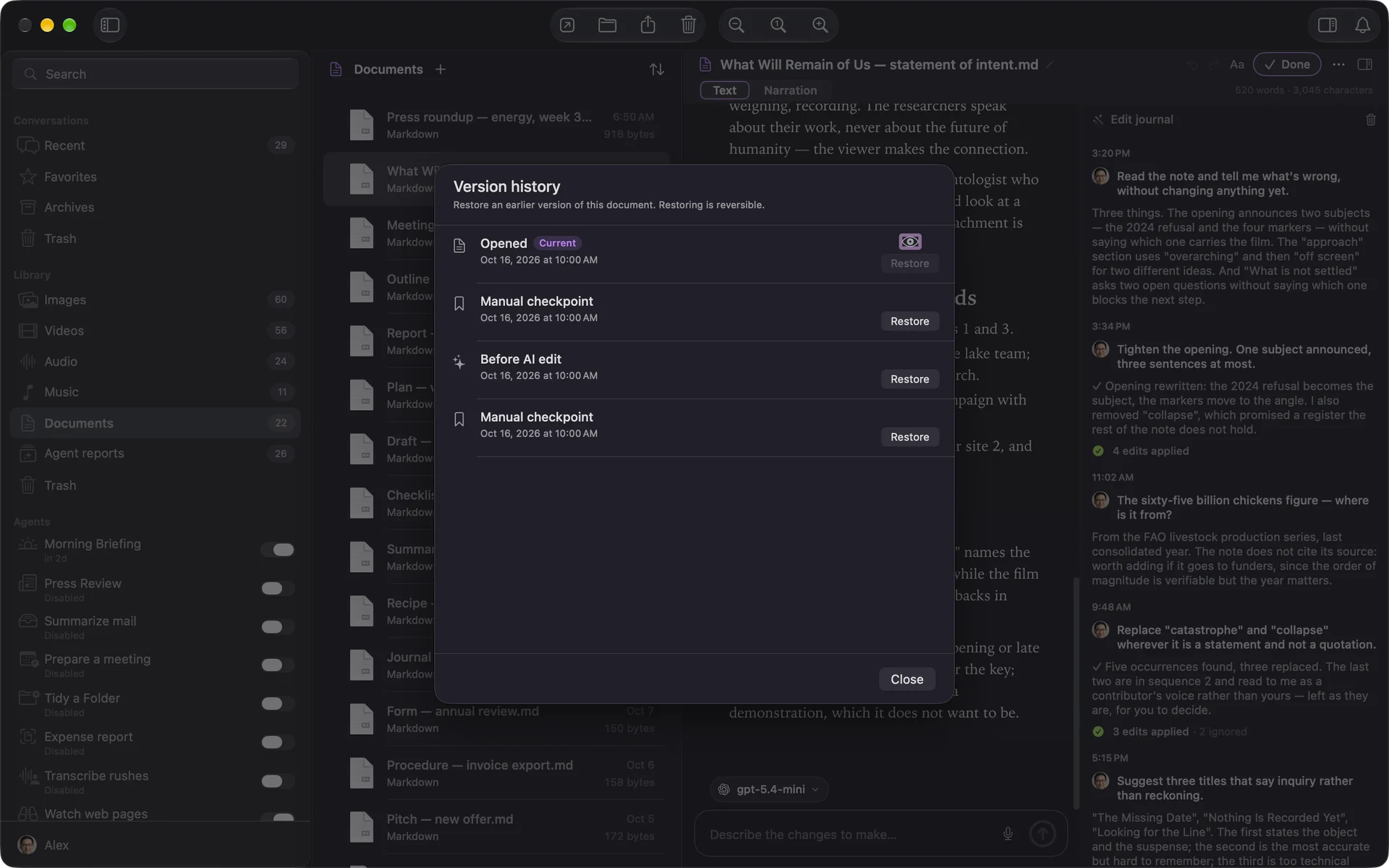
“Restore” goes back to a version, and keeps the current one first: nothing is lost. Up to fifty versions per document.
Word documents
A .docx file stays a Word document. The AI writes into it directly: the paragraphs it changed are highlighted, with “Keep all” or “Revert all”. To get proposals and version history back, “Convert to Markdown”, in the menu , makes a copy.
Export and print
“Export As…”, in the menu or the “File” menu: PDF, Word, HTML, RTF, text, Markdown or image. “Print…”, or ⌘P, prints the document as the PDF export renders it.
If you’re stuck
“No change proposed”
The model returned the passage as is: make your request more precise, or try another model.
The proposal can no longer apply
The passage changed since the request: ignore the proposal, and ask again.
“Save a version” does nothing
The text hasn’t changed since the last version: there’s nothing new to keep.
Print is greyed out for a Word document
Printing only works for the editor’s documents: open the file in Word, or convert it to Markdown.
Something missing from this guide? Tell us.