 Aureole
Help center›Converse
Organize and find your conversations
Every exchange with Aureole becomes a conversation, kept on your Mac. This guide shows how to organize them, in folders or with tags, and how to find the one from three weeks ago.
- The left column organizes your conversations: “Recent”, “Favorites”, “Archives”, “Trash”, and your folders.
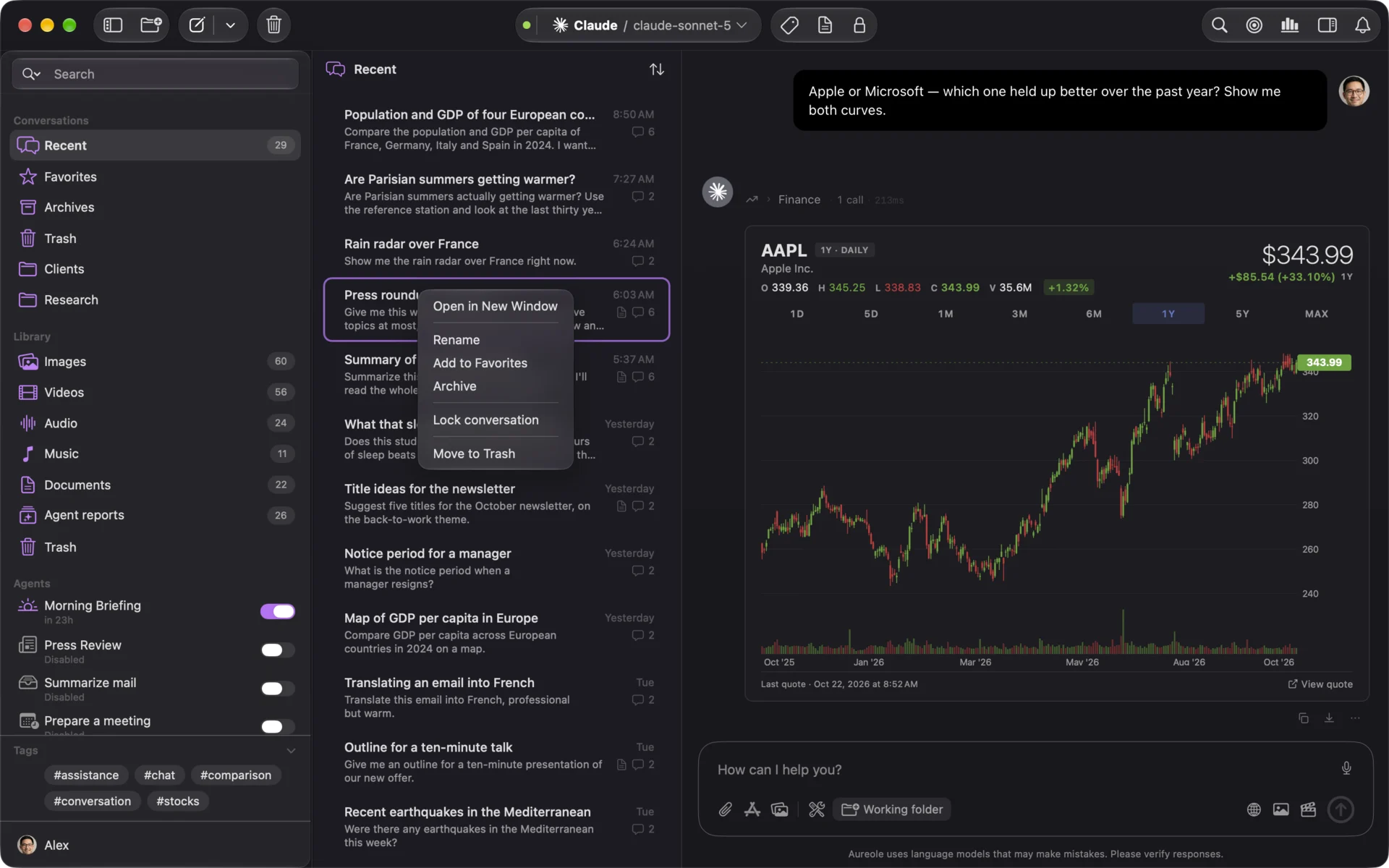
- A right-click on a conversation renames it, adds it to favorites, archives it or locks it; two fingers slid on the trackpad add it to favorites, archive it or delete it.
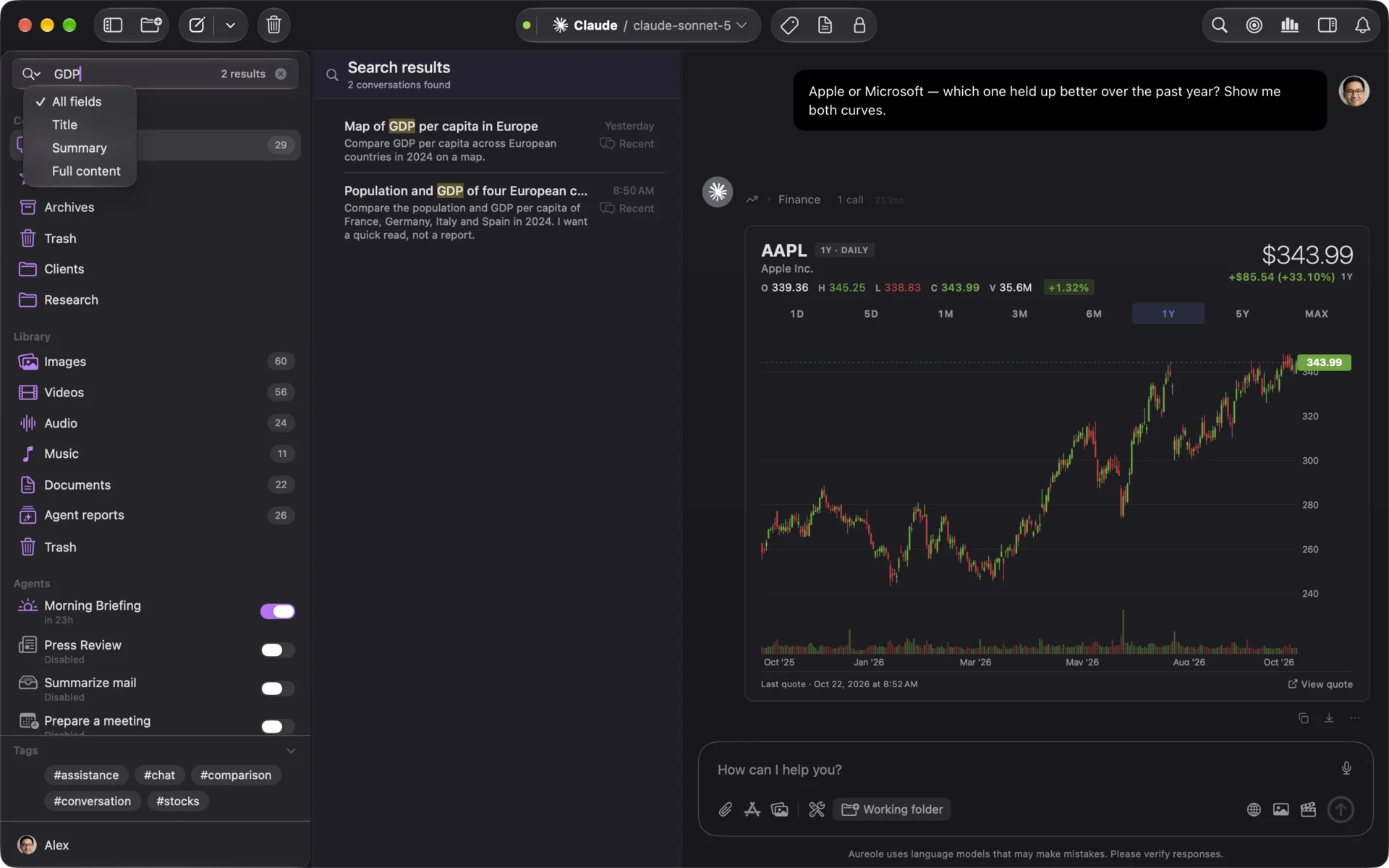
- Search, at the top of the list, looks in titles, summaries or the full content.
Folders
A new conversation lands in “Recent”. The other folders fill up when you ask:
- “Favorites”: the ones you reopen often;
- “Archives”: the ones you keep without seeing them every day;
- “Trash”: the ones you deleted, still recoverable;
- your own folders, created with “New folder”: one per client or per project, for example.
A conversation is in only one folder at a time: filing it in one removes it from the other. To move it, drag it onto a folder in the column. A right-click on one of your folders renames or deletes it; dragging changes their order.
A conversation’s menu
A right-click on a conversation offers: “Open in New Window”, “Rename”, “Add to Favorites” (⇧⌘F), “Archive” (⇧⌘A), “Lock conversation” and “Move to Trash”.
Aureole gives each conversation a title taken from your first message; rename it to find it faster.
With a gesture, on the trackpad
The most common actions have a hand shortcut: put two fingers on a conversation in the list and slide them sideways, without clicking. Its buttons appear beneath it:
- to the right, “Add to Favorites” and “Archive” (“Remove from Favorites” or “Unarchive” if it’s already done); a swipe all the way adds it to favorites with no further click;
- to the left, “Delete”: Aureole asks for confirmation, then moves it to the trash.
In the “Trash”, the same gesture offers “Restore” to the right and “Delete Permanently” to the left.
It works in the library too, for the Audio, Music and Documents lists, and for agent reports: “Rename” to the right, “Delete” to the left. A report carries its agent’s name: it can’t be renamed.
Tags
A tag gathers conversations from several folders: “quote”, “Martin account”. “Add a tag” (⌘T) puts one on the open conversation; a space confirms it.
In the list, a click on a tag shows only the conversations that carry it, a second click hides them, a third resets it. With several tags, choose “All selected tags” or “At least one selected tag”.
Find a conversation
The “Search” field, at the top of the list, looks through all your conversations, whatever their folder, as you type. Its menu chooses where to look: “All fields”, “Title”, “Summary” or “Full content”.
The list is sorted by “Date Created”, newest first; it can also be sorted by “Date Modified” or by “Title”.
To find a word in the open conversation, ⌘F.
The Trash
A deleted conversation waits in the “Trash”: a right-click restores it, or deletes it permanently. The Trash empties itself after thirty days; the delay is set in Settings›General, with “Empty Trash After”, from seven days to never. It applies to the Library too.
If you’re stuck
A conversation disappeared from “Favorites”
It was filed elsewhere: a conversation is in only one folder at a time. Look for it in that folder’s list, or with search.
Search doesn’t find a conversation
Check where it looks, in the field’s menu: “Title” or “Summary” ignore the messages themselves. Choose “All fields”.
I want to recover a deleted conversation
Open the “Trash”, then right-click the conversation: “Restore”. A permanently deleted conversation can’t be recovered.
Something missing from this guide? Tell us.