 Aureole
Help center›Protect your data
Choose where your files are kept
The images, videos, sounds, music, documents and reports you create with Aureole are real files, kept in a folder on your Mac. This guide shows which one, how to choose another, on an external drive for example, and what happens when you move them.
- At first, your files are in Documents, in the Aureole folder.
- To change it: Settings›General, “Storage” section, “Change…”.
- Aureole then offers to move the existing files, without losing anything.
Where your files are
In Settings›General, the “Storage” section shows the current folder, ~/Documents/Aureole at first:
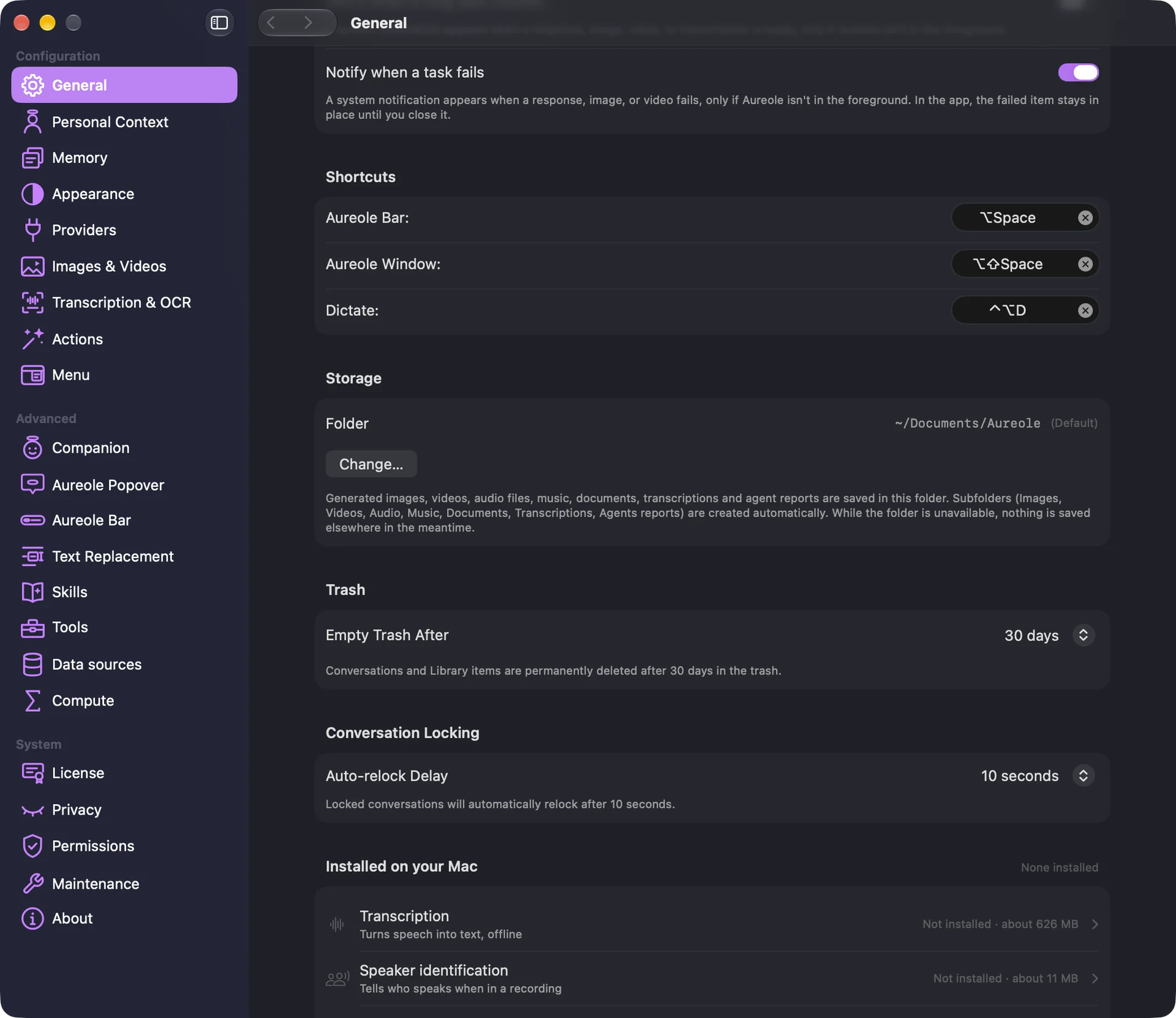
Aureole creates a subfolder there for each kind of file: Images, Videos, Audio, Music, Documents, Transcriptions, Agents reports. Your conversations, memory and settings stay in Aureole’s folder in your macOS Library, whatever this setting.
If Documents is synced by iCloud Drive, so are your files.
Choose another folder
“Change…” opens a folder picker: create one for Aureole, since the subfolders go straight into it. If there are already files, Aureole asks:
- “Move”: the files go to the new folder, with everything that goes with them, their versions, transcripts, markers; conversations linked to a document follow it;
- “Don’t move”: the old files stay where they are, and no longer appear in Aureole;
- “Cancel”.
Nothing is ever overwritten: a file already at the destination is kept. If the move is interrupted, Aureole quit for example, the “Storage” section offers to resume it. “Default” goes back to ~/Documents/Aureole, with the same question.
On an external drive
A folder on an external drive works the same way. With the drive unplugged, Aureole says so, and saves nothing elsewhere in the meantime: plug it back in, or choose another folder.
If you’re stuck
The storage folder is unavailable
The drive is unplugged, or the folder was moved or deleted: plug the drive back in, or choose another folder in Settings›General.
“Partial migration”
Some files couldn’t be moved: they stayed in the old folder, and no longer appear in Aureole. Move them yourself in the Finder.
My old files disappeared from the Library
You chose “Don’t move”: they’re still in the old folder. Go back to it with “Change…” to find them, or move them.
Something missing from this guide? Tell us.