 Aureole
Help center›Converse
Export a conversation
A conversation led to something worth keeping or passing on: a plan, an analysis, an exchange to show a colleague. This guide shows how to export it whole, in the right format, or keep just one answer.
- “Conversation” menu, “Export As…”, then the format: PDF, Word, HTML, RTF, text, Markdown or image.
- For a single answer: its “Share” or “Save As...” buttons.
- To make a real document of it, to rework: “Create document from conversation”.
Export the whole conversation
Open the conversation, then, in the “Conversation” menu, “Export As…”: its formats open to the right.
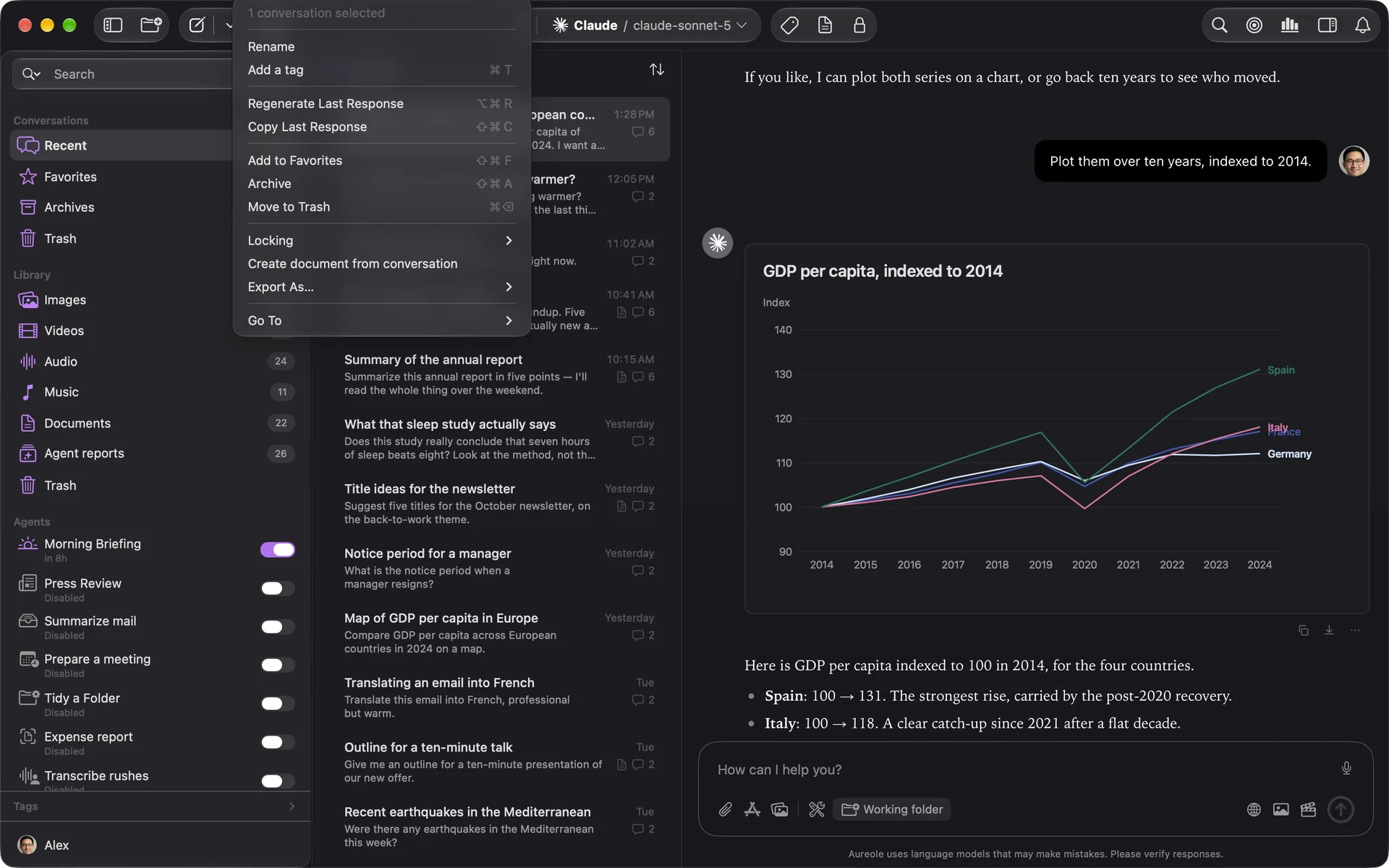
Choose where to save it; an “Export Complete” notification offers to show it in the Finder.
Which format to choose
- PDF: to read it, print it or send it as is;
- Word (DOCX): to edit it in a word processor;
- HTML: to open it in a browser, or publish it;
- Rich Text (RTF) and Plain Text: the text alone, for any app;
- Markdown: for a notes tool, or a code repository;
- JPEG Image: the whole conversation as one image, to drop into a message.
The export includes your messages, under “You”, and the answers, under “Assistant”, with their sources. The model’s reasoning and the details of its tools aren’t in it.
Generated images come along, except in RTF and plain text. Widgets become images in PDF, Word, HTML and JPEG; elsewhere, only their title remains. A video is replaced by “[Generated video]”.
Keep a single answer
Under an answer, “Share” sends it by Mail, Messages or AirDrop; “More options”, then “Save As...”, makes a file of it.
Make a document of it
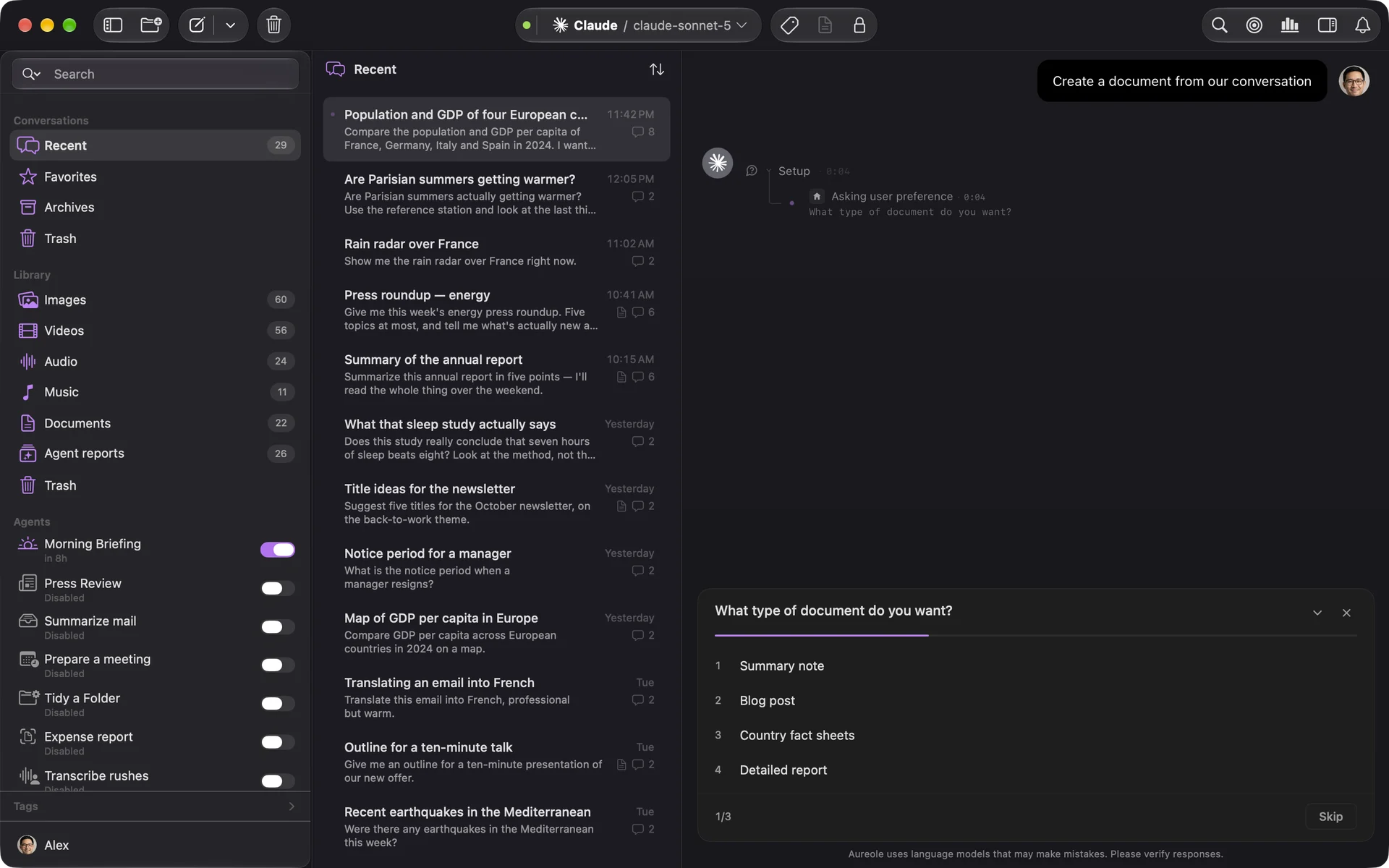
“Create document from conversation”, in the “Conversation” menu or at the top right of the window, asks the model to draw a real document from it: it first asks you three questions, about the form you want, then writes it in Aureole’s editor, where you rework it. The document is filed in the Library, under “Documents”.
If you’re stuck
I can’t find how to print a conversation
Export it as PDF, then print the PDF. Or make a document of it: it prints with ⌘P.
A map is missing from the export
A geographic map is drawn at export time: unlock your Mac, and try again.
The model’s reasoning isn’t in the export
The export keeps the conversation itself, not the reasoning or the tool steps.
Something missing from this guide? Tell us.