 Aureole
Help center›Act in your apps
Create your own actions
Aureole’s actions cover everyday needs: correcting, summarizing, translating. For a need of your own, write your own action: what it asks the AI, with which model, and where its answer goes. You then launch it like any other, from the Aureole Bar or the selection popover.
- You create an action in Settings›Actions, with the button below the list.
- It comes down to two texts: the “System Prompt”, which tells the AI what role to play, and the “User Template”, where
{text}marks the place of the selected text. - To start from an existing action, duplicate it: the copy keeps its prompts, its model and its destination.
Create an action
Open the creation window
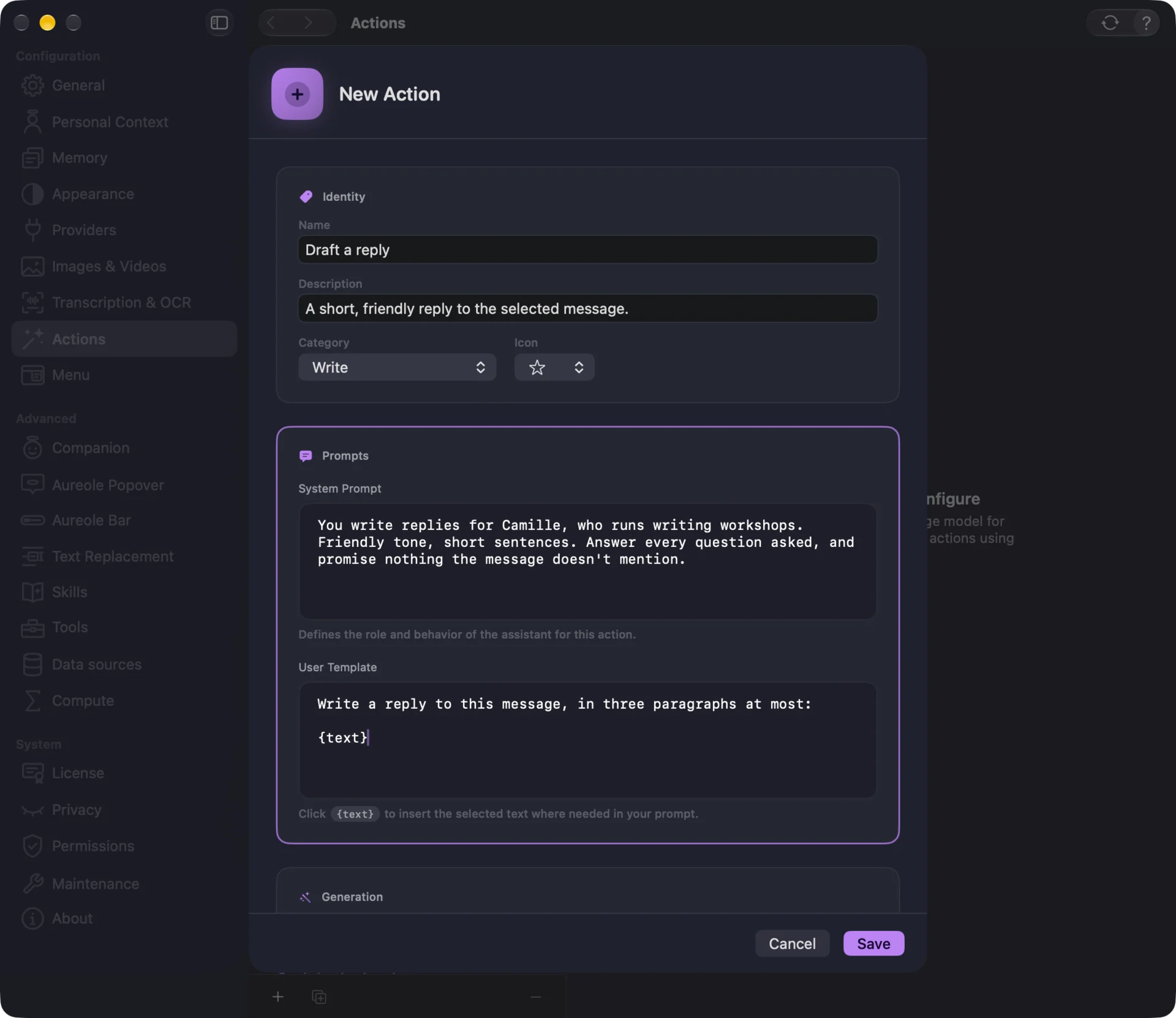
Open Settings›Actions. Below the list of actions, the button opens the “New Action” window. Here it is filled in, for an action that drafts a reply to a message:
Give it a name and a category
Under “Identity”, the “Name” is the one you’ll see in the bar, and the one its search will find. The “Description”, optional, shows under the name, in Settings.
The “Category” decides where the action goes in the menu: it’s added at the end of that category’s folder. Finally, pick an “Icon” from twenty symbols.
Write its two prompts
The “System Prompt” tells the AI what role to play and how to answer: the tone, the length, what to avoid. It applies every time the action runs.
The “User Template” is the request itself. The selected text takes the place of
{text}: click the{text}pill, below the field, to add it after what you’ve typed, or type it yourself where you want it. Always keep it in the template: without it, the AI may not receive your text.Save
The name and both prompts are required: “Save” stays dimmed while one of them is empty. Once saved, the action joins the “My actions” section, at the bottom of the list, and it’s available right away in the Aureole Bar and the selection popover.
You should see
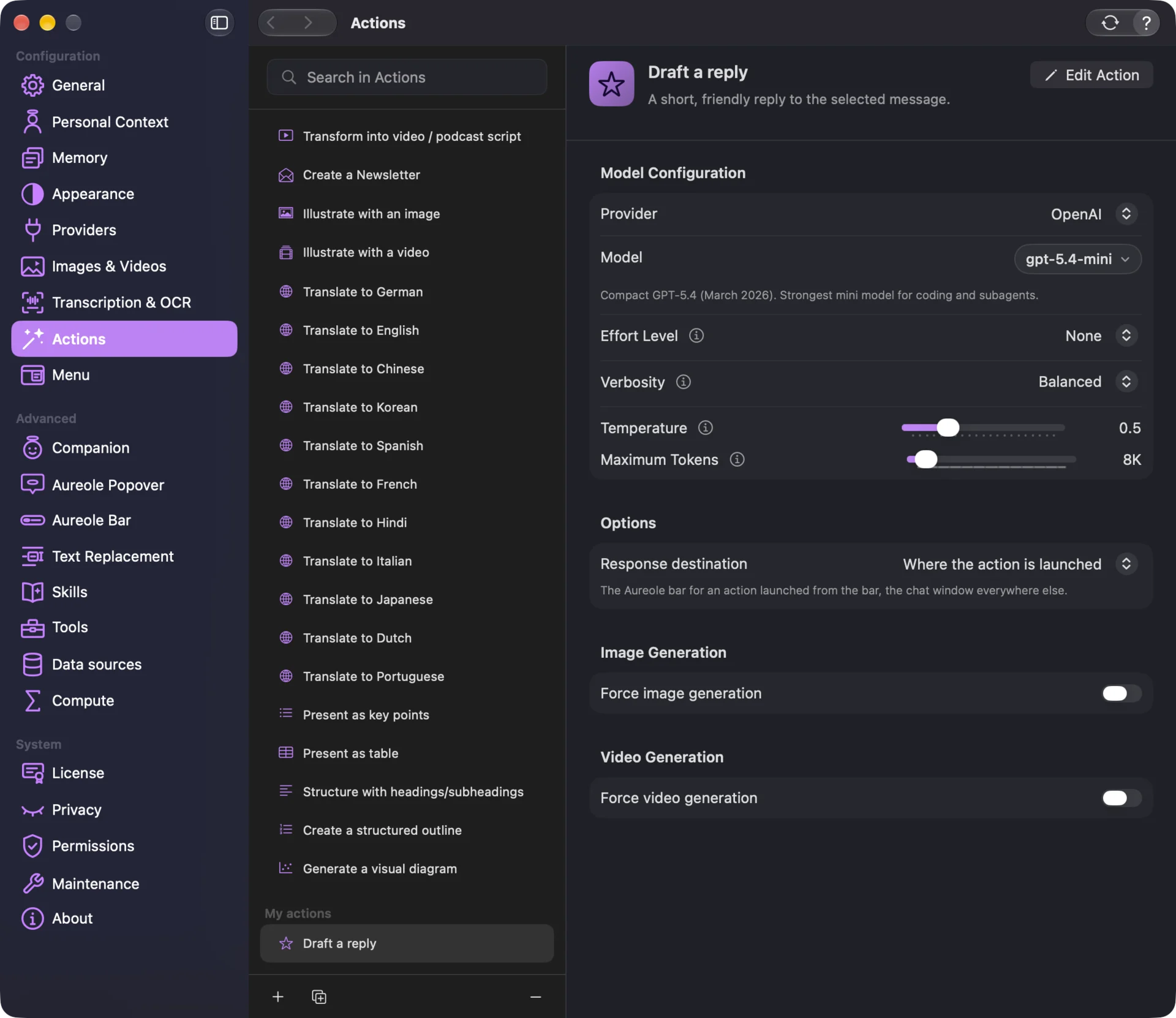
Your action under “My actions”, at the bottom of the list.
“Save” stays dimmed? See “If you’re stuck”.
Your action in the Aureole Bar: type the first letters of its name, and it shows among the actions.
It isn’t there? See “If you’re stuck”.
Its model and its destination
Once saved, your action is set up like Aureole’s own, to the right of the list:
“Model Configuration” chooses the provider and model that handle it, and their parameters. The lower the “Temperature”, the more consistent and predictable the answers; the higher, the more varied. The models guide explains the rest.
Under “Options”, the “Response destination” starts as “Where the action is launched”: the bar for an action launched from the bar, the chat window everywhere else. The destination guide covers the other choices.
“Force image generation” and “Force video generation” make the action produce an image or a video, instead of text, from your request. Only one of the two can be on at a time.
Edit, duplicate, delete
To change the name, the category or the prompts, select the action, then click “Edit Action”, at the top right: the same window opens, filled in. If the action was still in its old category’s folder, it moves to the new one’s; placed elsewhere, it stays put.
Below the list, the second button (“Duplicate”) copies the selected action, one of yours or one of Aureole’s. The copy keeps its prompts, its model and its destination, and joins “My actions”; the original doesn’t change. It’s the shortest way to an action that does almost what you want.
The button, on the right (“Delete”), deletes the selected action, after confirmation. It only works on your actions: Aureole’s can’t be deleted, they’re removed from the menu instead (Customize the actions menu).
If you’re stuck
The Save button stays dimmed
The name, the system prompt and the user template are required: fill in all three.
My action doesn’t show in the bar
If you deleted its category’s folder, it waits in “Not in the menu”, in Settings›Menu. Click its “+” to put it back.
The answer ignores my text
Check that the user template contains {text}: that’s where the selected text is inserted.
Something missing from this guide? Tell us.