 Aureole
Help center›Get started
Allow Aureole to act
To read what you select and act in your apps, Aureole needs your consent. macOS asks you for it, one permission at a time. You can take each one back whenever you like.
- Start with “Accessibility”: without it, Aureole can’t read your selection.
- “Automation” is granted app by app, the first time Aureole needs to drive one.
- The status of each permission is shown in Settings›Permissions
What each permission allows
- “Accessibility”: read the text you select and the content of windows, paste answers, and use your apps’ interface. It works in apps that make their content readable by macOS, which is most of them.
- “Automation”: drive a specific app, such as Mail, Notes, Safari, Keynote or Word. macOS asks you once for each app.
- “Data & Services”: access your Calendars, Contacts, Reminders and Photos, as well as the Finder.
- “System Events”: act on other applications, their windows, their menus and the clipboard.
- “Screen Recording”, “Microphone”, “Location” and “Full Disk Access”: they’re only used by some features, for example the microphone for dictation.
You don’t have to grant everything up front: Aureole asks for each permission when you use the feature that needs it. Full Disk Access is the exception, because macOS doesn’t let apps ask for it. You grant it by hand in System Settings, and it only takes effect after you relaunch Aureole.
Granting them
Open Permissions
In Aureole, open Settings›Permissions. Each row shows where the permission stands: “Granted” if it’s given, “Allow…” if Aureole can ask you for it, and “Open System Settings…” if it’s set in macOS System Settings.
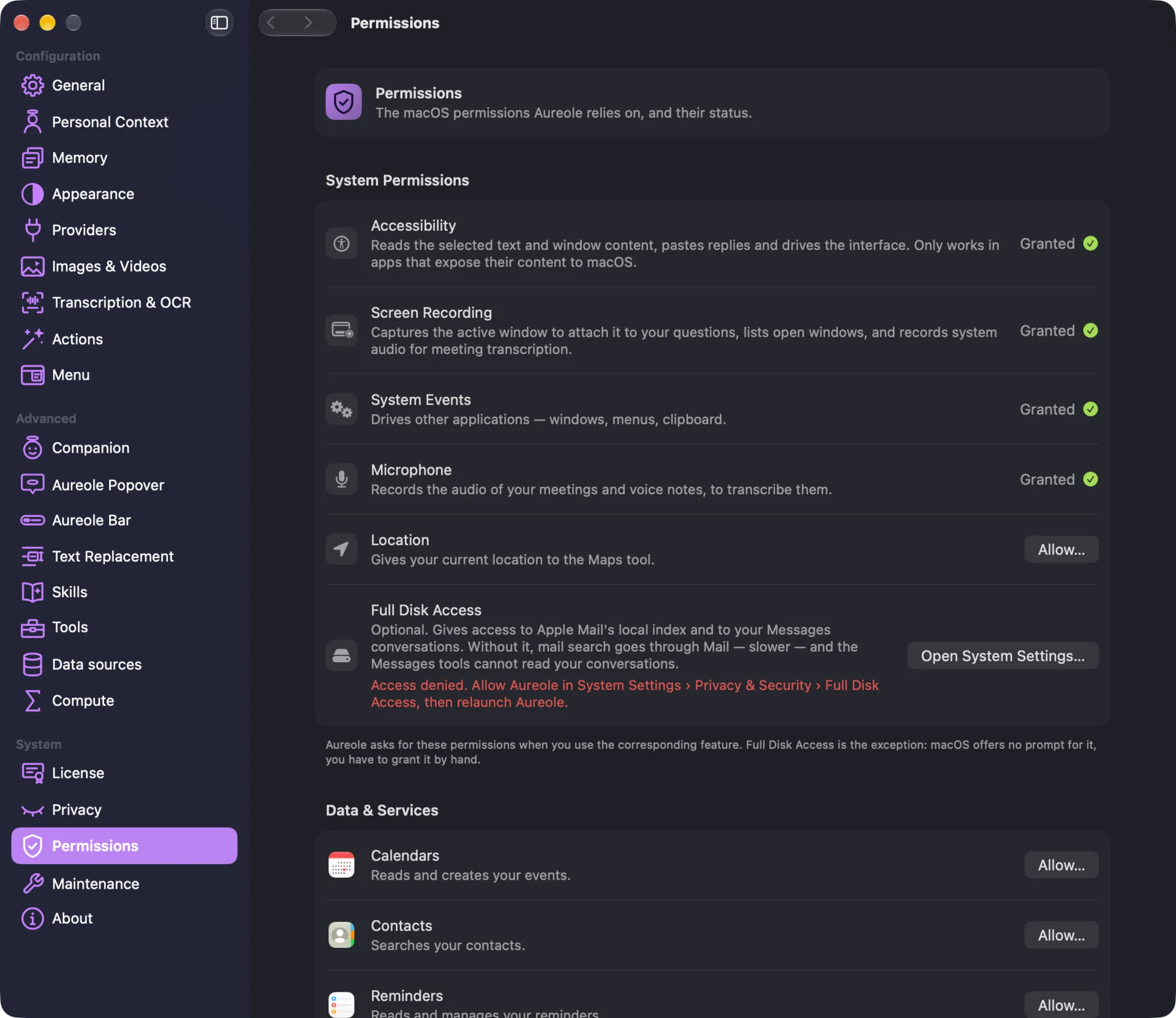
Click “Allow…”
macOS shows its request: accept it. For Accessibility, the request takes you to System Settings, where you turn Aureole on. Back in Aureole, the row switches to “Granted” on its own.
For a closed app, click “Open and Ask…”
The “Automation” section lists the apps Aureole can drive. macOS only asks about an app that’s open: this button opens the app, then triggers the request. For a closed app, the status shown is the one from the last check.
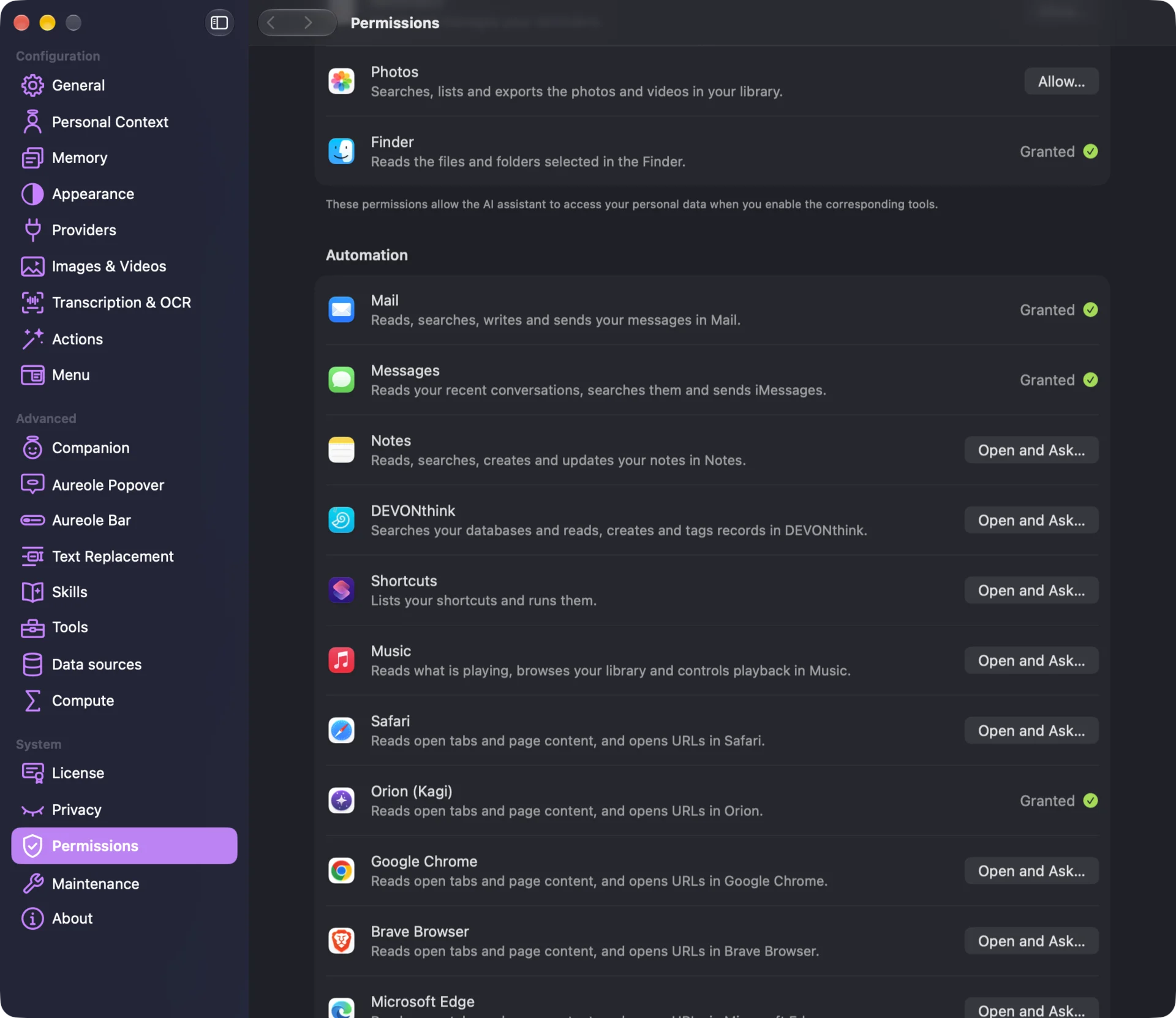
You should see
“Granted” on the “Accessibility” row: Aureole can read your selection.
Aureole still doesn’t see your selection? See “If you’re stuck”.
“Granted” on the row of each allowed app, under “Automation”.
Aureole still doesn’t drive the app? See “If you’re stuck”.
“Full Disk Access” in red, as long as you haven’t granted it by hand: that’s normal, it’s optional.
Granted, and still red? See “If you’re stuck”.
After a refusal, macOS doesn’t ask again. To change your mind, open System Settings›Privacy & Security, then the relevant section. In Aureole, the “Open System Settings…” button takes you straight there. Accessibility is the exception: its row always offers “Allow…”.
If you’re stuck
Aureole doesn’t drive Mail
Automation for Mail was probably refused. Open System Settings›Privacy & Security›Automation, then check Mail under Aureole.
Aureole doesn’t see my selection
First check that Accessibility is granted, in Settings›Permissions. If it is, the app you’re using may not make its content readable by macOS.
“Full Disk Access” stays denied
This access only takes effect when Aureole launches. After granting it in System Settings, quit Aureole and launch it again.
I want to remove a permission
In System Settings›Privacy & Security, open the relevant section and uncheck Aureole. Only the features that depend on it stop; everything else keeps working.
Something missing from this guide? Tell us.