 Aureole
Help center›Converse
Resume, correct, regenerate an answer
An answer heads the wrong way, or your question was badly put: no need to start the conversation over. This guide shows how to stop an answer, correct your message, ask for another, and what that replaces.
- Hover over a message to see its buttons: edit, retry, copy, delete.
- Editing a message, or retrying an answer, replaces everything after it: there are no branches.
- ⌘. stops an answer in progress, keeping what’s already written.
A message’s buttons
Hover over a message: small buttons appear below it; hover over them for their name.
- under your message: “Edit”, “Delete”, “Copy”;
- under an answer: “Copy”, “Retry”, “Share”, and “…”, “More options”, which opens the answer in another app, saves it, or gives its “Information”: the model, the tokens, the cost.
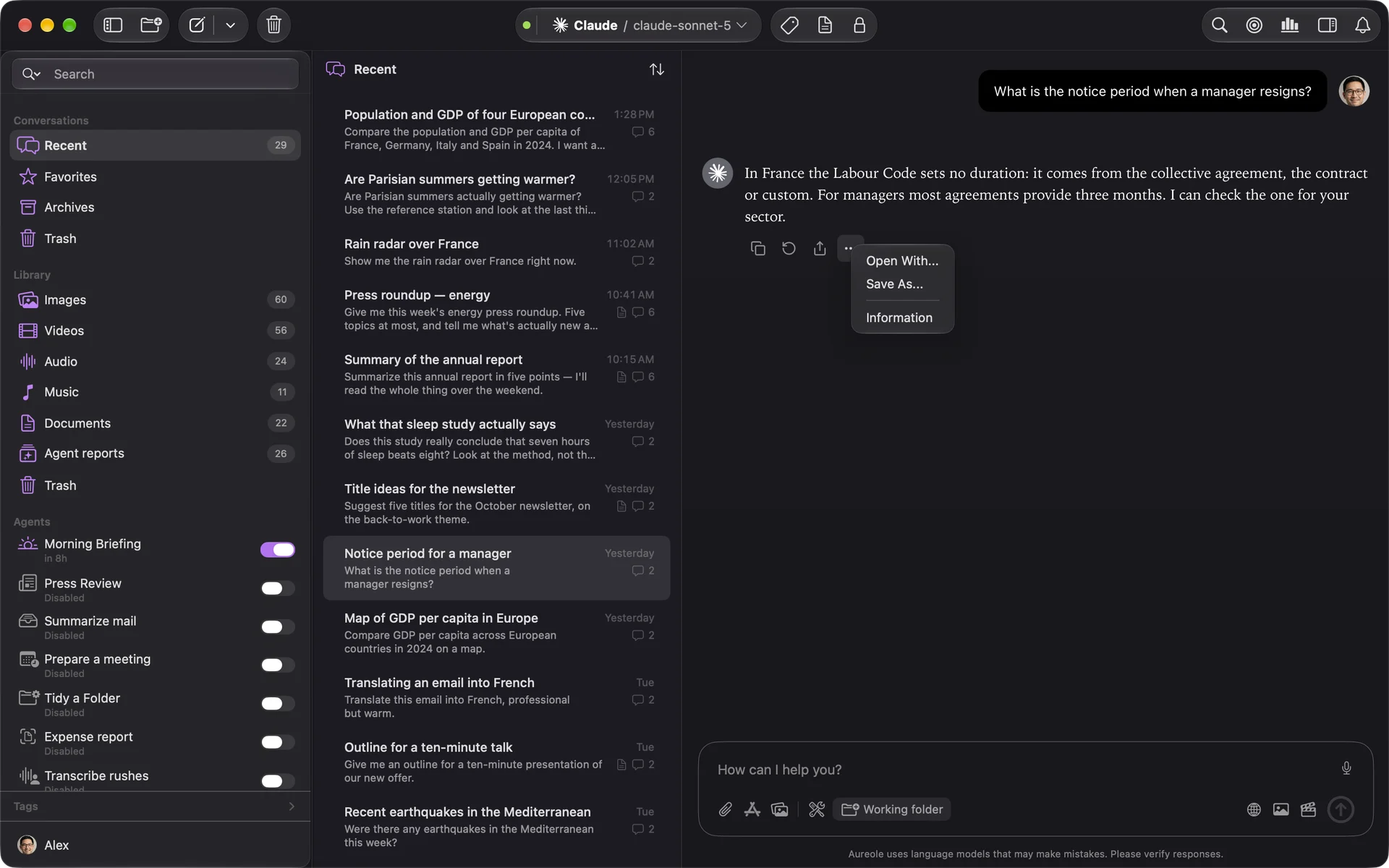
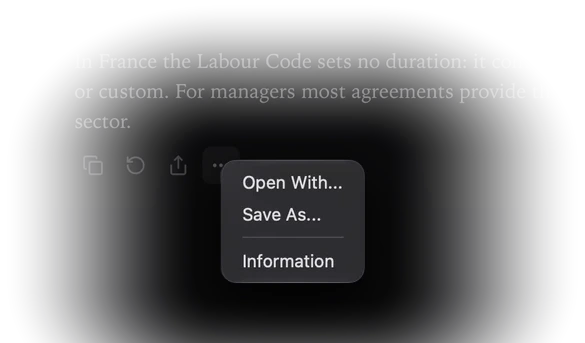
When the conversation was born from an action on a selection, one more button replaces the text in the original app.
Stop an answer
While an answer is being written, the send button becomes a stop button ; ⌘. does the same. What’s already written stays in the conversation.
Correct your message
“Edit”, under your message, puts it back in the message field, under the “Editing message” banner. Correct it, then send: the answer is redone from there.
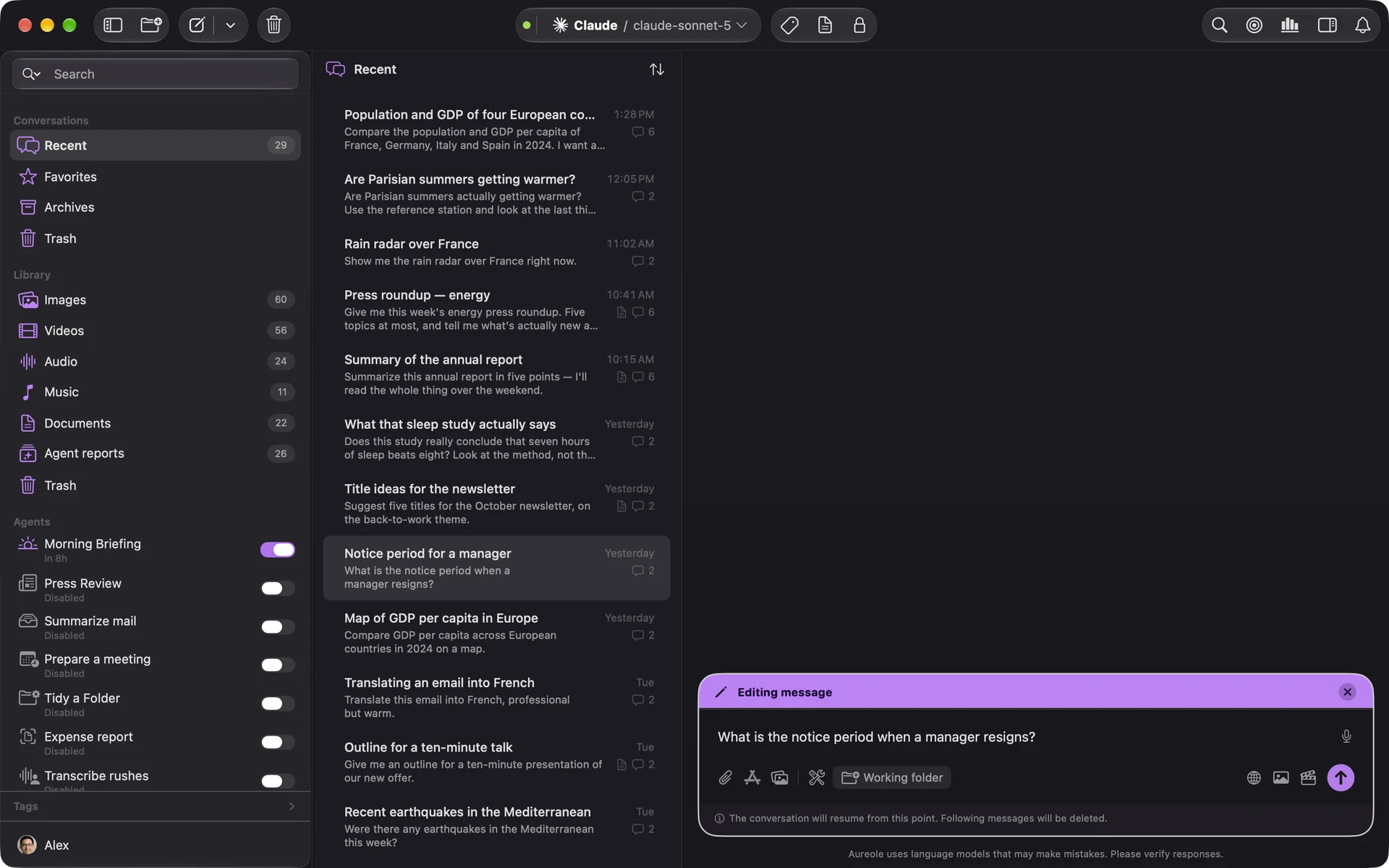
Everything that followed this message is replaced, without confirmation: if an answer further on matters to you, copy it first.
Ask for another answer
“Retry”, under an answer, redoes it with the same question; the rest of the conversation is replaced the same way. For the last answer, the “Conversation” menu also offers “Regenerate Last Response”, and “Copy Last Response” (⇧⌘C).
To try another model, change it in the picker, then retry.
“Delete”, under your message, erases it with everything after it, once you confirm.
When Aureole asks you a question
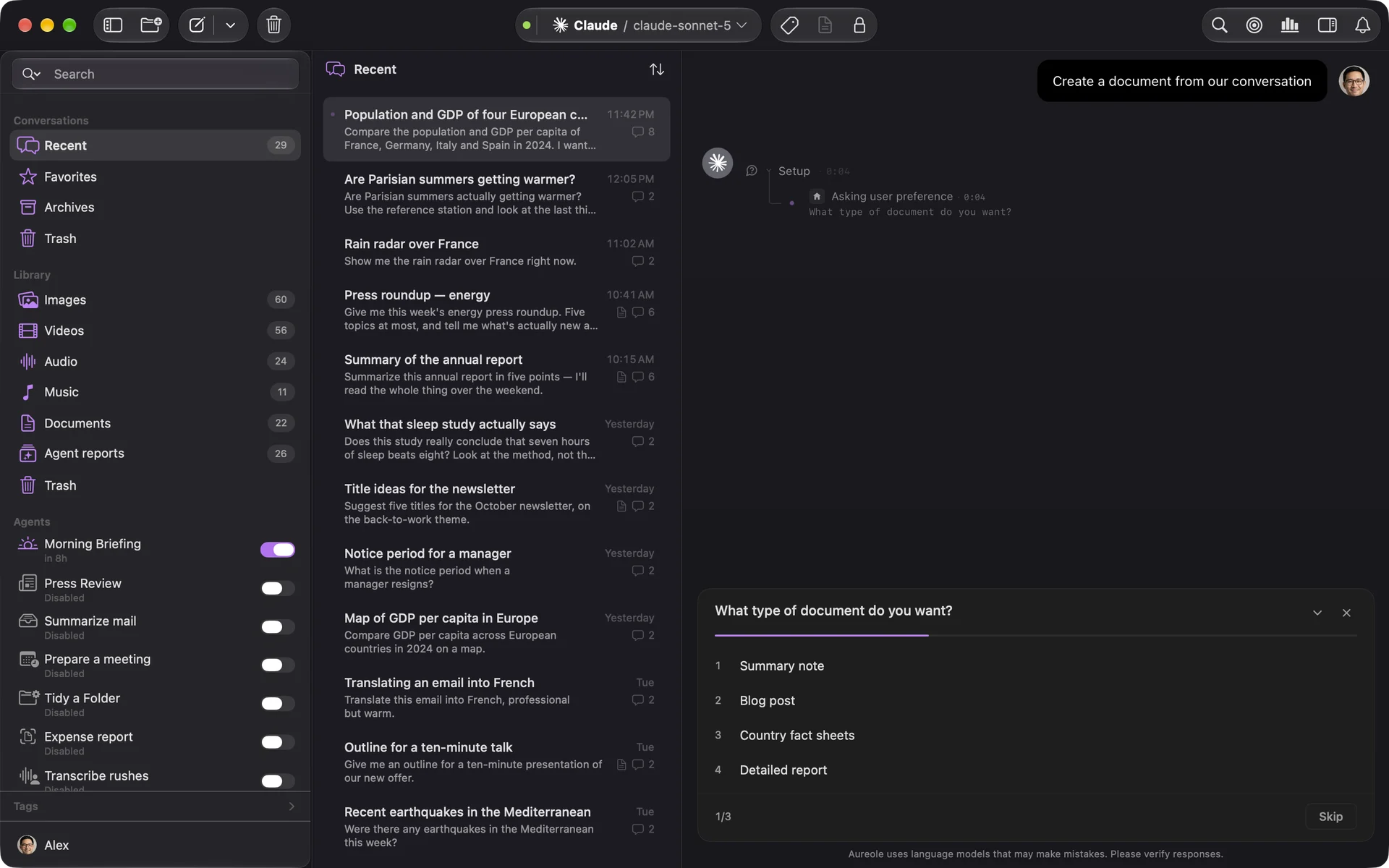
Along the way, the model may need you: a card asks its question, above the field, with numbered choices. Click one of them, or “Skip”; when it offers it, “Other…” lets you answer freely.
When Aureole asks for your consent
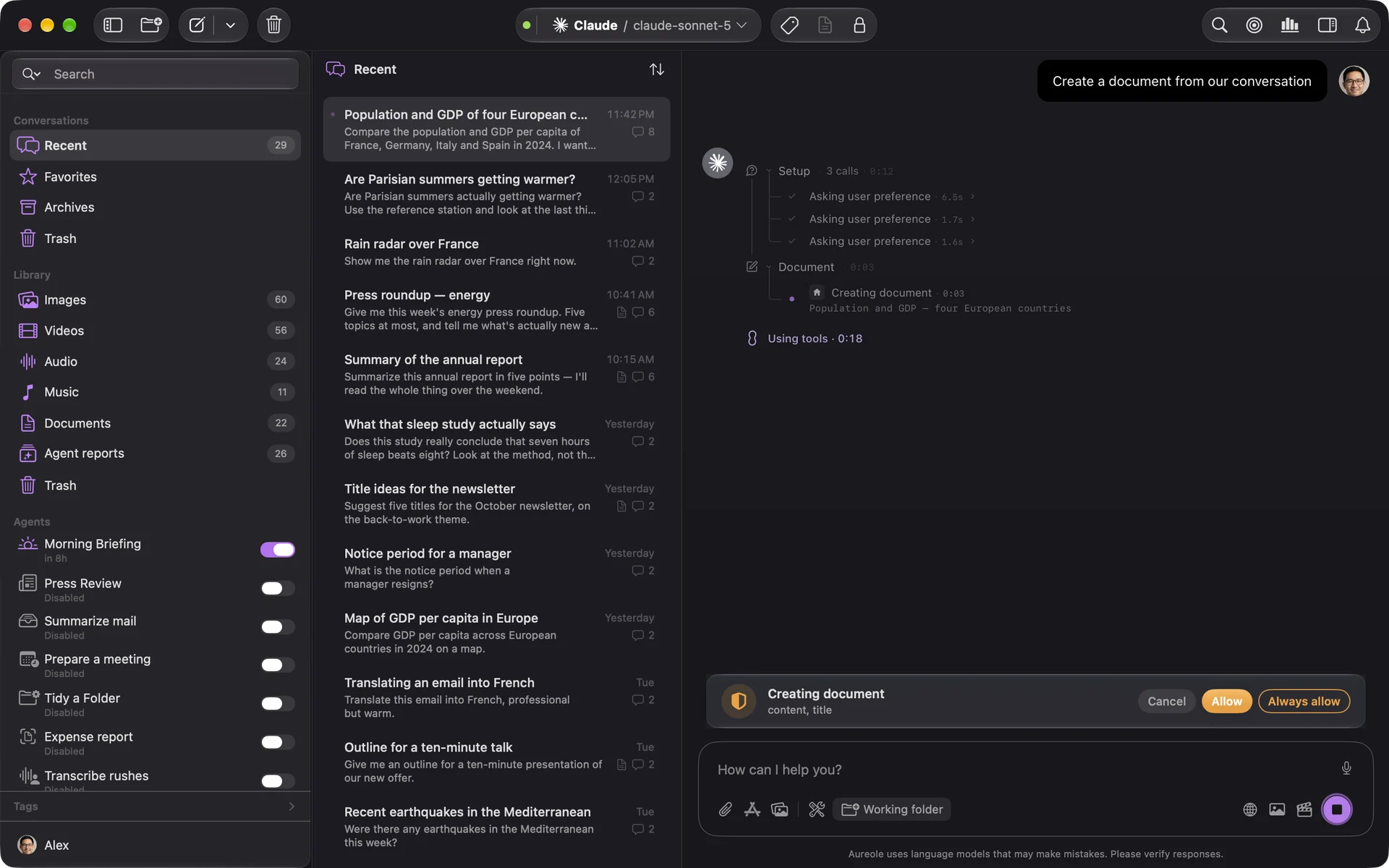
Before an action that changes something, like creating a document or an event, a banner asks for your consent: “Allow” this time, “Always allow” to stop being asked about this tool, or “Cancel”.
If you’re stuck
I lost an answer by retrying
Retry and edit replace what follows, without keeping the old version. To compare two answers, copy the first before retrying.
I don’t see the buttons under a message
They only appear on hover, and not while an answer is being written.
The answer stopped on “Operation was cancelled by user.”
It was stopped, by the button or by ⌘.. Retry to redo it in full.
Something missing from this guide? Tell us.