 Aureole
Help center›Protect your data
Keep a conversation private or locked
Two ways to protect a conversation. Private, it teaches Aureole nothing: nothing from it is kept in its memory. Locked, it only opens with Touch ID or your login password. This guide shows both, and what each one protects.
- “New Private Conversation”, in the File menu, or ⇧⌘N: nothing in it is remembered.
- The padlock in the toolbar, or ⇧⌘L, locks a conversation with Touch ID or your password.
- An unlocked conversation locks again a few seconds after you leave it.
A private conversation
“New Private Conversation”, in the File menu, or ⇧⌘N, or the menu of the new-conversation button , opens one. A small ghost marks it, in the list and next to the model; the message field says so:
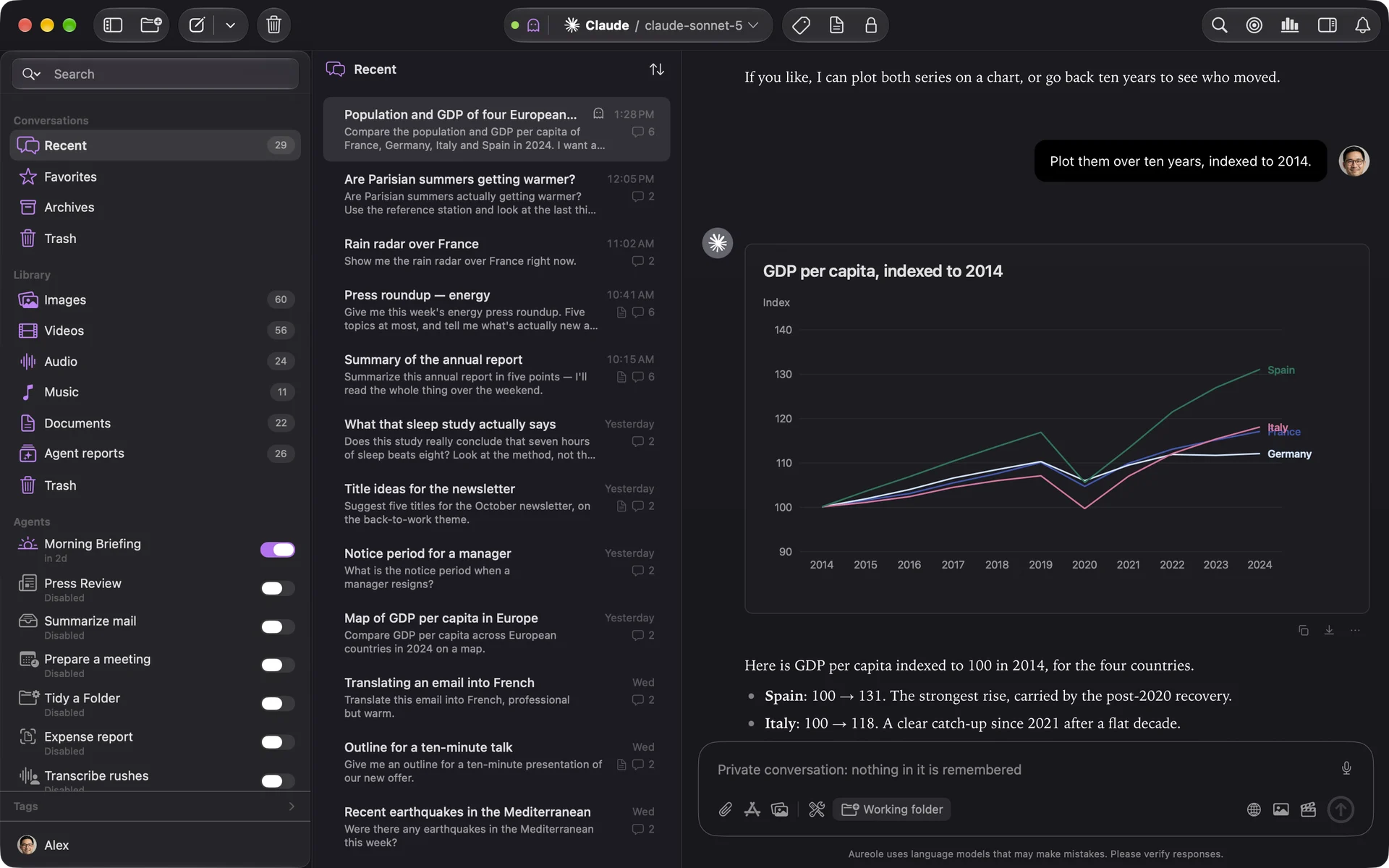
Aureole keeps nothing from it: no memory is drawn from it, and the model can’t add any. It still reads your existing memories. Messages still go to the model’s provider, which handles them under its own rules. The conversation stays in your list, like the others: delete it whenever you want.
A conversation is private from its creation, and stays so: an ordinary conversation can’t be made private.
Lock a conversation
The padlock in the toolbar, ⇧⌘L, or a right-click in the list, “Lock conversation”: confirm with Touch ID or your login password. The conversation then shows a locked screen:
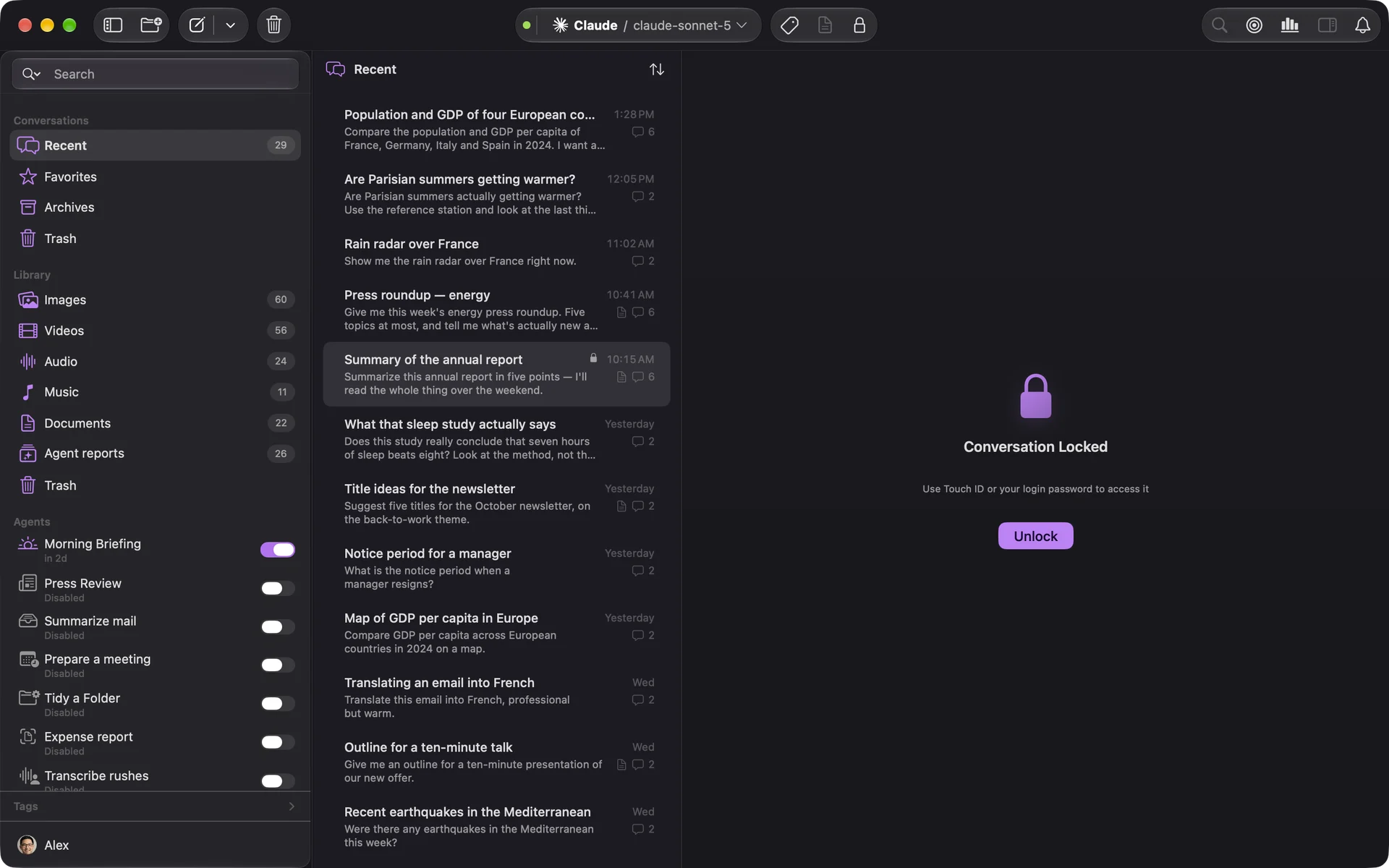
Its title stays visible in the list, with a padlock ; its content no longer shows anywhere: search only finds it by its title, without an excerpt, it can’t be exported, doesn’t open in another window without authentication, and the model can’t read it. It no longer feeds memory.
Unlock, and lock again
“Unlock”, on the locked screen, opens it for the session. It stays open while you’re looking at it; as soon as you leave it, another conversation, another app, its window closed, it locks again after the “Auto-relock Delay”, ten seconds at first, set in Settings›General. The display going to sleep locks it again at once.
To close it right away: “Lock Again”. To remove the lock for good: “Remove Protection…”, with one last authentication.
If you’re stuck
Authentication failed
Touch ID didn’t recognize your finger, or the password was wrong: try again, with your login password if needed.
I can’t export or rename a conversation
It’s locked: unlock it first.
My private conversation shows up in search
That’s expected: private means Aureole keeps nothing from it, not that it’s hidden. To hide it, lock it.
Something missing from this guide? Tell us.