 Aureole
Help center›Get started
Add an API key
To use an AI provider’s models (OpenAI, Anthropic, Mistral…), Aureole needs an API key: a personal code the provider gives you. The key stays on your Mac. Each request is billed directly to your account with the provider, at its rates.
- Create the key on the provider’s website, on its API keys page.
- Paste it in Settings›Providers
- Aureole checks the connection right away. One key is enough to start.
Before you start
You need an account with at least one provider: OpenAI, Claude, Mistral, DeepSeek, Gemini or OpenRouter. Don’t have one? The “Local” provider runs models directly on your Mac, with no API key and no account. All you need is Ollama or LM Studio installed: Aureole detects them and lists them under “Local servers”.
With a providerthe one you choose
- Account
- with that provider
- Key
- theirs
- Billing
- theirs, at their rates
OpenRoutera service that gives access to many publishers
- Account
- with OpenRouter
- Key
- just one
- Billing
- a single credit
On your Maca local model
- Account
- none
- Key
- none
- Billing
- none
The steps
Create the key with the provider
Sign in to the provider’s website and open its API keys page; the table below gives each address. Create a key, then copy it right away: most providers only show it once.
Provider For Keys page (the link the app gives) Anthropic (Claude) Chat platform.claude.com/settings/keys↗ OpenAI Chat · Images platform.openai.com/api-keys↗ Google (Gemini) Chat · Images · Voice aistudio.google.com/apikey↗ Mistral Chat · Images console.mistral.ai/api-keys↗ DeepSeek Chat platform.deepseek.com/api_keys↗ OpenRouter Chat · Images · Videos openrouter.ai/settings/keys↗ Runway Images · Videos dev.runwayml.com↗ HeyGen Images · Videos app.heygen.com↗ fal.ai Images · Videos fal.ai/dashboard/keys↗ ElevenLabs Cloud transcription · Voice elevenlabs.io/app/settings/api-keys↗ Paste it in Aureole
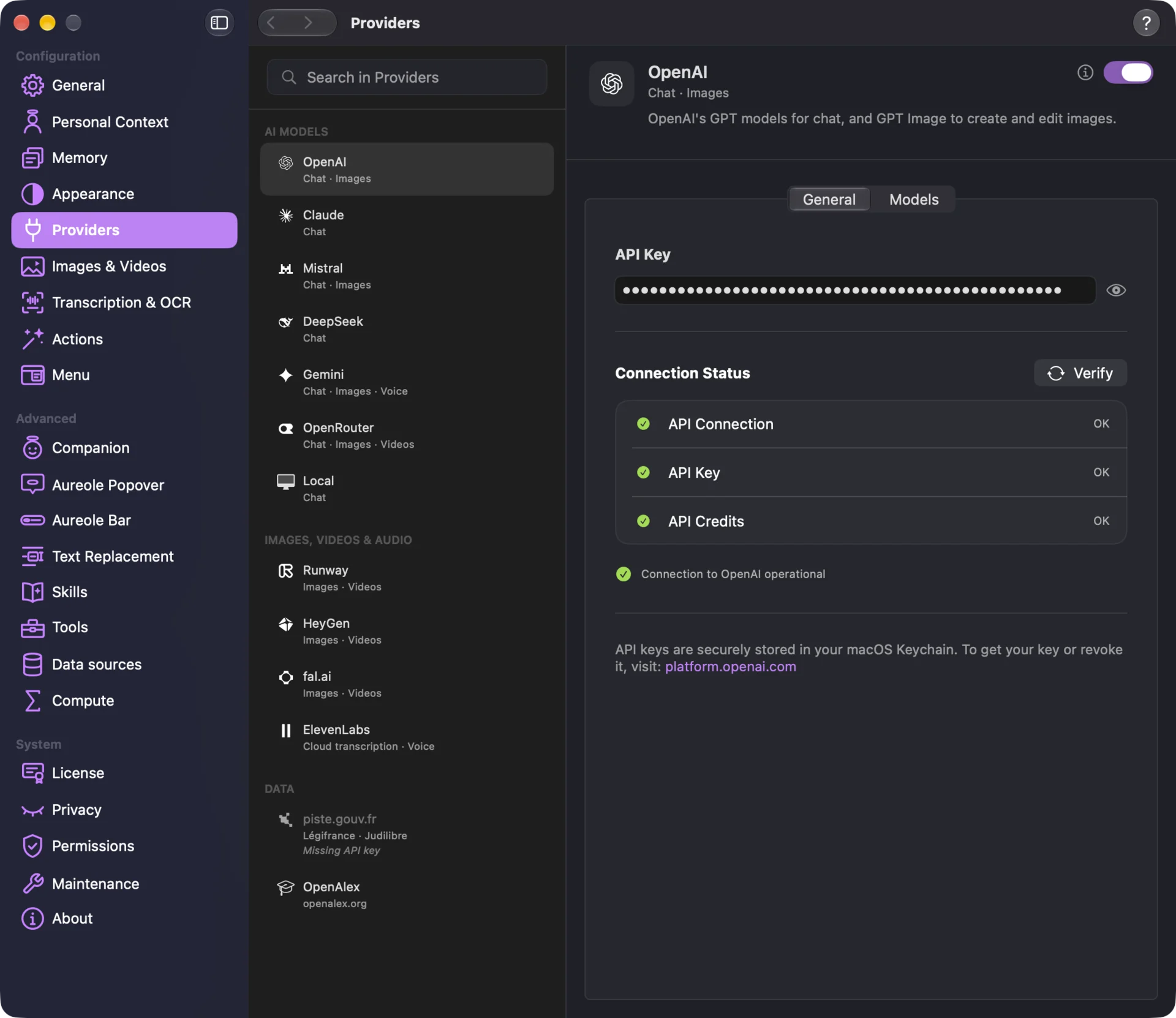
In Aureole, open Settings›Providers and choose your provider in the list. In its “General” tab, paste the key in the “API Key” field, then press Return. There’s no Save button: the key is saved as soon as you leave the field.
Check the connection
Aureole tests the key as soon as you’ve pasted it. The “Connection Status” block checks three things: “API Connection”, “API Key” and “API Credits”. If all is well, it shows “Connection to … operational”, with your provider’s name; in the capture, “Connection to OpenAI operational”.
Otherwise, it tells you what’s wrong, for example “Invalid key”, “Credits exhausted” or “Key spending limit reached”. Once the problem is fixed, click “Verify” to run the check again.
The first key you save makes its provider the default one. You can add a key for each provider you want to work with, then switch between them at any time, even in the middle of a conversation.
You should see
OK three times, then “Connection to OpenAI operational”, with your provider’s name.
Another message, like “Invalid key”? See “If the key is refused”.
Where your key is kept. In the macOS Keychain, where your passwords are stored. It only leaves it to call the provider, directly from your Mac: no Aureole server ever sees it.
If the key is refused
“Invalid key”
The key was probably copied wrong, with a character too many or too few. Copy it again from the provider’s website, or create a new one. A key deleted at the provider stops working at once.
“Credits exhausted” or “Low credits”
Most providers work with prepaid credit. Top it up on their website: the “View billing” link takes you there.
“Key spending limit reached”
A spending limit was set for this key at the provider. Raise it on their website, or create another key.
OpenRouter: no key to copy
With OpenRouter, you don’t have to copy a key: “Sign in with OpenRouter” opens your browser and connects your account to Aureole. You can also paste a key, as with the other providers.
Something missing from this guide? Tell us.