 Aureole
Help center›Choose your models
Work with a local model
A local model runs on your Mac, with Ollama or LM Studio: no key, no account, no bill, and your conversation stays with you. This guide shows how to connect it to Aureole, and what it does less well than an online model.
- Install Ollama or LM Studio, download a model there, and start its server.
- Open Settings›Providers›Local: Aureole finds your models there.
- They appear in the picker’s “Local” tab. No web search with them.
Prepare the server
Install Ollama or LM Studio from their site, then download a model: with Ollama, for example, the ollama pull command followed by its name; with LM Studio, from its search. Choose a model that suits your Mac: the bigger it is, the more memory it needs, and the slower it is.
Connect it to Aureole
Open Settings›Providers›Local. Under “Local servers”, an Ollama card is already set up, at Ollama’s usual address; here, its server isn’t started yet:
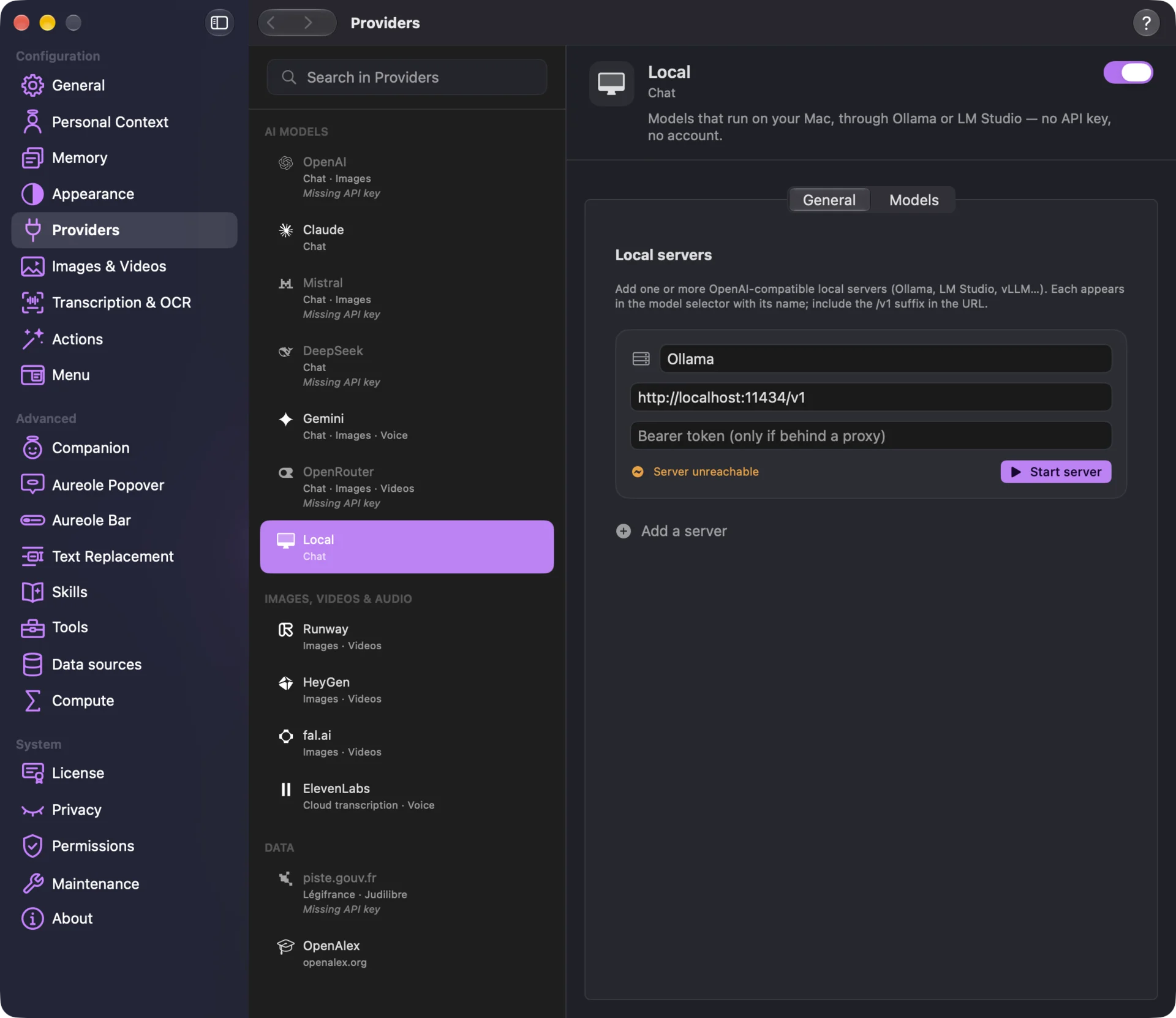
Aureole queries the server, and shows the number of models found. If the server doesn’t answer, “Start server” launches it for you.
For LM Studio, click “Add a server”, name it “LM Studio”, and replace the address with http://localhost:1234/v1. Any OpenAI-compatible server works the same way; keep the /v1 suffix.
A model you just downloaded only appears after a visit to these settings, or a click on “Refresh models”.
In the picker
Your models appear in the picker’s “Local” tab, with their server’s name. They have no price: they cost nothing.
What a local model does less well
- no web search: the globe is greyed out;
- Aureole’s tools, only if the model accepts them; otherwise, it’s marked “No tools” and answers as a plain conversation;
- images, only with a model that sees; otherwise, it receives the text read from the image;
- files are read on your Mac, and their text is what it receives;
- it answers more slowly than an online model, depending on your Mac.
What stays on your Mac. The conversation goes from your Mac to your local server, without going through the Internet. A tool that looks up information online, like the weather, uses the network, as with any model. And if your server runs on another machine, that’s where the conversation goes: “What the AI Received…” says so, and your memories reserved for local models aren’t shown to it.
If you’re stuck
“Server unreachable”
The server isn’t started, or the address is wrong. Click “Start server”, or check the address, with its /v1.
My model doesn’t appear in the picker
Open Settings›Providers›Local, then “Refresh models”: Aureole only looks for new models there.
The local server didn’t respond in time
The request is too heavy for this model: try a smaller model, or a shorter conversation.
“Start server” doesn’t appear
It can only launch Ollama or LM Studio, installed on this Mac. Start another server yourself.
Something missing from this guide? Tell us.