 Aureole
Help center›Troubleshoot
Send a diagnostic to support
When Aureole misbehaves, support needs two things: what happened, and the app’s logs. This guide shows how to export them, how to write to us, and what Aureole sends on its own when it hits an error.
- Help menu, “Export Diagnostic Logs...”: a .zip file to attach to your message.
- Help menu, “Contact Support...”: an email already filled in with your versions.
- Error reports are set in Settings›Privacy, “Diagnostics” section.
Export the logs
In Aureole’s Help menu, choose “Export Diagnostic Logs...”:
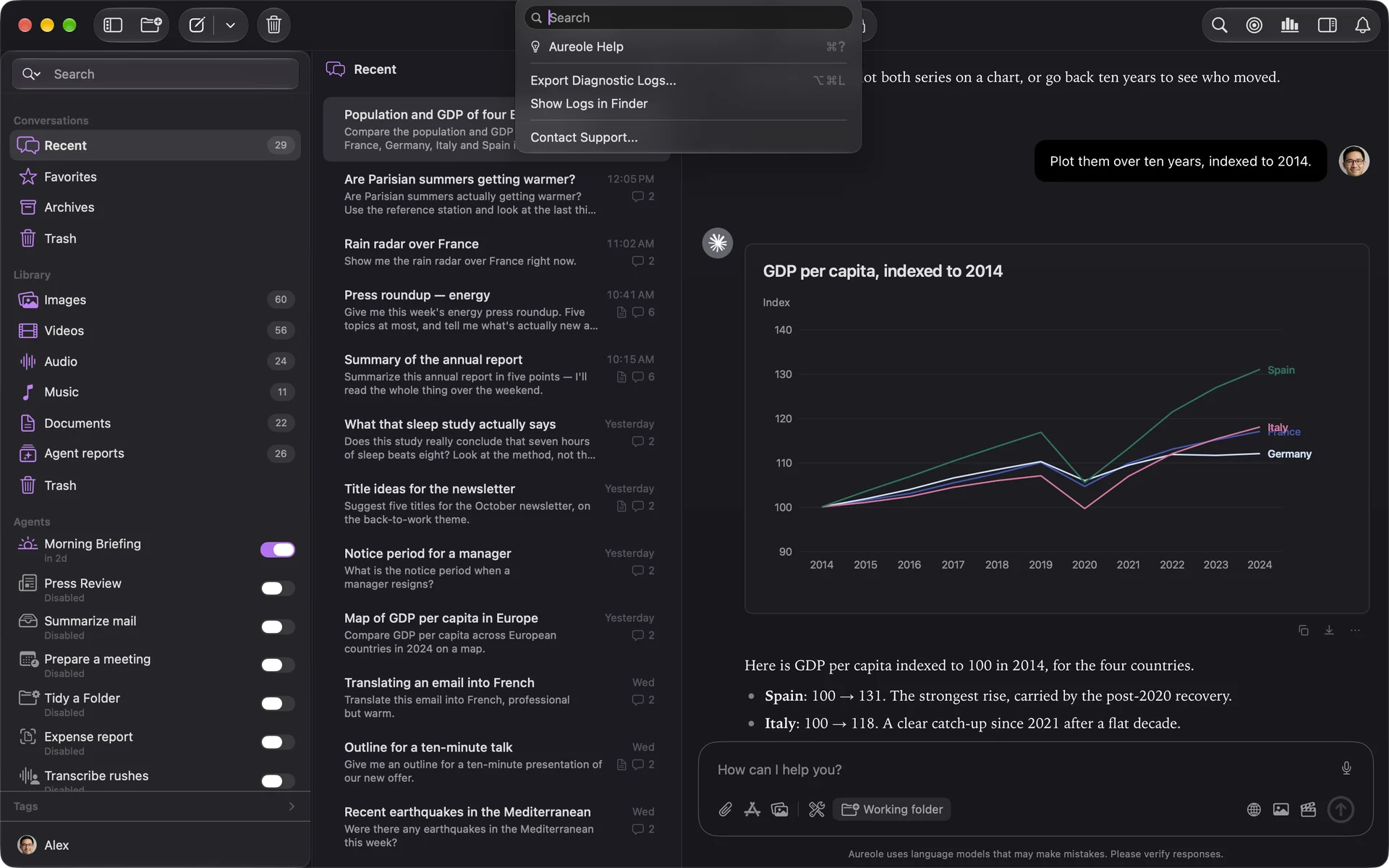
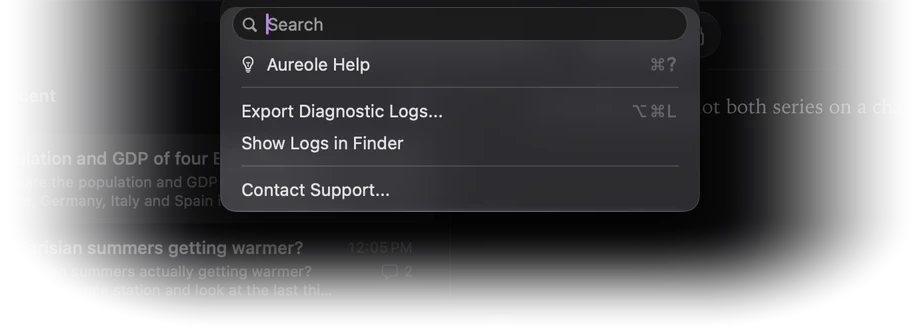
Choose where to save the file: a .zip named Aureole-Logs, followed by the date and time. Once the export is done, the Finder opens with the file selected.
It holds Aureole’s recent logs, a few tens of megabytes at most, and a sheet about your system: Aureole and macOS versions, Mac model, memory, language, displays. Not your Mac’s name, not its IP address, not the titles of your windows.
Every line is cleaned before it is written: API keys, passwords and tokens are removed, as are email addresses, phone numbers and the paths of your personal folders. Most passages that would quote your messages are masked too. They are text files: open the .zip before sending it, if you want to check.
“Show Logs in Finder” opens the logs folder itself.
Write to us
“Contact Support...”, in the same menu, opens a new message in your mail app, addressed to Aureole support and titled “Aureole Support”. It starts with a line where you describe the problem: what you were doing, what happened. Below it, Aureole has already written its version, the macOS version, the processor type and the state of its logs: leave those lines as they are.
The exported file isn’t attached on its own: add it to the message before sending it.
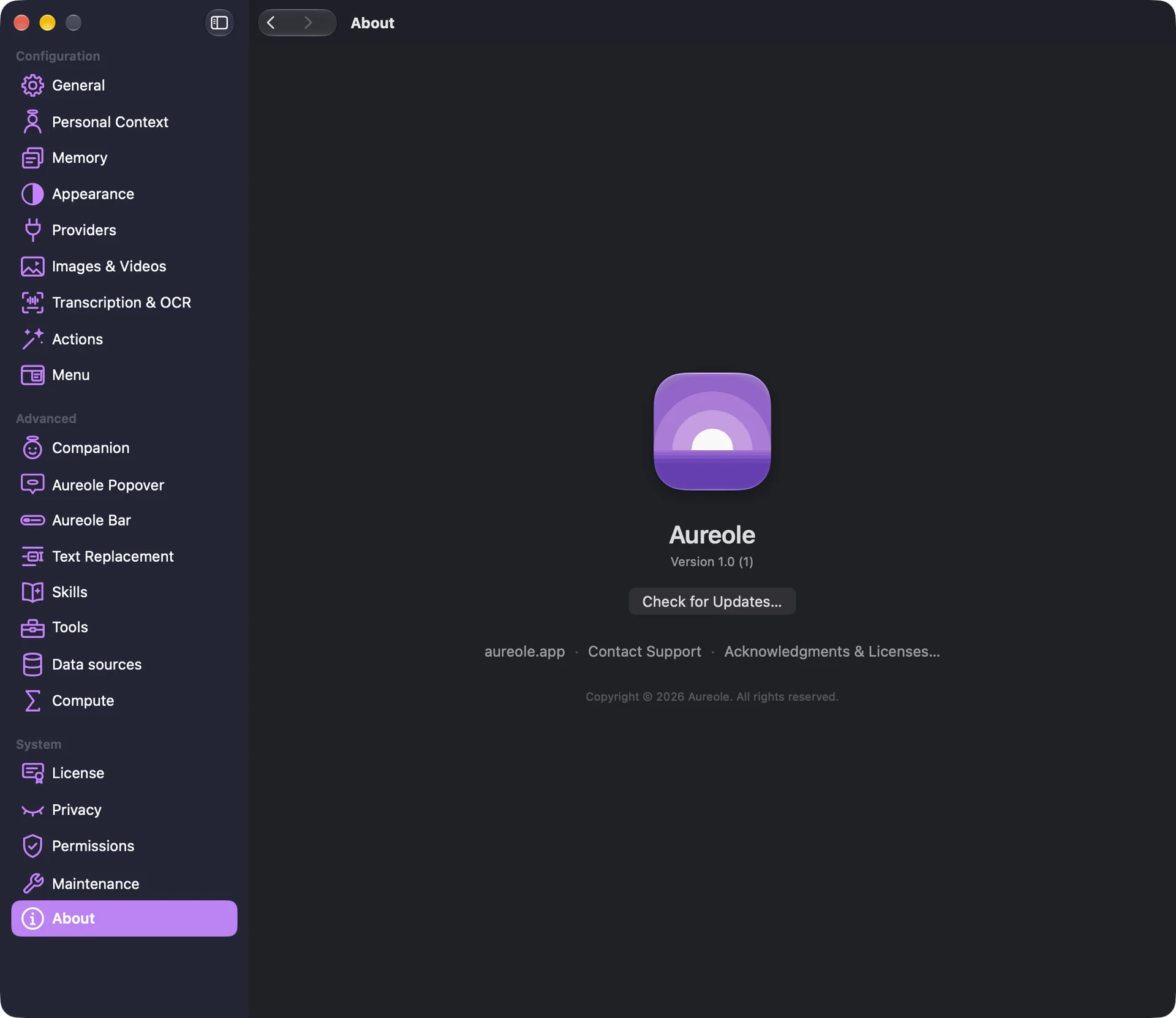
The same message opens from Settings›About, with “Contact Support”:
Error reports
When Aureole crashes or hits an error, it can send it to us on its own. The setting is in Settings›Privacy, “Diagnostics” section:
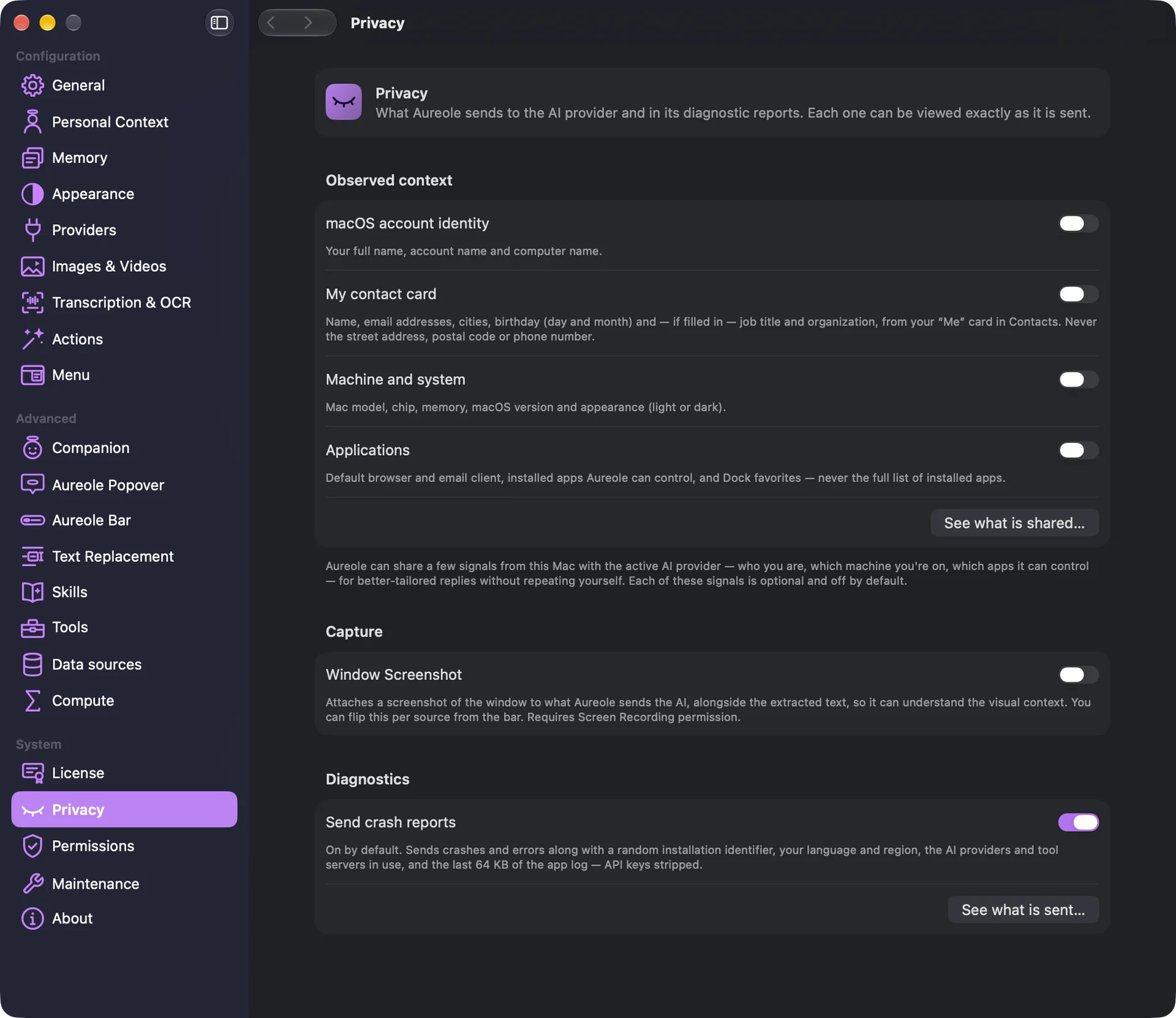
“Send crash reports”, on by default, sends crashes and errors, with a randomly drawn installation identifier, your language and region, the AI providers and tool servers in use, and the end of the app’s log, API keys removed. Turned off, nothing is sent. These reports only serve to fix Aureole; see also Know what leaves your Mac.
See what is sent
“See what is sent…” opens the “Diagnostic report”, read from the app’s real state: what accompanies every error report.
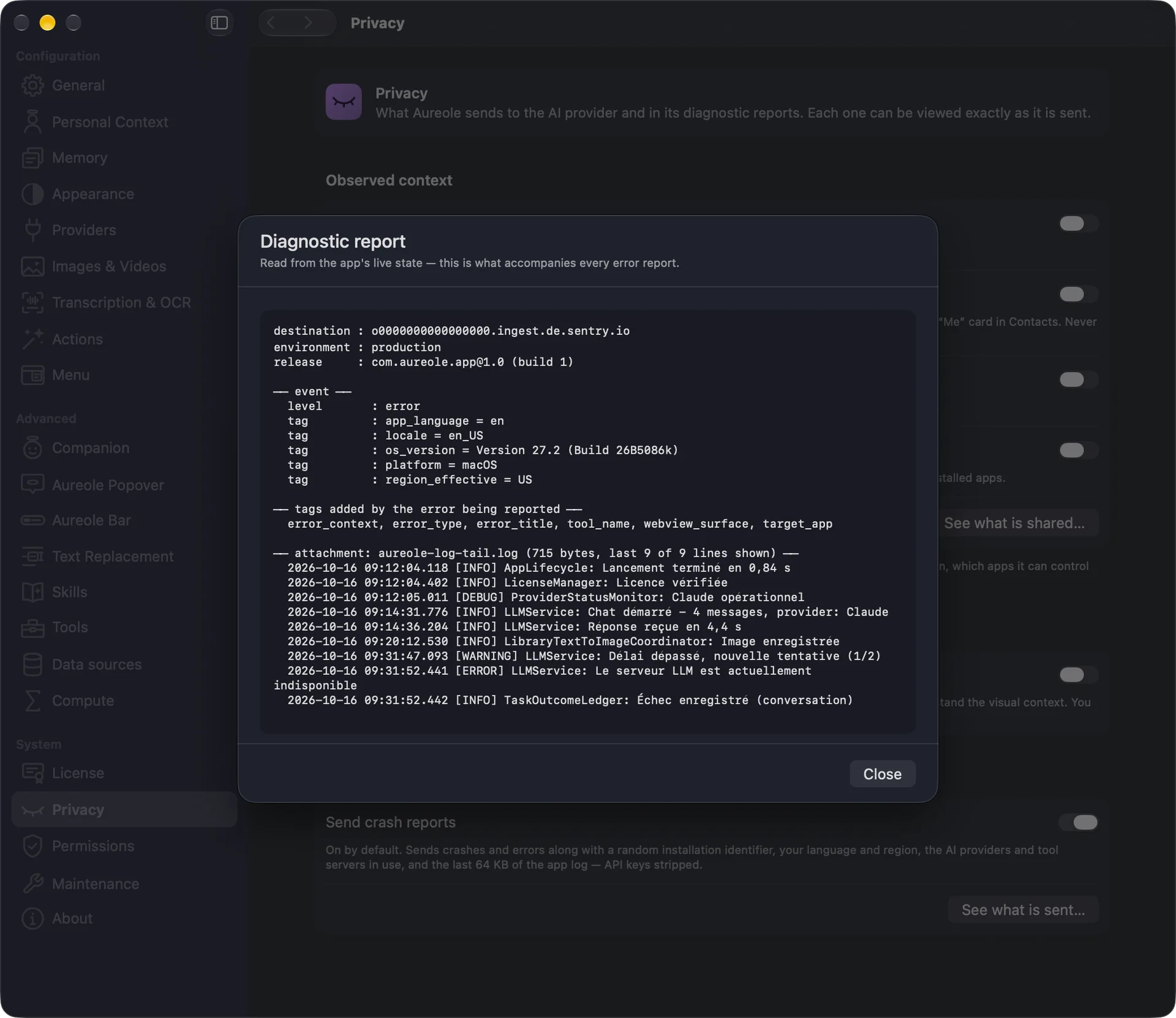
It shows the destination, Aureole’s version, a few markers, such as language, region and macOS version, then the last lines of the log that would go with the report.
If you’re stuck
“No Logs Available”
Aureole hasn’t logged anything yet, for instance right after it was installed. Reproduce the problem, then export again.
“Export Error”
Aureole couldn’t write the file where you chose: choose another folder, such as the Desktop.
No message opens
“Contact Support...” goes through your default mail app. If none is set up, write to us from the site’s Contact page, describing the problem: we’ll tell you how to get the export to us.
Something missing from this guide? Tell us.