 Aureole
Help center›Act in your apps
Act on a selection without the shortcut
You don’t need ⌥Space to act on a text: when you select some in another app, Aureole shows a small icon near the pointer. A click on it opens its actions, and a field for a question. This guide shows how to use it, and how to set it up.
- Select text by dragging the mouse: the icon appears near the pointer, for three seconds.
- A click on the icon opens the menu: your actions, your recent actions, and a field for a question.
- It’s set up, or turned off, in Settings›Aureole Popover.
The icon
Select the message to Claire by dragging the mouse: a small round Aureole icon appears near the pointer.
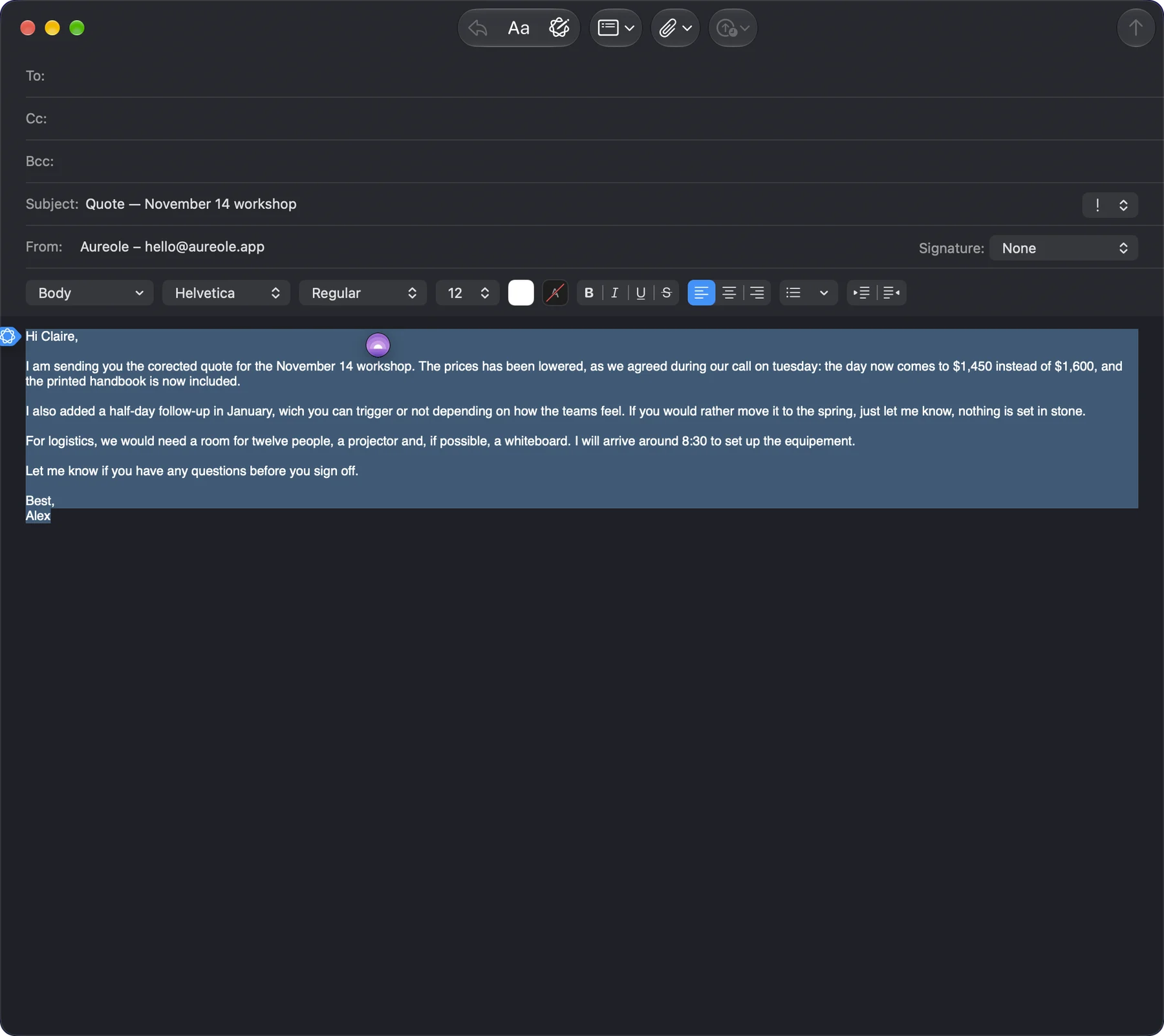
It disappears on its own after three seconds, or with Esc. A double-click selection doesn’t make it appear: drag the mouse, or click in the text and then select right away from the keyboard, with ⌘A or ⇧ and the arrows. It doesn’t appear in Aureole’s own windows.
The menu
Click the icon: the menu opens, below the pointer.
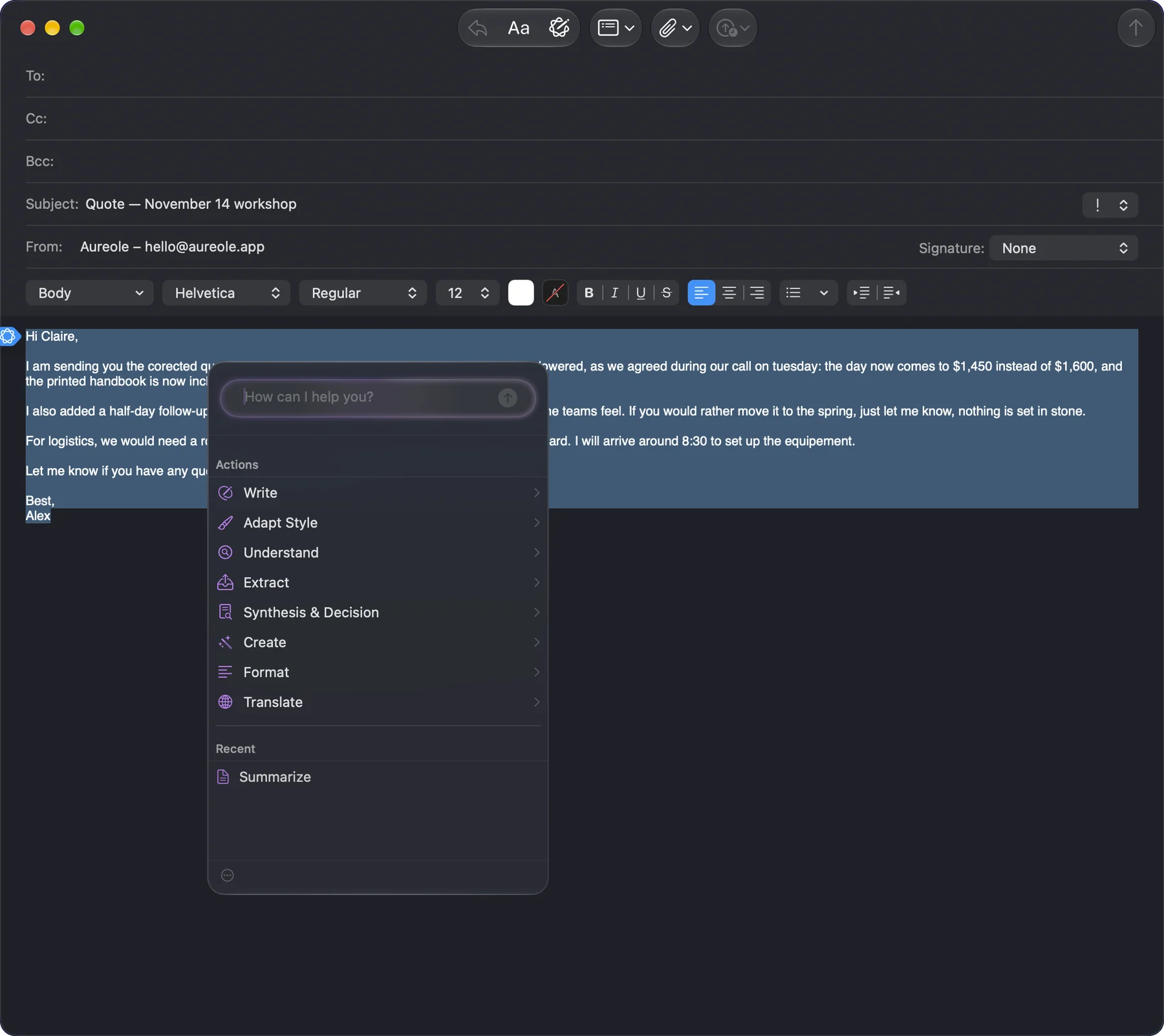
At the top, the “How can I help you?” field asks a question about the selection: type it, then Return. The answer opens in Aureole’s window, with your default model.
Below, “Actions” shows the folders and actions of your menu, in the order you gave it (Customize the actions menu). Click a folder to open it, then “Back” to leave it. “Recent” brings back your last actions.
A click on an action runs it on the selection right away. Actions that rewrite the text, such as “Proofread and correct”, replace it; the others answer in Aureole’s window. This is set action by action: Choose where the answer goes.
Esc closes the menu, or leaves a folder; a click elsewhere closes it too.
Its settings
In Settings›Aureole Popover:
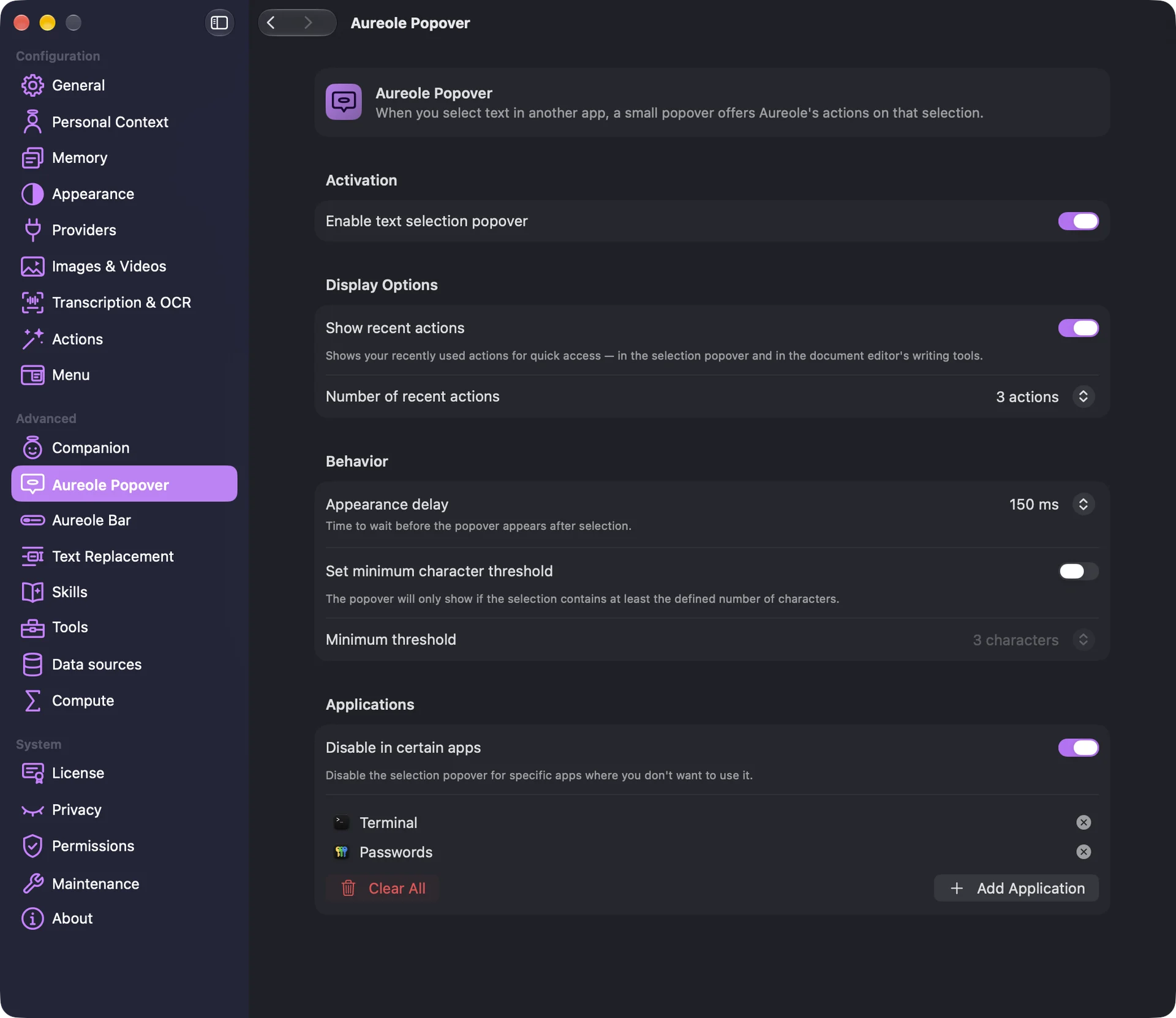
- “Enable text selection popover” turns it on or off. It’s on at first.
- “Show recent actions” and “Number of recent actions” (two, three or five) set up the “Recent” section. This setting also applies to the document editor’s writing tools.
- “Appearance delay” sets the wait before the icon, from 15 to 300 ms.
- “Set minimum character threshold” only shows the icon for a long enough selection.
- “Disable in certain apps” turns it off in the apps you add to the list with “Add Application”. In those apps, the bar no longer spots the selection either.
If you’re stuck
The icon never appears
Check, in this order: “Enable text selection popover”, in Settings›Aureole Popover; the Accessibility permission, in Settings›Permissions; that the app isn’t in the list of disabled apps; that the minimum threshold isn’t longer than your selection.
The icon disappeared before I clicked
It disappears after three seconds. Select again.
A new selection shows nothing
The icon or menu from the previous selection is still there: press Esc, or wait three seconds.
A double-click selection does nothing
That’s by design: drag the mouse over the text, or click and then select from the keyboard.
In Slack, Notion or VS Code, the first selection is ignored
These apps take about a second to become readable when you switch back to them. Select again.
An action replaced my text instead of opening the window
That’s this action’s destination: change its “Response destination” in Settings›Actions.
Something missing from this guide? Tell us.