 Aureole
Help center›Act in your apps
Customize the actions menu
The actions menu is the list you browse in the Aureole Bar and in the selection popover: its folders, and the actions they contain. You can arrange it your way: remove the actions you don’t use, move the others, create and rename folders. This guide shows how.
- Everything is arranged in Settings›Menu, by dragging rows; each change is saved right away.
- An action removed from the menu disappears from the bar, even from its search; one click puts it back.
- “Reset Menu” restores its original order, and keeps your own actions.
The Menu tab
Open Settings›Menu. On the right, the “Actions menu” shows the folders and their actions, in the order the bar and the popover present them. On the left, “Not in the menu” gathers the actions you’ve removed from it:
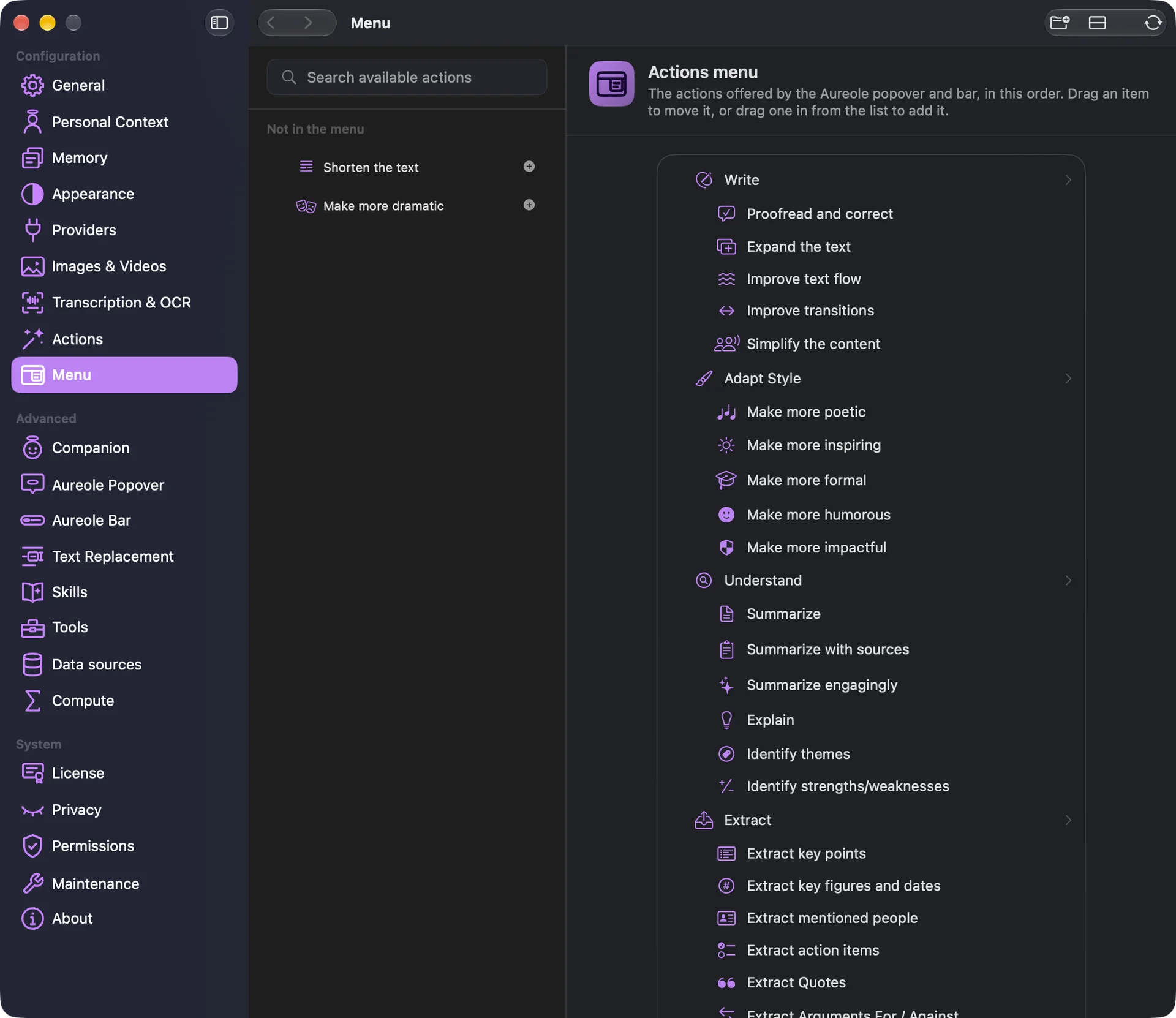
At first, the menu has eight folders, one per action category, from “Write” to “Translate”. Your changes are saved as you go, with no button to confirm, and they hold after Aureole restarts.
Move an action or a folder
Drag a row to move it. Dropped on the middle of a folder’s row, it goes into that folder; dropped on the top or bottom of a row, it lands before or after it. A folder moves with everything it contains. In an empty folder, a dashed area (“Drop here to add to this submenu”) shows where to drop.
Remove an action and put it back
When you hover over a row, a red button appears on its right (“Remove from menu”): it removes the action, which moves to “Not in the menu”. You can also drag the action to that list.
A removed action no longer appears anywhere in the bar: not in the list, not in favorites, not in the search. To put it back, click its “+” in “Not in the menu”: it goes back to its folder. Or drag it to the spot you want in the menu.
Create, rename, delete a folder
At the top right of the window, the first button (“New Submenu”) creates a folder: give it a name, then click “Create”.
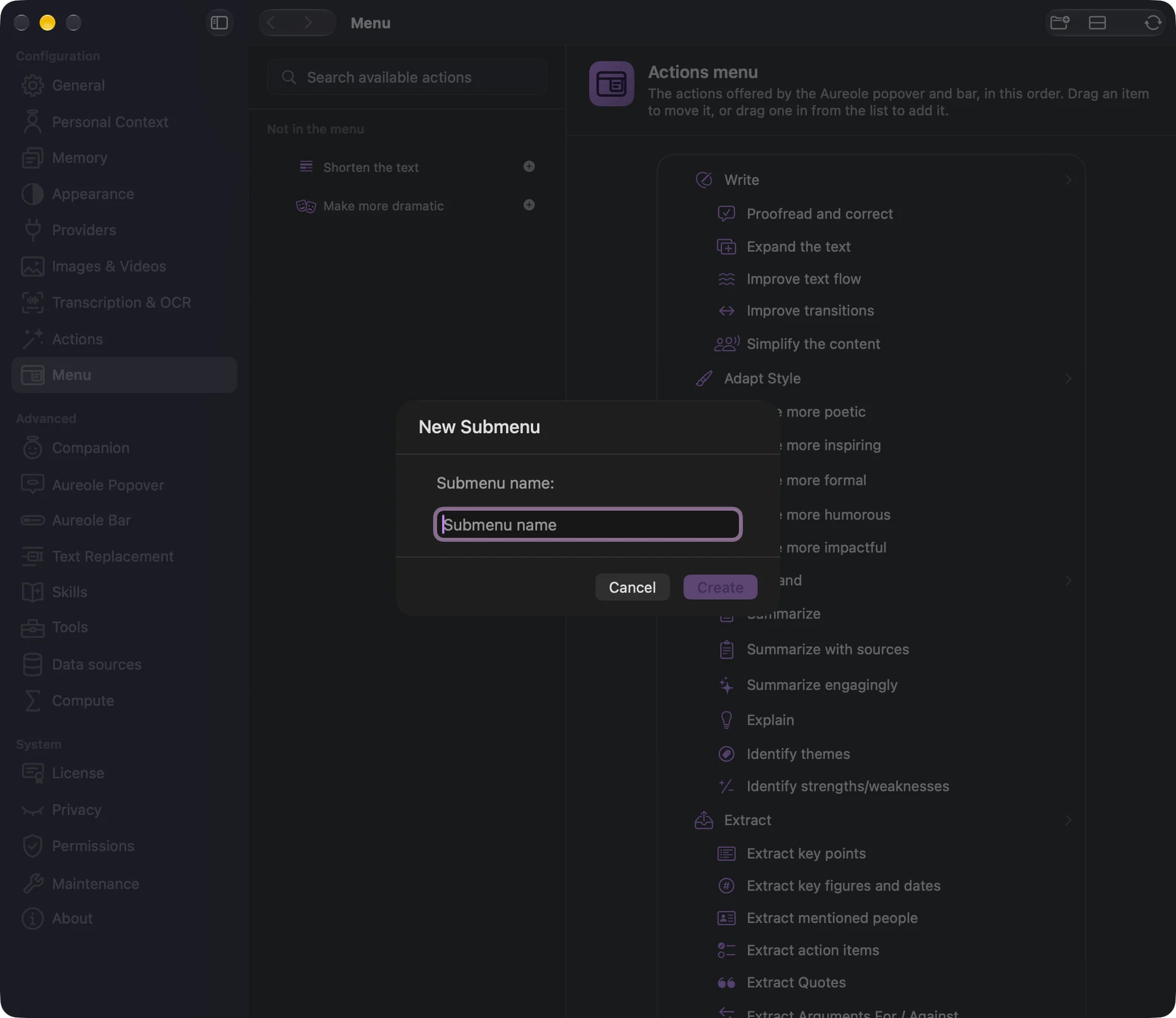
The new folder is added at the end of the menu: drag it into place, then drag actions into it.
To rename a folder, including one of the original eight, double-click its name, or right-click and choose “Rename…”.
A folder’s red button deletes it. If it contains actions, Aureole asks you to confirm, then moves them to “Not in the menu”, where you can put them back.
The second button (“Add Separator”) adds a separator line, also at the end of the menu, to drag wherever you want. In the selection popover, it separates the actions of a folder.
Your own actions
An action you create in Settings›Actions is added at the end of its category’s folder. If you deleted that folder, it waits in “Not in the menu”. Editing it doesn’t move it, unless you change its category while it was still in the old category’s folder.
Go back to the original menu
The third button (“Reset Menu”) restores the original menu, after you confirm:
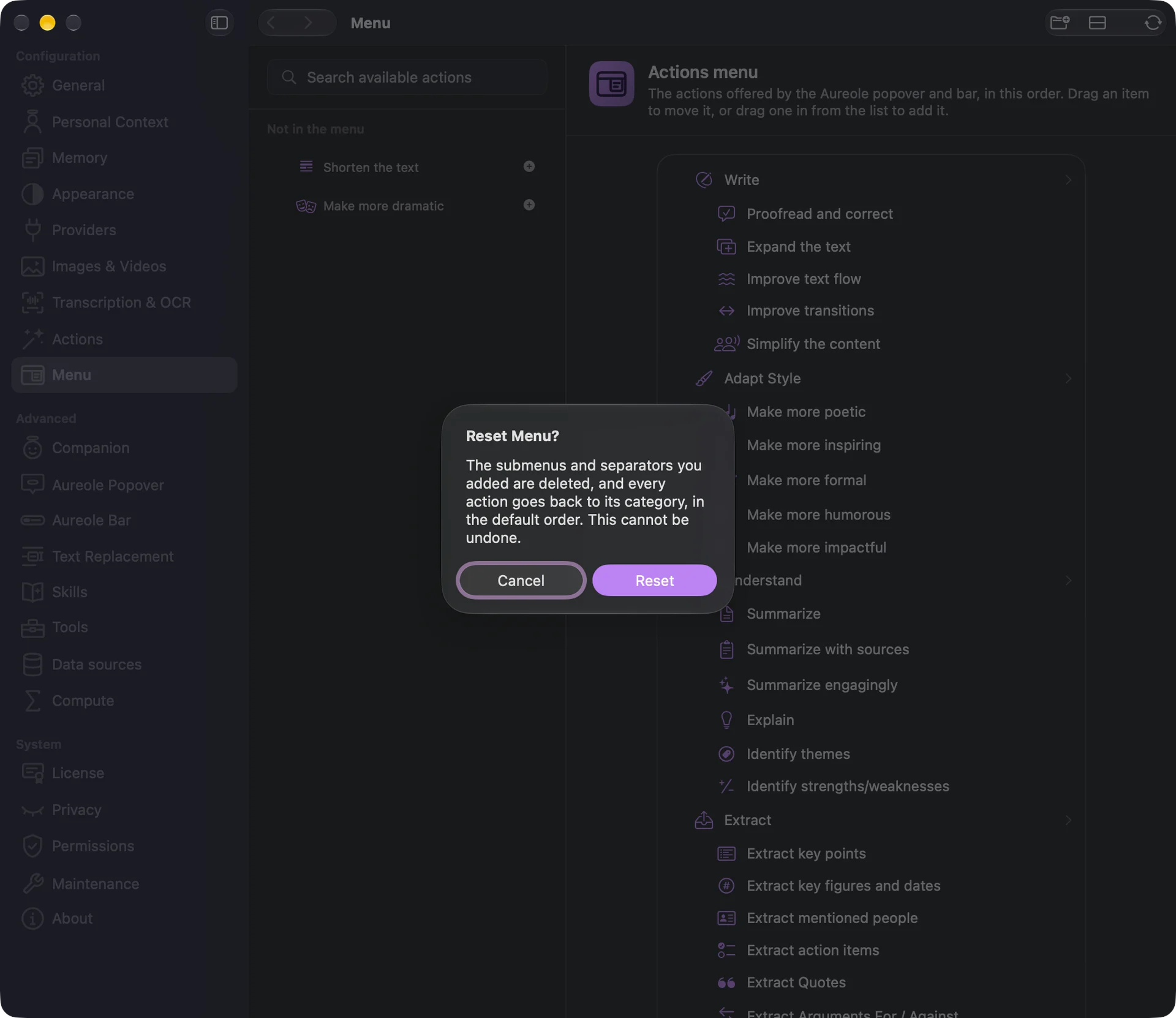
With “Reset”, the folders and separators you added are deleted, and every action goes back to its category, in the original order. Your own actions stay in the menu, and the actions’ settings don’t change. This can’t be undone.
If you’re stuck
An action has disappeared from the bar
It was removed from the menu: it waits in “Not in the menu”, in Settings›Menu. Click its “+” to put it back. While it’s removed, the bar’s search doesn’t find it.
My new folder appeared at the very bottom
That’s by design: a folder or a separator is added at the end of the menu. Drag it into place.
The action won’t go into the folder
Drop it on the middle of the folder’s row: the top and bottom of the row place it before or after the folder.
A removed action still shows in the popover’s recent actions
The selection popover’s recent actions don’t follow the menu. To hide them, turn off “Show recent actions” in Settings›Aureole Popover.
Something missing from this guide? Tell us.