 Aureole
Help center›Personalize
Tell Aureole who you are
Aureole answers better when it knows who it’s talking to: your first name, your job, formal or casual, the tone that suits you. And a few fixed rules, “no emojis”, “always metric units”, that it follows on every request. This guide shows where to tell it, and what goes to the model.
- Everything is set in Settings›Personal Context.
- The switch, at the top, decides whether your profile is sent to the model.
- “Standing instructions” are always sent, even with the switch off.
Your profile
In Settings›Personal Context, answer the questions: “How would you like to be addressed?”, “What do you do?”, “How should the model address you?”, and “What tone or style should it adopt?”, with its suggestions to check, “Professional”, “Friendly”, “Educational”… or your own words:
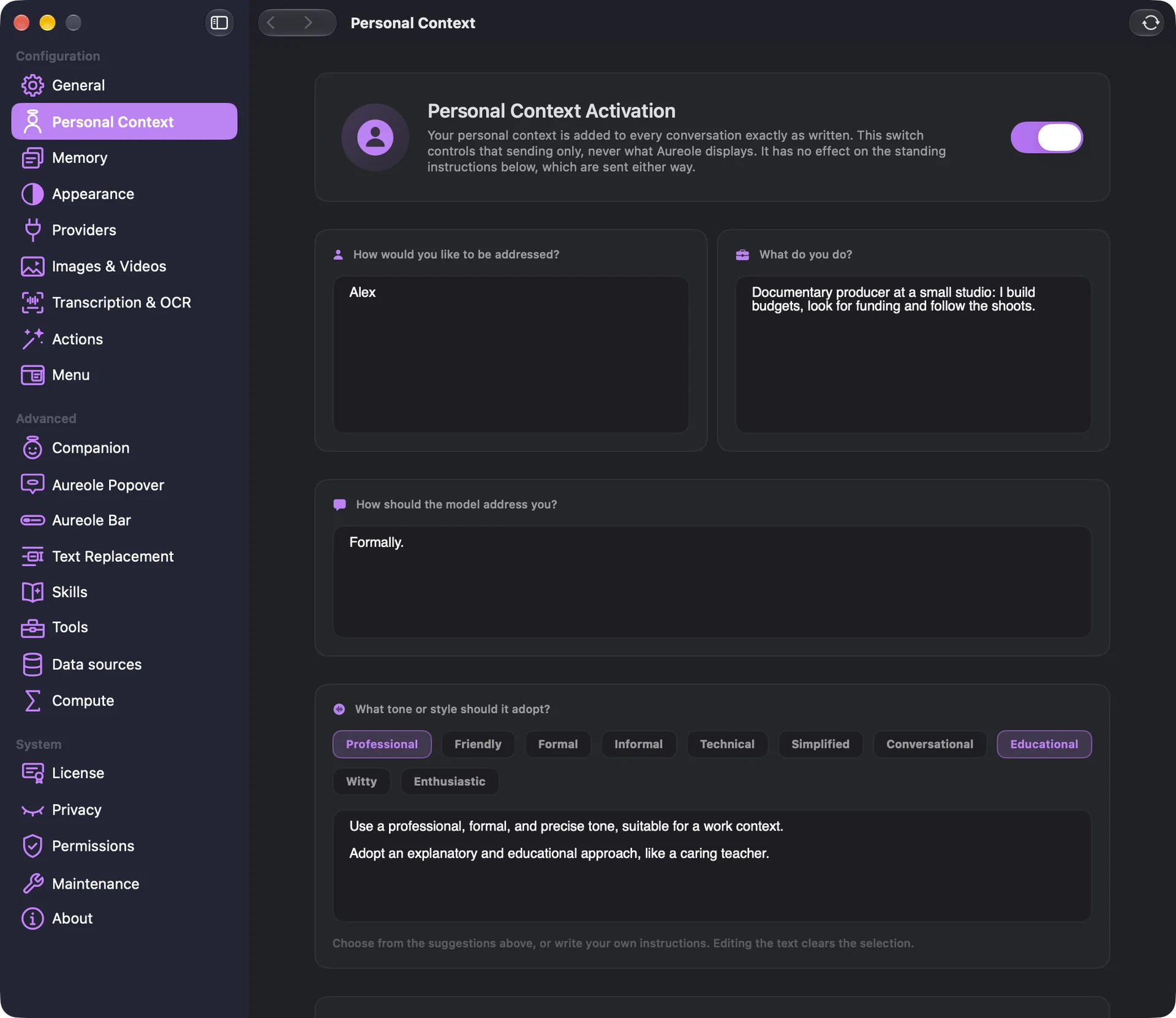
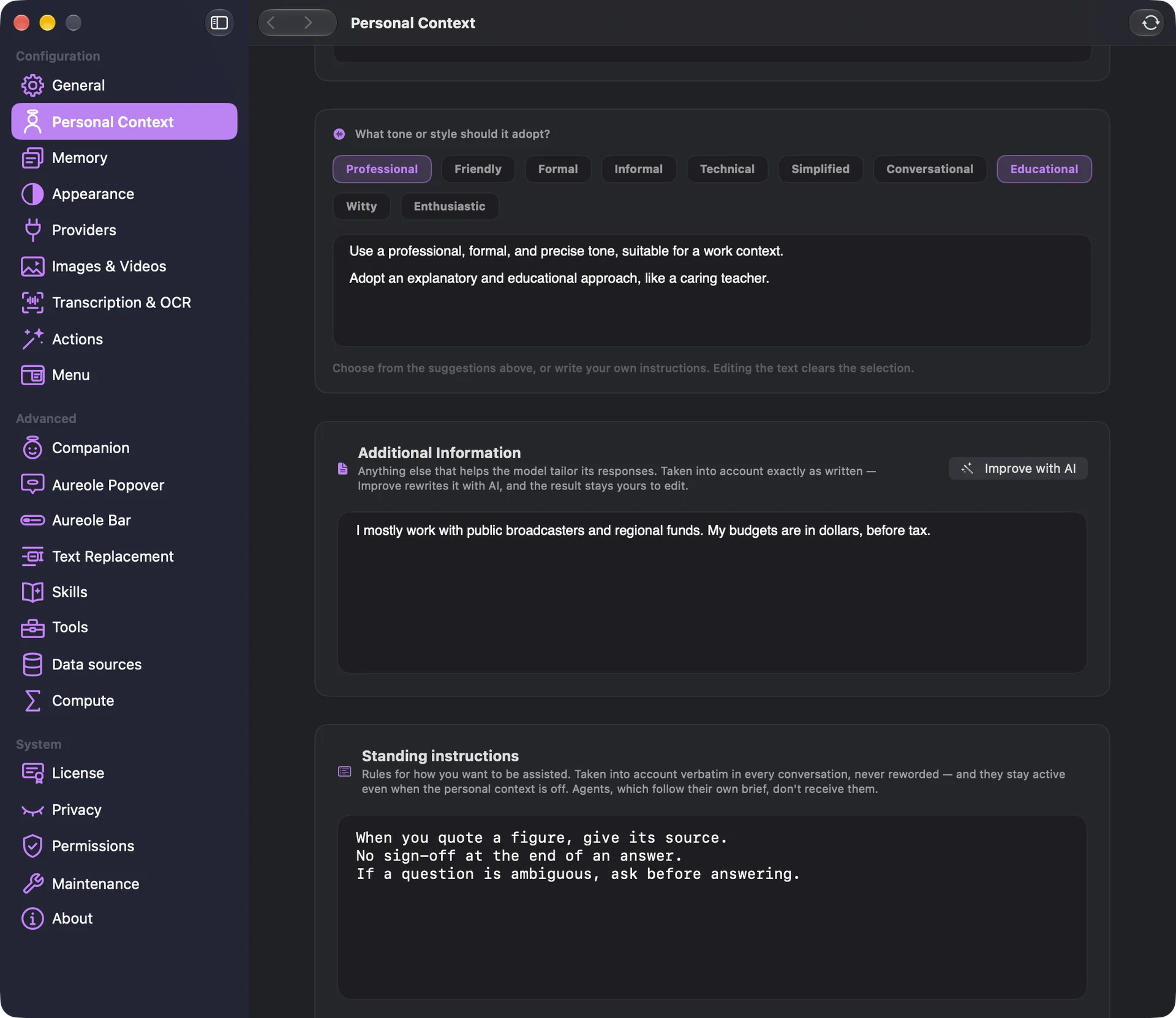
“Additional Information” takes the rest: your format preferences, topics to avoid; “Improve with AI” rewrites it with your default model, and you can edit it afterwards. A photo, at the top, is only for display: it’s never sent.
The “Personal Context Activation” switch decides whether this profile goes to the model; it’s off at first, and turns on if you give your first name at welcome.
Standing instructions
“Standing instructions”, at the bottom, takes your rules, one per line: “Concise answers, no emojis”, “Before sending an email on my behalf, ask me to confirm”. They’re sent as written, with every request, even with the switch off. Beyond 6,000 characters, the end is cut.
What goes to the model
Your profile and instructions go with every request, in conversations, the bar and actions; agents, which follow their own instructions, don’t receive them. To see exactly what went out, right-click an answer, then “What the AI Received…”.
Erase everything
“Reset Personal Context”, in the settings toolbar, erases the name, occupation, tone, information and instructions, and turns the switch off. There’s no way back.
If you’re stuck
The model ignores my profile
The switch may be off; or it’s an agent, which doesn’t receive it. Check with “What the AI Received…”.
The text couldn’t be improved
“Improve with AI” uses your default model: check it has its key. Your original text is intact.
It answers in another language
It follows the app’s language, unless you write to it in another language, or your profile asks otherwise; see “Set the appearance, language and region”.
Something missing from this guide? Tell us.