 Aureole
Help center›Converse
Read and export widgets
When the answer calls for it, Aureole doesn’t stop at text: a map, a chart, the weather or a card shows up in the conversation, as a widget. This guide shows how to read them, and how to turn them into an image or a PDF to reuse elsewhere.
- Under each widget, a row of buttons copies or saves it.
- That row’s menu chooses the format (PNG, PDF or SVG) and the appearance, light or dark.
- “Add to Library” keeps it, to find it outside the conversation.
A widget in the answer
A widget is part of the answer, drawn by Aureole from the data the model found: you read it like the rest.
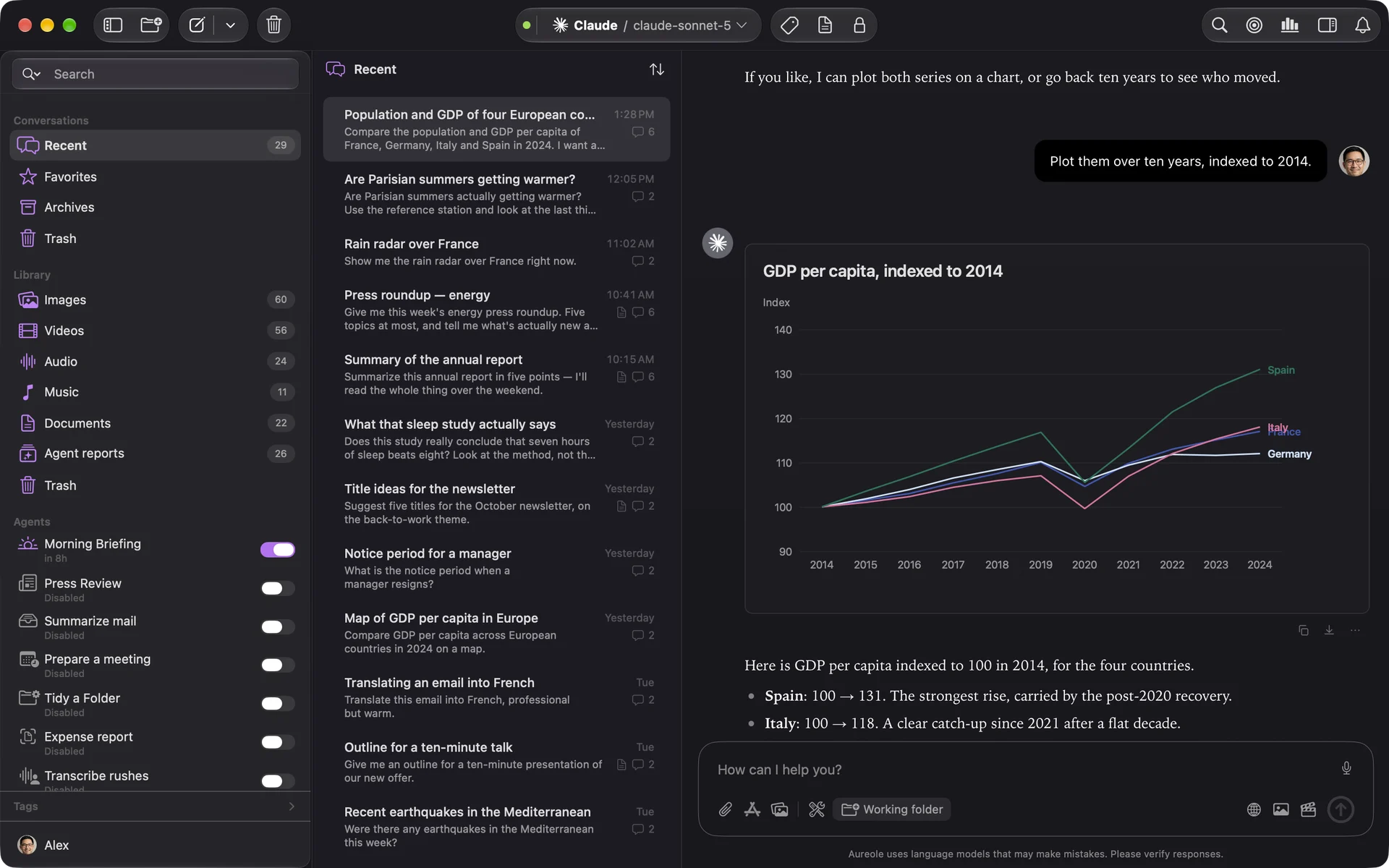
A link opens in your browser, an image in Aureole’s viewer.
Copy or save it
Under the widget, three small buttons, faint until you hover over them: copy the image, to paste it into an email or a document, save it, and “…”, whose menu has everything: “Copy Image”, “Save As…”, then:
- “Drop on Desktop” saves the file to the Desktop, without asking anything;
- “Format”: “PNG (2×)”, an image that stays sharp on a Retina display; “Vector PDF”, to print it or lay it out; “SVG”, to retouch it in a drawing app;
- “Appearance”: “Light” or “Dark”, whatever your Mac’s is.
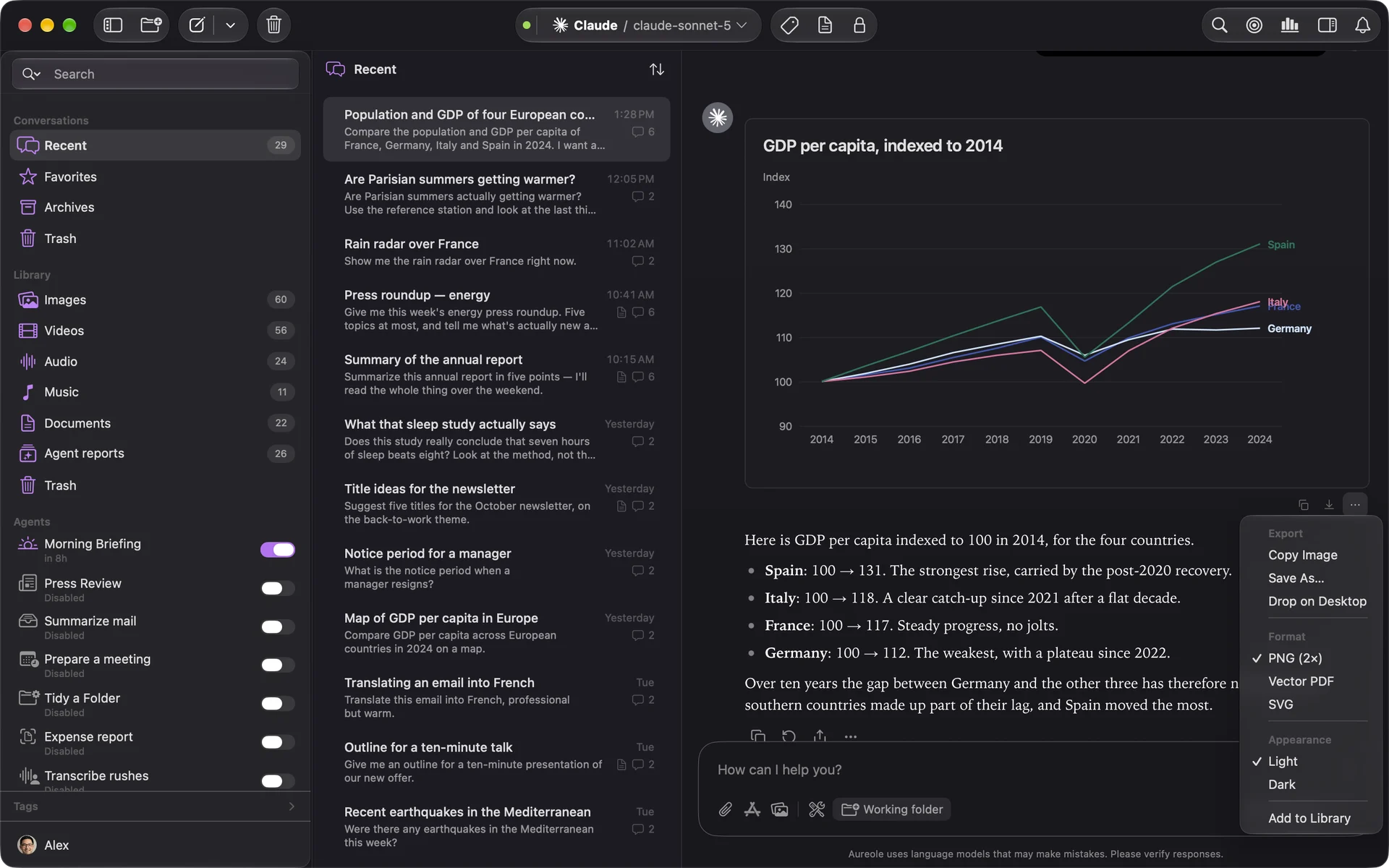
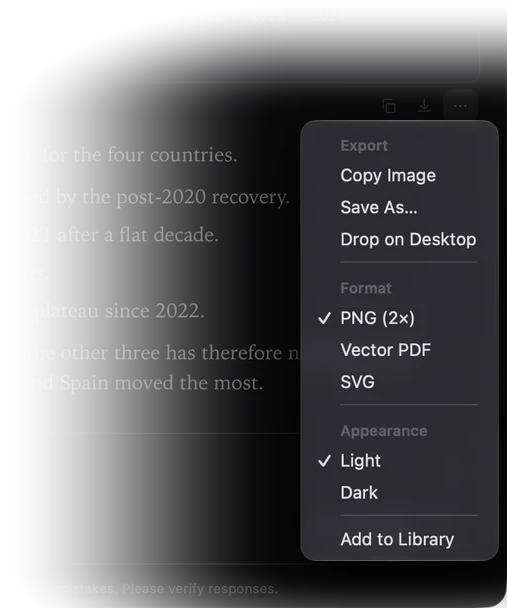
The chosen format and appearance then apply to every widget, until you quit Aureole. At first: PNG, light.
Some widgets don’t exist as SVG, like geographic maps: the menu says so.
Keep it in the Library
“Add to Library”, in the same menu, files the widget in Aureole’s Library: you find it there, without reopening the conversation.
If you’re stuck
I don’t see the buttons under the widget
They’re faint: hover over the widget to see them. A news or file card has none: it isn’t an image.
SVG is greyed out
This widget can’t be drawn as SVG: choose PNG or PDF.
Exporting a geographic map fails
The map is drawn at export time: unlock your Mac, and try again.
Something missing from this guide? Tell us.