 Aureole
Help center›Act in your apps
Dictate your request
Rather than typing your request, dictate it. From any app, ⌃⌥D opens the Aureole Bar, listening; in Aureole’s window, it dictates into its field. Transcription happens on your Mac, and nothing is sent until you press Return.
- Hold ⌃⌥D while you speak, then release: the text is written. Or press once to start, once to stop.
- Dictated text goes into Aureole’s bar or field, never into the other app: read it over, then Return sends it.
- Dictation happens on your Mac, with a model downloaded once, when you ask.
Dictate
Press ⌃⌥D over the message to Claire: the Aureole Bar opens, listening. As with ⌥Space, it spots the source:
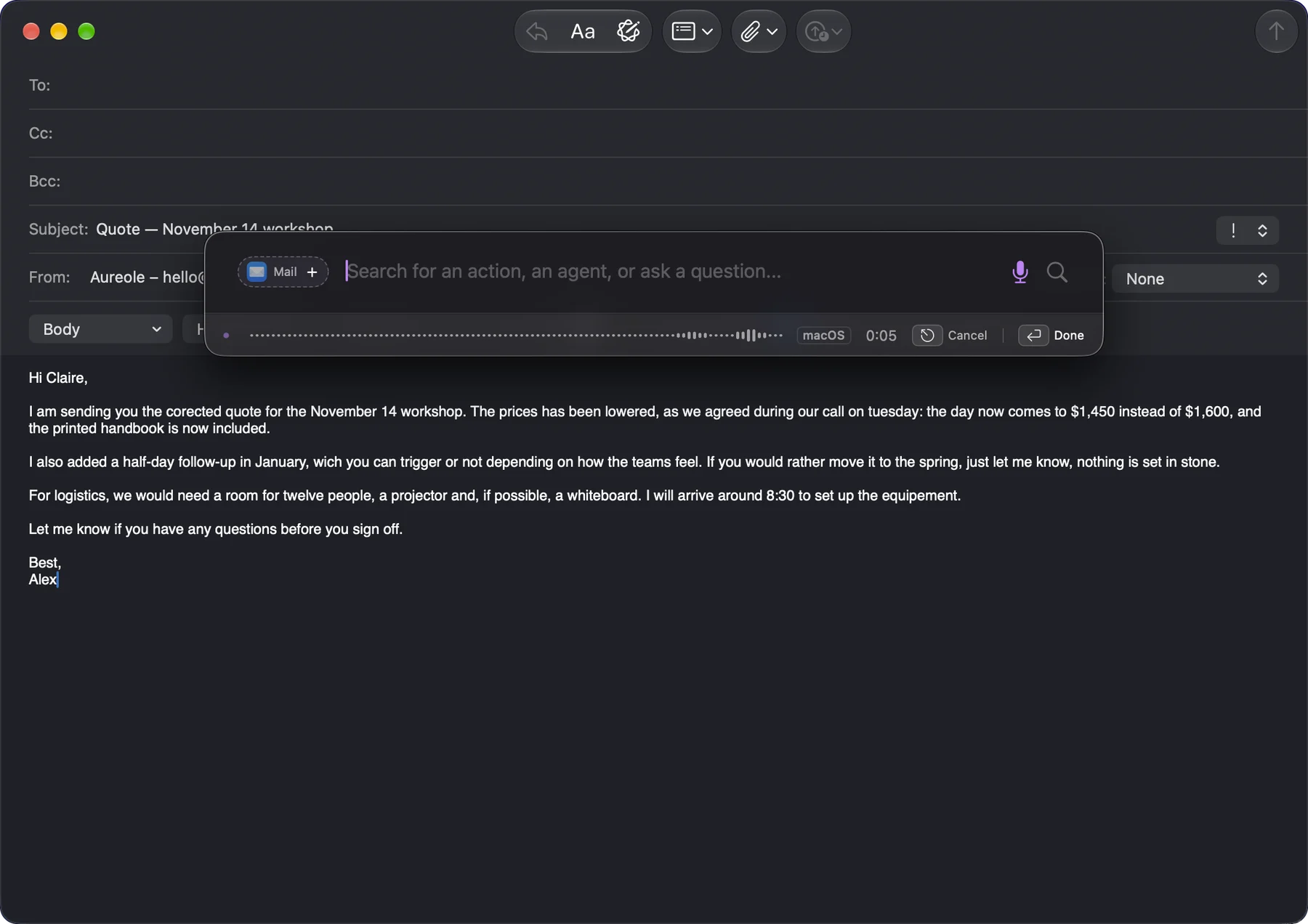
Two ways to dictate, always available: hold the keys while you speak, and release them to insert the text; or press once to start, once to stop.
While listening, the bottom of the bar shows a waveform and the elapsed time. “Done”, or Return, inserts the text, without sending it; “Cancel”, or Esc, keeps nothing. Until the model is downloaded, macOS dictation fills in, as here.
The text appears once dictation is finished, at the cursor. Read it over, correct it if needed, then Return sends it. A single ⌘Z removes the whole dictation.
Where the text goes
Dictated text always goes into Aureole, never into the other app:
- if the Aureole Bar is open, into its field;
- if Aureole’s window is in front, into its message field;
- otherwise, the bar opens, listening.
In the bar as in the window, the microphone, to the right of the field, dictates too: click to start and stop, or hold it while you speak.
Languages
Dictation recognizes the spoken language on its own, among your dictation languages. At first, it’s the app’s language. To add more, check them in Settings›Transcription & OCR, “Dictation” tab, “Dictation languages” section:
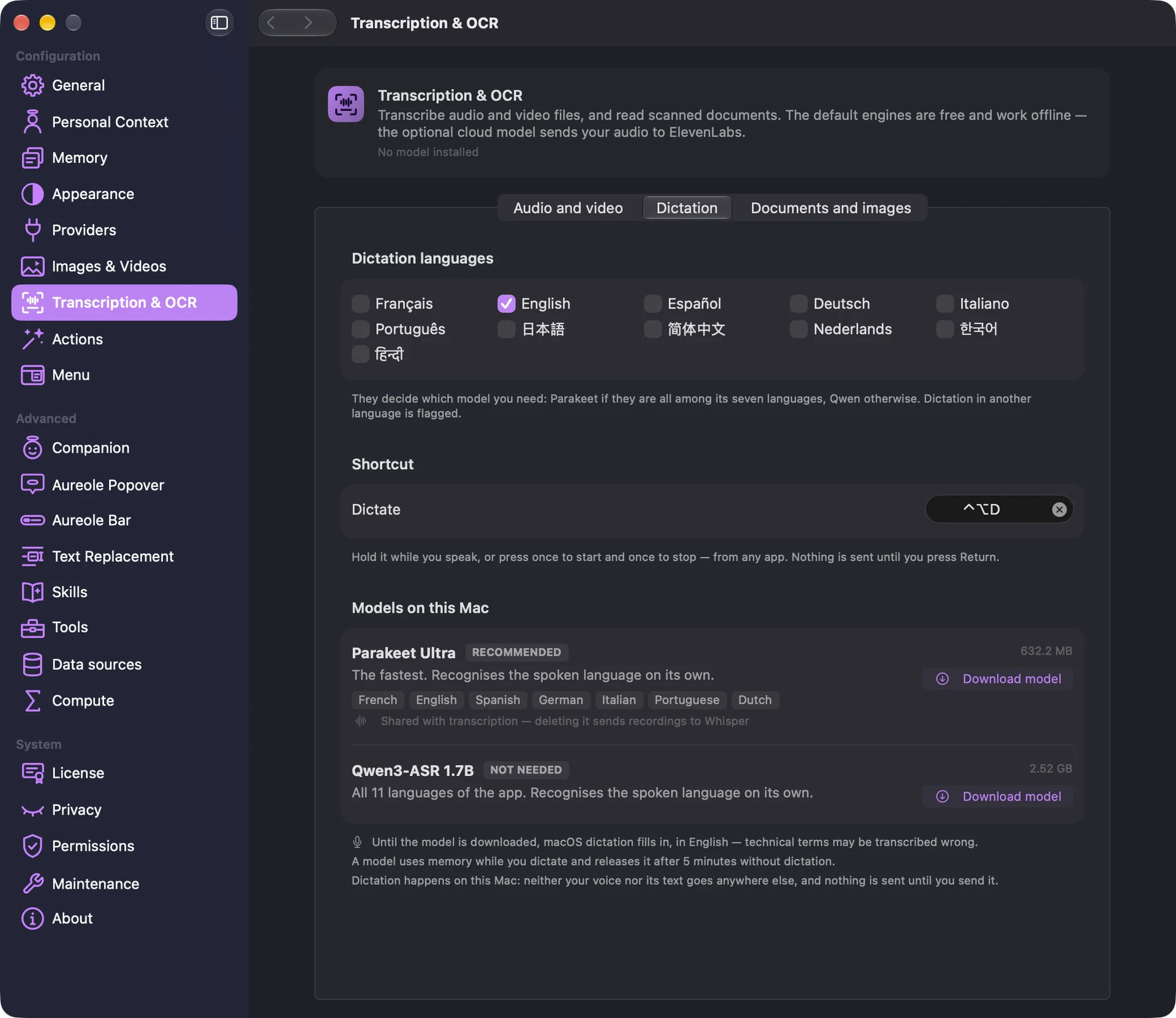
If you dictate in a language that isn’t checked, Aureole flags it next to the microphone, without blocking anything.
The model, on your Mac
Dictation happens on your Mac: neither your voice nor its text leaves it. That takes a model, downloaded once, when you ask:
- Parakeet (632 MB), the fastest, for French, English, German, Spanish, Italian, Portuguese and Dutch;
- Qwen (2.5 GB), for the app’s eleven languages, including Japanese, Korean, Chinese and Hindi.
Your dictation languages decide which model you need. On your first dictation, Aureole offers to download it; you can also do it in the “Dictation” tab, with “Download model”. Meanwhile, a model already on your Mac, or macOS dictation, fills in.
The model uses memory while you dictate, and releases it after five minutes without dictation. The first dictation asks for microphone access.
Change the shortcut
⌃⌥D is changed in Settings›General, “Shortcuts” section, “Dictate” row, or in the “Dictation” tab itself.
If you’re stuck
Aureole doesn’t have access to the microphone
Allow it in System Settings›Privacy & Security›Microphone: the message’s button takes you there.
Aureole says it heard nothing
The dictation lasted less than half a second, or the microphone picked up nothing. Speak after pressing the keys, or hold them while you speak.
Dictation failed because it was too long
With Qwen, a dictation must last under about three minutes: dictate in several parts.
Return didn’t send my text
During dictation, Return finishes it and inserts the text; a second Return sends it.
The shortcut does nothing
It may have been cleared in Settings›General, or another app already uses it: choose another one.
Something missing from this guide? Tell us.