 Aureole
Help center›Act in your apps
Change the shortcut
⌥Space opens the Aureole Bar, and two other shortcuts open its window and dictation. If one of them is already taken on your Mac, or doesn’t suit you, change it. This guide shows how.
- The three shortcuts are changed in Settings›General, “Shortcuts” section.
- Click a shortcut, then press the new combination: it’s saved right away.
- Aureole can’t see other apps’ shortcuts: if the new one doesn’t respond, choose another.
The three shortcuts
Open Settings›General and scroll down to the “Shortcuts” section:
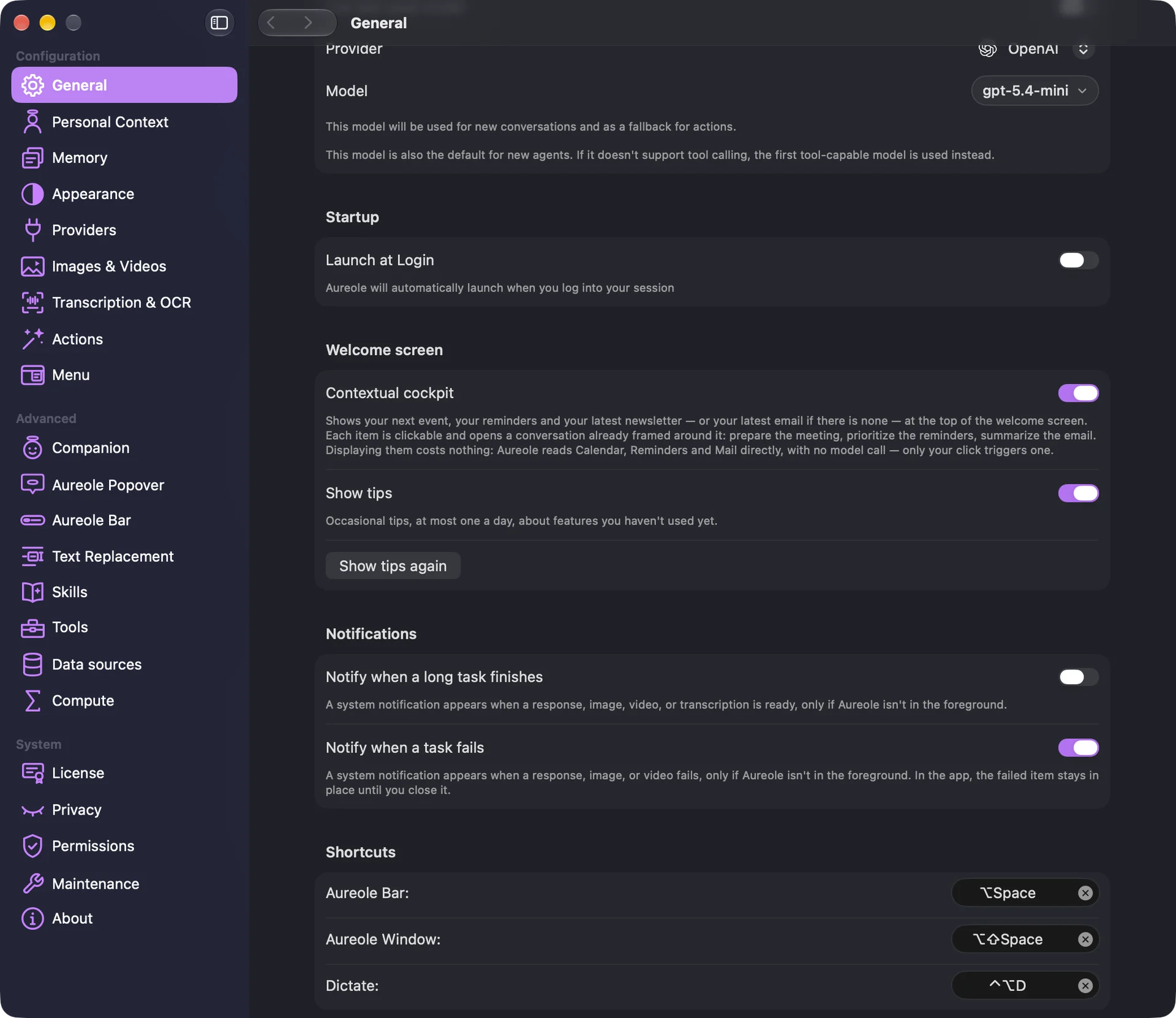
“Aureole Bar” opens and closes the bar. At first, ⌥Space.
“Aureole Window” opens and closes Aureole’s window, with the cursor in its message field. At first, ⌥⇧Space.
“Dictate” dictates into Aureole, from any app. At first, ⌃⌥D.
Change a shortcut
Click the shortcut to change: it waits for a combination. Then press the keys you want:
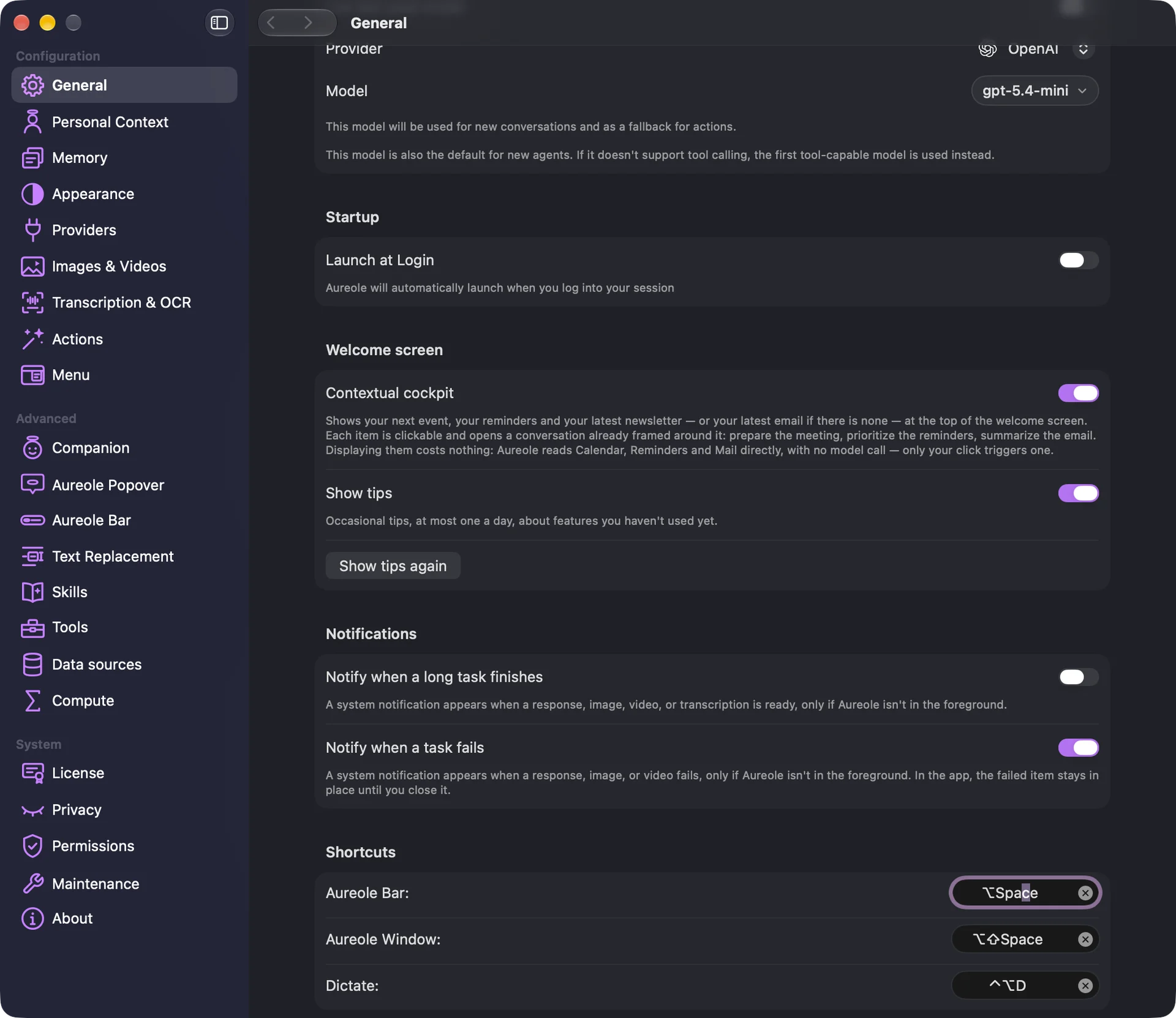
It’s saved right away, with no button to confirm. Esc cancels; ⌫ clears the shortcut. While you record, Aureole’s shortcuts are paused.
A combination must include at least one of the Command, Option or Control keys, except with a function key. A letter alone, or with Shift only, is refused with a beep.
A cleared shortcut doesn’t come back on its own, and no button restores the original: record it again, by hand.
When the combination is already taken
If it’s already used by one of Aureole’s menus, a message says so, and it’s refused.
If macOS uses it, a message says so too, with a button to keep it anyway; otherwise, choose another. macOS shortcuts are changed in its System Settings, under Keyboard, then Keyboard Shortcuts.
If another app already uses it, a launcher or a window manager for example, Aureole has no way of knowing: the shortcut doesn’t respond, with no message. Free it in that app, or choose another.
Aureole doesn’t check that its three shortcuts are different either: give them distinct combinations.
At first launch
The app’s welcome screens have you try the bar’s shortcut, on their “One gesture to call it up” screen; “Choose Another Shortcut…” records a different one:
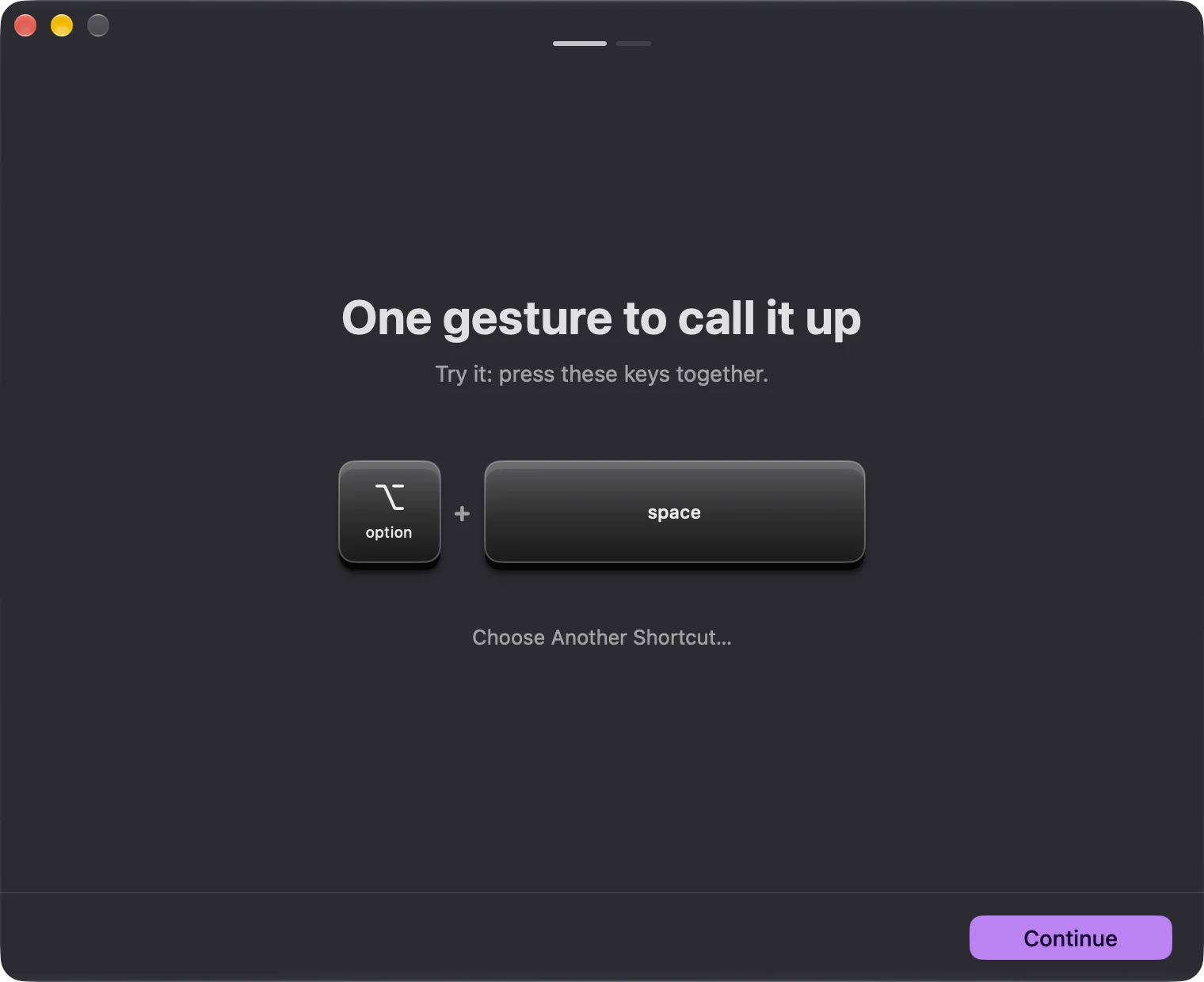
The other two shortcuts are only set in Settings.
If you’re stuck
⌥Space no longer opens the bar
Another app may already use it: free it in that app, or choose another shortcut for Aureole. It may also have been cleared: record it again.
My combination is refused with a beep
It includes none of the Command, Option or Control keys.
A message says the shortcut is already in use
By one of Aureole’s menus or by macOS. Choose another, or, if it’s macOS, keep it with the button provided.
I’d like ⌥Space back
Click the bar’s shortcut, then press ⌥Space.
Something missing from this guide? Tell us.