 Aureole
Help center›Converse
Give files, a window or a folder
In Aureole’s window, a question can draw on files, on the content of another window, or on a whole working folder. This guide shows how to give them, what Aureole does with them, and their limits.
- To attach a file: the paperclip , ⇧⌘O, a drag and drop onto the field, or a paste.
- Another window’s content is attached with the button next to it , without leaving Aureole.
- A working folder gives Aureole, for the whole conversation, a folder to search and work in.
Attach files
Click the paperclip , to the left of the field, or press ⇧⌘O, then choose one or more files. You can also drag them onto the field, or paste them with ⌘V, screenshots included:
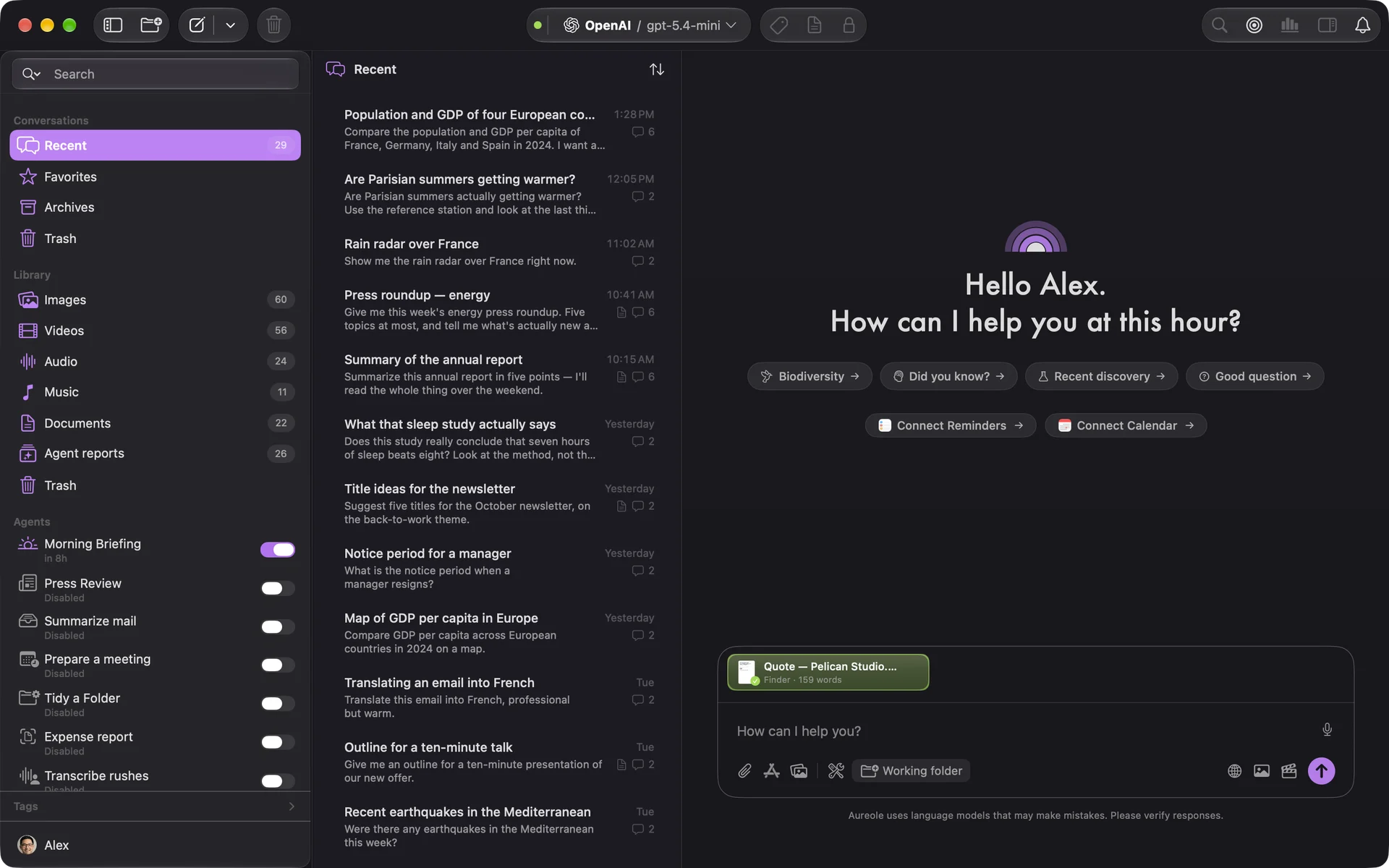
Each file becomes a chip above the field: click it to see its content, hover over it to remove it. Sending waits until every file is ready.
Depending on the model, an image, a PDF or a CSV table is sent as is to its provider; other files are read on your Mac, and their text is what goes. Aureole reads PDFs, Word, Excel, PowerPoint, Pages, Numbers and Keynote documents, text and Markdown, code, and images, among others.
A message accepts ten files at most, and a file read on your Mac can’t exceed 50 MB. A folder is attached the same way: Aureole reads up to one hundred of its files.
Attach a window’s content
The button next to the paperclip (“Add a window’s content”) lists your open apps; choose an app, then one of its windows:
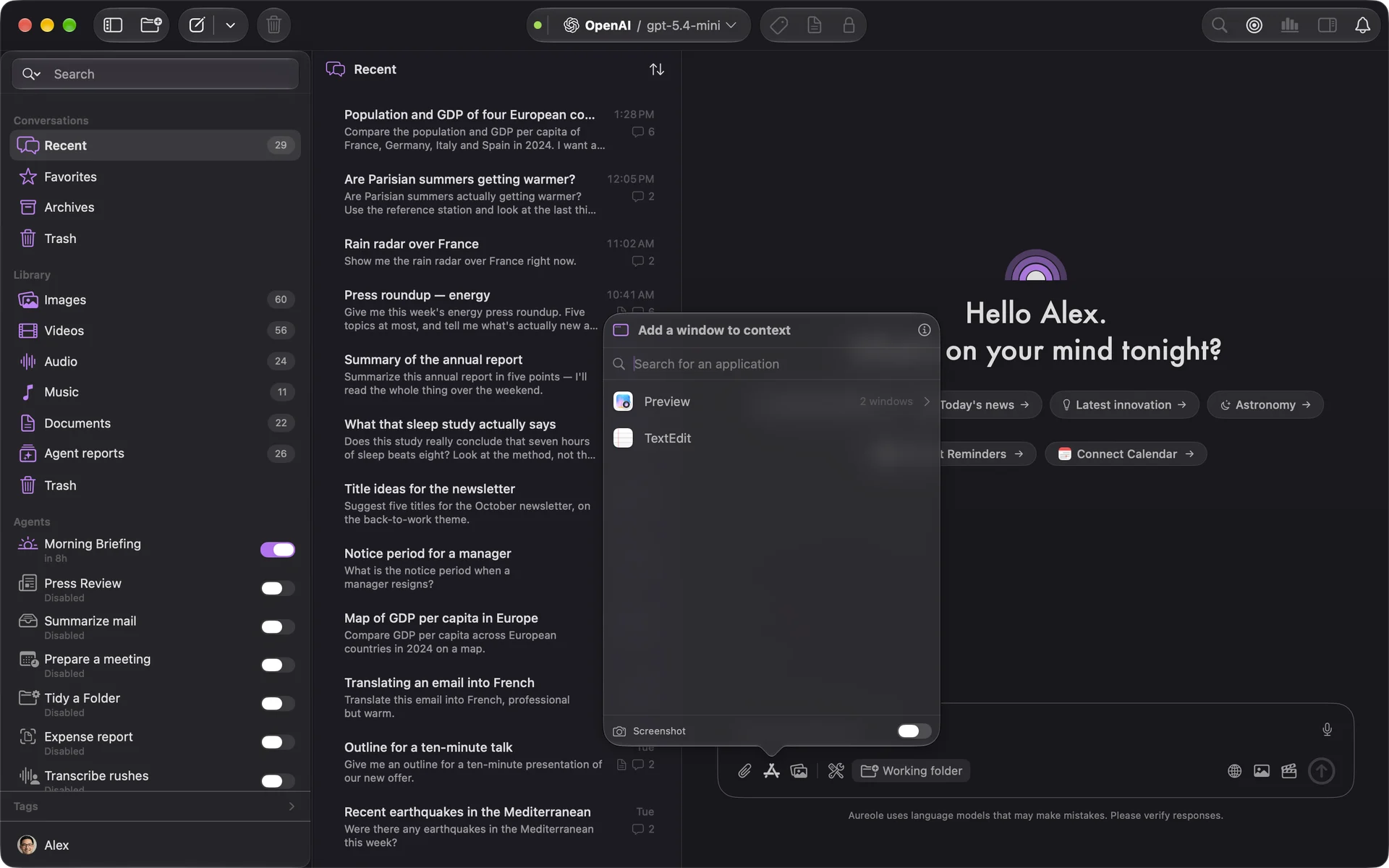
Aureole reads the window’s content and adds it to your message. The “Screenshot” switch, at the bottom of the list, also attaches an image of the window, this time only; left alone, it follows the “Window Screenshot” setting in Settings›Privacy, off at first. Window previews need the Screen Recording permission.
If you selected text in another app, a button offers it too, next to it: one click adds it to your message.
A working folder
The last button on the left, “Working folder”, gives the conversation a folder to work in: Aureole searches and reads your files there with its tools, following your instructions.
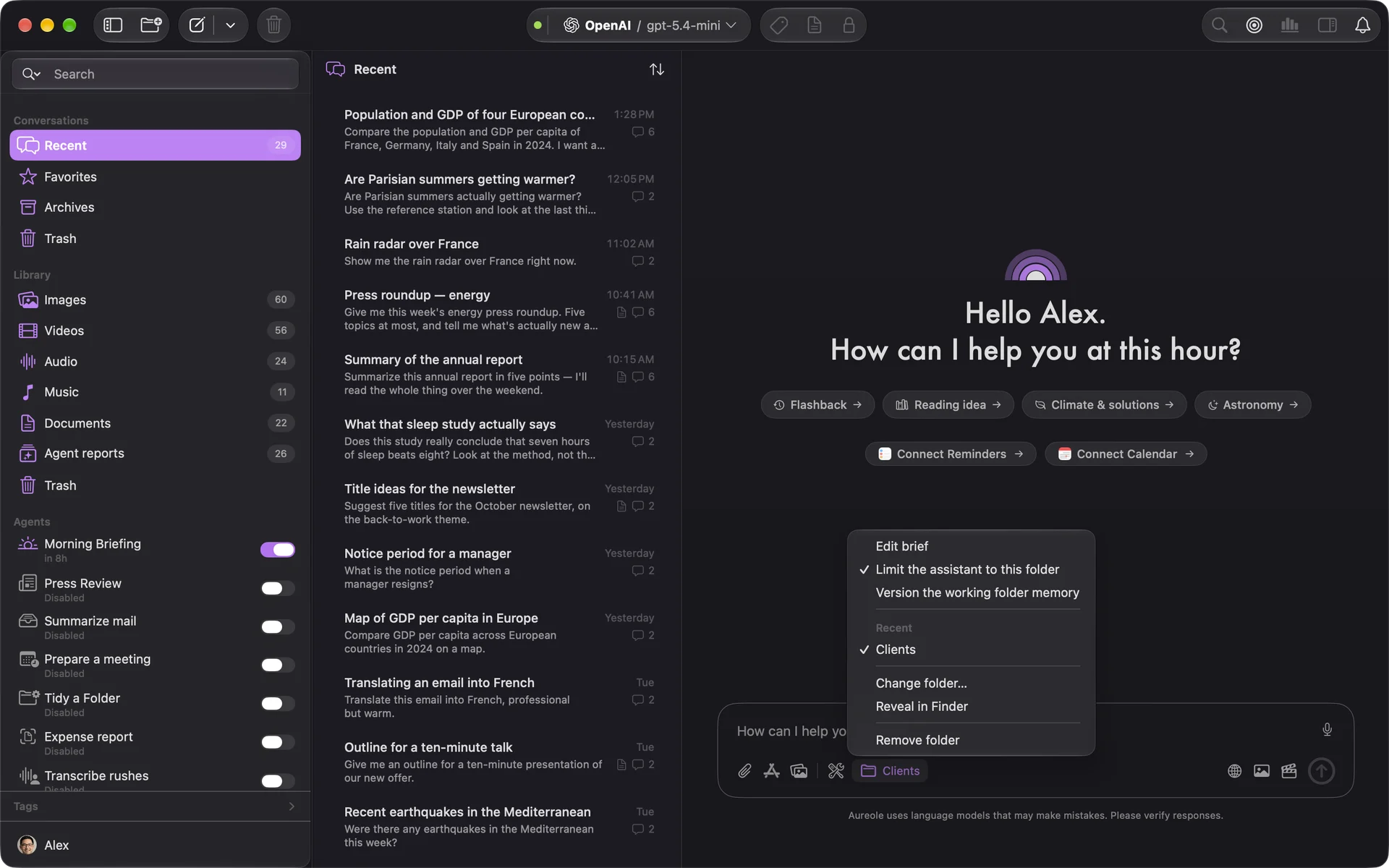
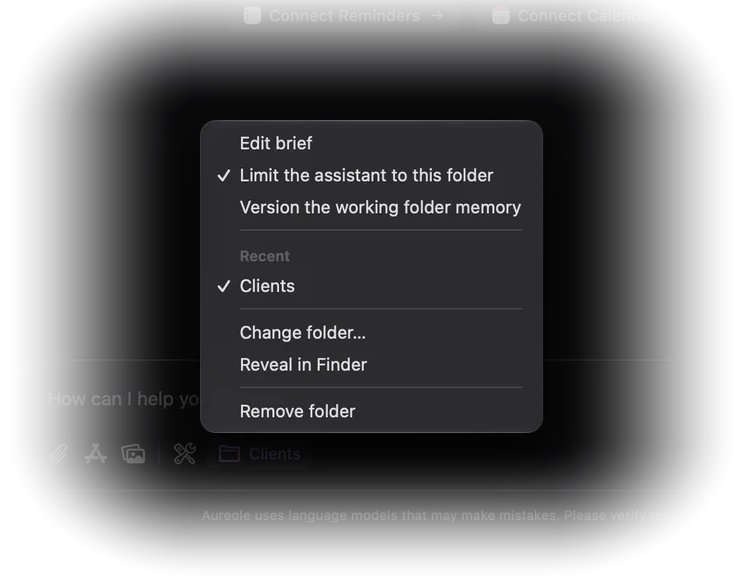
Once the folder is chosen, the button shows its name. Its menu offers “Edit brief”, “Limit the assistant to this folder”, “Change folder…”, “Reveal in Finder” and “Remove folder”.
The brief is an aureole.md file, at the folder’s root: your instructions for this project, read with every message. It travels with the folder.
“Limit the assistant to this folder”, on at first, asks it to stick to this folder: it’s an instruction, not a lock.
The folder applies to the conversation where you chose it; the last ten are offered under “Recent”.
If you’re stuck
Aureole refuses one more file
A message accepts ten files at most: send them in several goes, or attach their folder.
A file is too large
A file read on your Mac can’t exceed 50 MB. Attach part of it, or an excerpt.
A file isn’t supported
Its extension isn’t recognized: Aureole says so, with the list of refused files. Convert it, to PDF or text for example.
Window previews don’t show
They need the Screen Recording permission: see Settings›Permissions.
The selection button doesn’t appear
It requires “Enable text selection popover” to be on, in Settings›Aureole Popover. It also disappears when you switch to another app.
The working folder is marked with a triangle
The folder was moved, renamed or deleted: choose it again, or remove it.
Something missing from this guide? Tell us.